Setting Up Your PlayStation
Set up your PlayStation game console according to its Instruction Manual. Ensure the power is OFF before inserting or removing a compact disc. Insert the FINAL FANTASY TACTICS disc and close the Disc Cover. Insert a game controller and turn ON the PlayStation game console. Title Screen
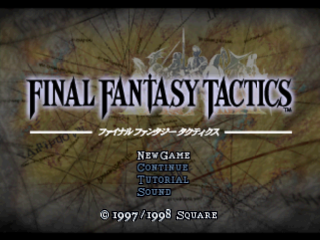
After the opening movie, the title screen will be displayed. If you let the game demo run, the history of the Lion War will be told, and various character Jobs and Monsters will be shown.
Press the START Button to skip any movies and return to the Title Screen.
•
NEW GAME: Select this to start a new game.
•
CONTINUE: Load a previously saved game.
•
TUTORIAL: Access game rules and instructions.
•
SOUND: Adjust sound settings.
Memory Card
FINAL FANTASY TACTICS allows you to save and load games using memory cards (sold separately). Insert memory card(s) into the PlayStation game console BEFORE starting play. Important: Do not remove a memory card while saving or loading games; doing so could damage the game data.
Starting a New Game
Selecting NEW GAME introduces the story and characters through the historian Alazlam. Afterwards, you can enter the main character's name and birthdate.
After completing this entry, the opening movie will play and the story begins.
Continuing a Saved Game
Selecting CONTINUE displays a screen for choosing the Memory Card slot. Select the slot with your Memory Card, then choose the data to load.
You can save up to 15 games on a Memory Card if there is no other data for other games.
Saving Game Data
It is recommended to save your game onto a Memory Card after each game session or battle. From the World Map Screen, press the ▲ Button to bring up the Main Menu.
•
Select DATA from this menu.
•
Select the Memory Card slot your Memory Card is inserted into and press the Button.
•
Select the block you wish to save your game progress to.
•
NOTE: one empty block is needed to save a game.
Enter the Adventure
Entering Name and Birthdate
When starting a game for the first time, you will be prompted to enter a name for your character. The default name is Ramza, but you can change it.
•
Use the Directional Buttons to highlight characters.
•
Use the Button to enter characters.
•
Use the Button to delete characters.
•
Use the START Button to confirm.
After entering your character's name, enter your birthdate on the next screen in a similar fashion, using the START Button to confirm. Your birthdate affects your Zodiac Sign, which influences your character's performance in battles.
Your First Skirmish
After the introductory movie and credits, the story begins at Orbonne Monastery. Press the START Button to skip the movie sequence.
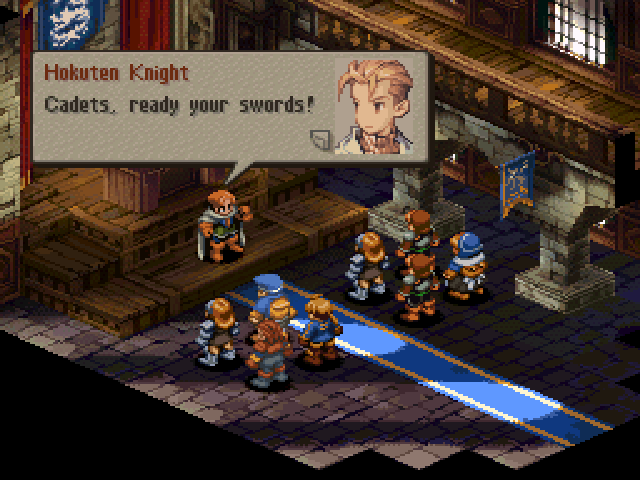
Press the Button to advance dialog screens during the story sequence inside the monastery. Afterwards, your character will enter their first battle.
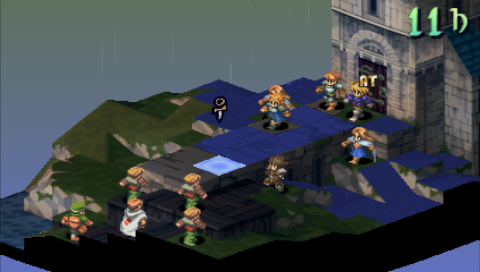
Much of this battle proceeds automatically, with ally and enemy characters moving on their own, allowing you to observe a battle sequence. You are only responsible for your own character's actions.
Even if you fall during this first battle, the story will proceed. At the end of the battle, you will be prompted to save before reaching the Formation Screen.
Flow of the Game
The story progresses as you move throughout the land and win battles.
•
From the Formation Screen, you can have Units learn new Abilities, change Jobs, etc.
•
Units (individual player characters) are gathered into an Attack Team.
•
Once your Units are ready, charge into battle.
•
During battle, each Unit (enemy and ally) can perform one action and one move per turn.
•
If you complete a battle successfully, a portion of the story is revealed and the World Map appears.
•
From the World Map, you can move to a town to purchase items, recruit allies, or enter new battles.
Forming an Attack Team
The attack team is a small group of Units (ally characters) that participates in a battle and is formed before each battle begins. An Attack Team contains up to 5 Units (excluding guest Units, which may be added automatically).
Each Formation Screen begins with a set of raised Panels on which characters can be placed. The Panels will be shaped differently depending on the battle location.
To Place a Unit:
•
Use the Directional Buttons to position the cursor over an unoccupied Panel.
•
Press the L1 or R1 Buttons until the desired Unit's portrait appears in the character window.
•
Press the Button to place that Unit on that Panel.
•
Continue this process until the Attack Team's capacity is filled.
•
A) Selected Unit's Portrait (press L1 or R1 to select other Units).
•
B) Selected Unit's Status.
•
C) Maximum number of Units which can participate in the battle.
•
D) Selected Panel (marked by †).
•
Press the Button twice to remove a Unit from a Panel.
•
Press the ▲ Button when an occupied Panel is selected to search for that Unit's Status Information.
•
Press the Button to bring up a Status Screen, which shows detailed Unit specifications.
•
Press the Button to close the Status Screen.
•
Press the START Button when ready to enter the battle.
Battle
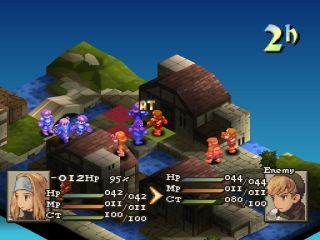
Each battle is a pivotal part of the Final Fantasy Tactics story. Your strategy in commanding Units to move and act determines the outcome. Before each battle, the winning condition for that stage is displayed. Once you fulfill the winning condition, you've cleared the stage (the condition varies for
.png)


 (Bonus Disc).png)