Getting Started
1. Set up your PlayStation® game console according to its Instruction Manual. 2. Check that the Console is OFF before inserting or removing a disc.
3. Insert the Koudelka disc and close the Disc Cover.
4. To reload a game or save a new game, insert a Memory Card into Memory Card slot 1 or 2. Before starting, make sure you have enough free memory blocks available to save a game.
5. Connect your Game Controllers and turn on the Console using the POWER button (ON). We recommend that you do not connect or disconnect peripherals or Memory Cards while the Console is turned on.
The Main Menu
After the opening video and title screen appear, you will see the Main Menu. Use the directional buttons to move through the menu selection, and press the Button to make your choice.
New Game
This selection will start a new game from the opening video sequence. Press to bypass the video and get straight to the gameplay.
Continue
Select this option to continue a previously saved game. Use the right and left directional buttons to switch between Memory Card slot 1 or 2 and press the Button.
Move between the saved games with the up and down directional buttons. When you have picked the game file you'd like to continue playing, press the Button to select it, and the Button one more time to confirm. Your game will load, and you can continue to play from the point you saved it at. The Button will move you back to the previous item or menu.
Config.
You can change your sound between Stereo and Mono from this menu, and turn the vibration function of your DUALSHOCK™ analog controller on or off. In addition, you can also see the default control configuration of the basic button functions here, and reassign the buttons if you so desire.
To change a button, use the up and down directional buttons to select the button you'd like to change and press the Button. Use the up and down directional buttons to select the button you'd like to swap commands with, and press the Button again. Repeat this until you have the controls set up just the way you want them.
Controller Notes
Throughout this manual, we will be using Button for the Confirm/Command button, and the Button for the Cancel/Go Back button. If you have changed your controls, please keep that in mind.
If you are using a DUALSHOCK™ analog controller:
•
Koudelka does not support the analog feature of the DUALSHOCK™ analog controller; make sure you are using your controller in the digital mode.
•
To reset the game from the controller, press and hold and simultaneously for two seconds.
The Flow Of The Game
In Koudelka, you take control of the title character as she searches for items and confronts enemies in Nementon Abbey.
•
Field Screen: The bulk of this action takes place here.
•
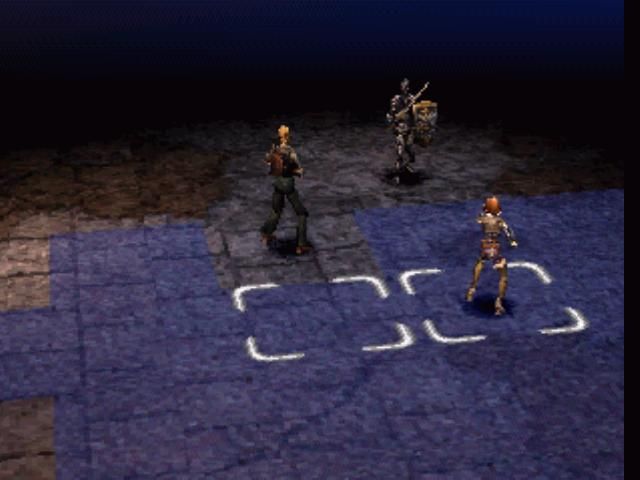
Battle Screen: You'll move here when Koudelka and her friends encounter enemies to fight them.
•
Menu Screen: You'll use this when you want to change the formation of your characters, or arm them with different weapons or use the items that you've found.
•
Event Screen: You'll be able to save your game data at certain points in Nementon Abbey and on most Event Screens.
Menu Screen Commands
Push the Button when characters are in the Field to call up the Menu Window, which gives you access to the following commands:
Deal
Select this command to have one of your characters use Healing magic. Once you've selected a magic-using character, you'll be prompted to pick the character you'd like to heal. If a character is at full health, their name will be grayed out.
Status
You can check the status of your characters here. L1 and R1 will switch between your characters. The upper part of the screen will display the character's level, current and maximum hit points, current and maximum magic points, and what equipment they are using.
The lower part of the screen shows the character's statistics, current experience, and how much experience is needed for the next level. There are three other sub-screens you can view by using the left and right directional buttons. They will show you what magic spells your character knows, the level of each spell, and how much experience the character has with each spell (there are two magic screens) and how much experience the character has with each weapon. Press the Button to move back to the Menu Screen.
Equip
Select Equip to arm or outfit characters with weapons, protective gear and accessories. Press L1 or to change characters, and use the up and down directional buttons to move between your equipment slots.
Press the Button to open the Equip menu for the selected slot, and use the up and down directional buttons to move between the items in your inventory. As you move through them, you can see the effect they will have on your character's statistics if you equip them. Press the right directional button to get a description of the item you are selecting. When you are satisfied, press the Button to confirm your choice and then the Button to move back to the previous screen.
Arranging Characters
When you are done arranging your characters, press the Button to return to the previous menu.
Read
This will allow you to read the contents of any letters, books or other written material you find during play.
Config.
This will bring you to the Configuration Menu.
Saving Your Game
There are a number of Save Points hidden throughout Nementon Abbey. When you step
 (Disc 1).png)


 [NTSC-U] [SLUS-01102].png)
 (Disc 3).png)
