Starting the Game
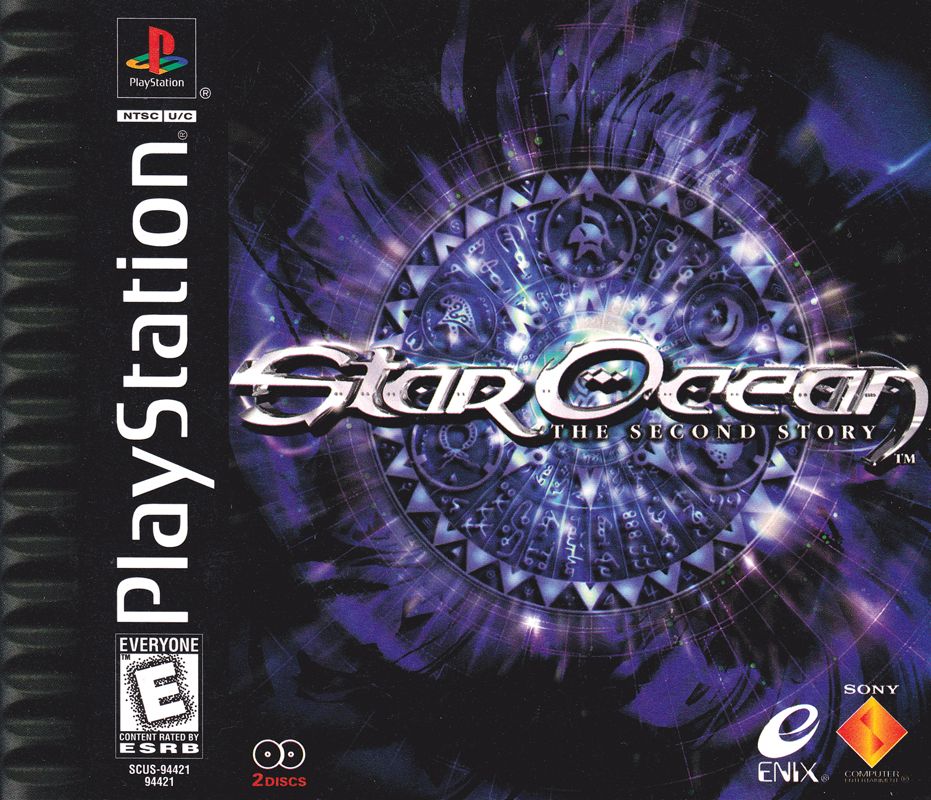
Set up your PlayStation game console according to its Instruction Manual. Make sure the power is OFF before inserting or removing a compact disc. Insert the STAR OCEAN The Second Story™ Disc 1 and close the Disc Cover. Insert a game controller and turn On the PlayStation game console. After the opening movie is completed, the Title Screen will be displayed. You can interrupt the opening movie at any time by pressing any control button.
Changing Discs
At certain times during the game, a screen will appear instructing you to insert the other STAR OCEAN The Second Story disc.
Without turning OFF the console, open the Disc Cover and insert the disc designated on screen. Close the Disc Cover, and you may continue your journey.
Console Components
Title Screen
To play for the first time, select "New Game."
Sound Select Screen
Customize the Sound Settings with either "Surround," "Stereo" or "Monaural." Select any setting to match the television set you are using or the Sound setup you currently have.
Select Vibration Screen
If you are using a Dual Shock™ Analog Controller, set the controller vibration function to ON.
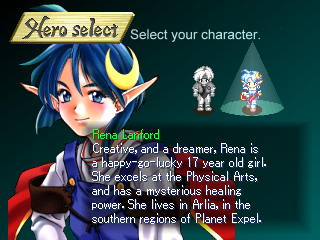
Hero Select Screen
Select either Claude or Rena as the main character. The story will play out differently depending on the main character you have selected.
Name Selection
You may change the name of the main character.
Battle Mode Screen
Customize the Battle Mode Setting with either "Standard," "Semi-Active" or "Full-Active."
Saving the Game
Insert Memory Card(s) (sold separately) into the PlayStation game console. Important: Do not remove a Memory Card while saving or loading games; doing so could damage the game data. To save the game in progress, select "Data" from the "Camp" screen. Then select "Save" from the "Data" menu.
You will then be asked to select a Memory Card Slot and a Save File. After doing so, the game will save your current data. Saving the game requires one free block of a Memory Card.
Note that you can only save your game at the designated "Save Points" in dungeons and anywhere in the Field.
Restarting the Game
To continue a game that you have saved previously, select "Continue" from the Title Screen. Select the Save File you want to load and then press the X button.
The Map Screen
You can do different things in the "Towns/Dungeons" and "Field" settings.
In the Field
In the fields outside of town, you will find plains, hills, mountains, seashores and a wide range of landscapes. You may find it convenient to follow paths that lead from town to town.
If you become lost, you can press the START button to display the world map; to see an enlarged version of the map, press the START button again.
In Town
In town, you will encounter all kinds of people. You can learn valuable information by talking to them (by pressing the X button near them).
You will also find various buildings, where you can go shopping or rest up.
Buildings in the Towns
Inns
Rest for one night to recover your HP and MP values. You will need to pay for your room. Although rest will cure the inability to fight, it will do nothing for status abnormalities.
Bars and Cafes
Here you will find customers and other members of your party (during Private Actions). Talk to them to get information.
Weapons and Armor Stores
Here you can buy Weapons, Armor, and Accessories. You should get the best weaponry available.
Restaurants
Here you can buy food. You can also talk to other customers to get information.
Skill Guilds
Each Skill Guild sells different types of skills. Each guild has three shopkeepers who will explain the skills.
Tool Stores
Here you can buy items that will be useful on your adventures. Be sure to drop by before going to the dungeons or elsewhere.
Shopping
To buy items, first talk to the shopkeeper. Move the cursor to the item you want and use the Directional buttons to set the quantity of that item to buy, then press the X button.
When you are asked "Settle accounts?" answer "Yes." Note that you can buy multiple items at once.
To sell items, a list of the items you currently have will be displayed. Move the cursor to the item you wish to sell and use the Directional buttons to set the quantity, and then press the X button to confirm.
The Three Battle Modes
Standard
This mode is for players who prefer traditional turn-based combat or for beginning RPG players.
•
Character movement: Hold down the Square button while pressing the Directional buttons. •
Targeting mode: Initially set to Manual. This can be changed using "Options" from the "Camp" screen.
Semi-Active
This mode is for intermediate players and for those who want a certain amount of freedom in movement. It is recommended that you get used to combat when playing in this mode.
•
Character movement: Hold down the Square button while pressing the Directional buttons. •
Targeting mode: Initially set to Semi-Auto. This can be changed using "Options" from the "Camp" screen.
Full Active
This mode is for experienced players who want an even higher degree of freedom in movement. Selecting this mode allows you to move freely over the battlefield.
One character could move away from the others and act as a decoy
 (Disc 1).png)

 [NTSC-U] [SCUS-94421].png)
 (Disc 2).png)

 (Disc 1).png)
.png)
.png)
 (Disc 2).png)