Main Screen Navigation
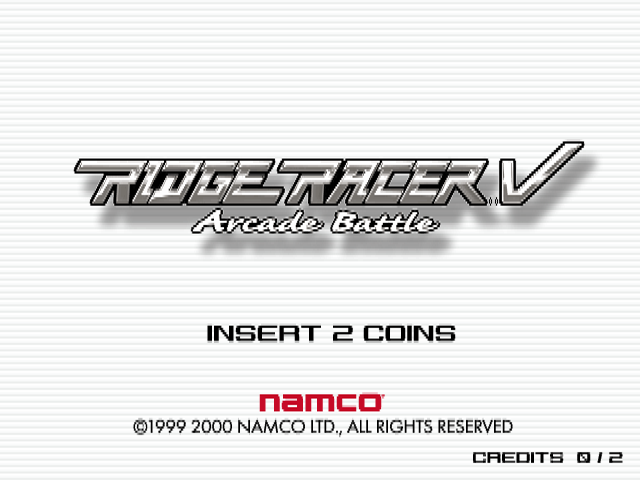
When you press the Start button on the title screen, the main screen will be displayed. Use the directional keys to select the desired mode, and press the ◎ button to confirm.
New Entry
You can set up to start a game. If you are playing the game for the first time, or if you want to start a new game, select this command.
For more details on "NEW ENTRY", please refer to page 6P.
Continue
If you have started a game and it is game over, you can resume the game from where you left off. If you select the command, the conditions set in "NEW ENTRY" will remain as they are, and the game will resume.
Load
To save and load "Ridge Racer V", please use a "PlayStation 2" dedicated memory card (8MB). If you have started a game and its contents are saved on a "PlayStation 2" dedicated memory card (8MB), you can resume the game from there.
Use the directional keys to select the file you want to load, and press the ● button to confirm. Saving and loading for anything other than VS is only supported in MEMORY CARD slot 1.
About Saving
Saving can be done from "FACTORY" (refer to 7P), which is the main part of the game. Select "SAVE" in the factory menu and follow the on-screen instructions to save.
VS
This mode allows two players to battle with the screen split vertically. You can choose one of two different conditions to battle. Please refer to page 23P for details.
VS save and load are supported in MEMORY CARD slots 1 and 2.
Option
You can change various game settings. Use the directional keys to select a menu, and press the ● button to confirm. The items that can be set and their contents are as follows.
Controller 1
Set the 1P controller. Follow the on-screen instructions to set the items using the directional keys, and press the ● button to confirm. The controller settings vary depending on the type of controller used.
Controller 2
Set the 2P controller. The setting method is the same as for the 1P controller. Follow the on-screen instructions to set it.
Sound Setup
Set the BGM (music) and SE (sound effects) that play during the game. Use the directional keys to select the item you want to set, and use the left and right directional keys to adjust it.
Finally, select "OK" and press the ◎ button to confirm, and the settings will be reflected.
Adjust Screen
Adjust the screen position. Use the directional keys to move the screen frame and adjust its position.
Brightness
Adjust the brightness of the screen. Adjust the brightness of the TV itself so that the mark in the center of the screen is easy to see.
Music Player
You can listen to the BGM that plays during the game. Use the left and right directional keys to select a song, and press the ● button to switch ON/OFF repeat.
Exit
End the mode and return to the main menu.
New Entry
Set up to start the game. Once the settings are complete according to the steps below, the player's factory (activity base) will be established.
Entry Procedure
1.
Set difficulty
Set the game difficulty. There are three difficulty levels: "HARD (Difficult)", "NORMAL (Normal)", and "EASY (Easy)". Use the directional keys to select one, and press the ● button to confirm.
2.
Decide team name & driver name
Decide the team name and driver name. Use the directional keys to select any character, and press the ● button to confirm. The team name can be up to 16 characters, and the driver name can be up to 8 characters. After entering the names, press the start button to register the team name.
3.
Decide car body color
Decide the color of the car body that the player will operate. Use the directional keys to select the desired pattern, and press the ● button to confirm.
4.
Establish Factory
Register your team with the settings you have made so far. If there are no mistakes in the settings, select "YES", and if you want to redo the settings, select "NO" and press the ● button to confirm. Once registration is complete, the player's activity base, the factory (see P7), will be established.
Factory
The factory, which is the base of operations, is the main part of the game. Use the directional keys to select a menu, and press the button to confirm.
Race
As the name suggests, you can race. By meeting certain conditions, the types of cars and courses will increase.
Design
You can freely design team names and car coloring (freedom changes with game progress).
Garage
You can view the cars and engines your team has acquired. You can also check the trophies and medals you have earned by achieving good results in races.
Record
You can check various records related to races.
Save
Save the game data up to this point. Specify the file to save to, and press the ◎ button to confirm to execute the save.
Option
You can change the screen, sound, and controller settings. The contents of each item are the same as "OPTION" on the title screen.
Exit
Exit the factory and return to the main screen
.png)

.png)



_1.png)
_1.png)

_1.png)

_1.png)
_1.png)

_1.png)
.png)

_1.png)
_1.png)


_1.jpg)
