Miniature Golf
The long-awaited Miniature Golf from the very first Hot Shots Golf is back. Playing a round with nothing but a putter combines the tension of golf with the strategy of pool. This mode is sure to satisfy die-hard fans and newcomers alike, and it might even help with your putting skills!
Hot Shot Club for Beginners
The Hot Shot Club makes Hot Shots Golf easier for first-time players. It doesn't offer a lot of distance, but you'll hit good shots by simply selecting where you want the ball to go and how hard to hit it.
After practicing with the Hot Shot Club, you can choose from a wide variety of advanced clubs and balls for a more challenging round.
Online Play
Share your Hot Shots Golf experience with friends and other fanatics through online gameplay. Play a round with your best friend in 'Rival Mode' or compete in "Online Tournament Mode" to compare your skills with players across the nation.
Getting Started
•
Set up your PlayStation®2 computer entertainment system according to its instruction manual.
•
Make sure the MAIN POWER switch (located on the back of the console) is turned ON.
•
When the power indicator lights up, press the open button to open the disc tray.
•
Place the Hot Shots Golf® FORE! disc on the disc tray with the label side facing up.
•
Press the open button again to close the disc tray.
•
Attach game controllers and other peripherals as appropriate.
•
Follow on-screen instructions and refer to this manual for software information.
Memory Card (8MB) (for PlayStation®2)
To save game settings and progress, insert a memory card (8MB) (for PlayStation®2) into MEMORY CARD slot 1. You can load saved game data from the same memory card or any other compatible memory card.
Your First Game
The first time you play, play data must be created to store your progress and results.
•
Insert a Memory Card (8MB) (for PlayStation®2) with at least 750KB of free space into MEMORY CARD slot 1.
•
Select "New Game" from the title screen.
•
Choose a slot to save the play data.
•
Select "OK" to continue to the main menu.
You cannot save any play data without a Memory Card (8MB) (for PlayStation®2).
Continuing a Game
To use your saved play data and pick up where you left off:
•
Insert the Memory Card (8MB) (for PlayStation®2) with the saved data into MEMORY CARD slot 1.
•
Select "Continue" from the title screen.
•
Choose the play data you wish to load and continue to the main menu.
Playing Online
See pages 21-24 for instructions on how to play Hot Shots Golf FORE! online with other fans.
Main Menu
The main menu features the following choices:
•
Single Player (p. 17): Play a solo round of golf. Game results will update player stats.
•
Multiplayer Golf (p. 20): Play golf with up to 4 of your friends.
•
Data (p. 26): View scores, Super Shot movie playback, and any obtained items or characters.
•
Shop (p. 19): Use your Hot Shots Points to buy items.
•
Options (p. 29): Change various game settings and save or load your play data.
Getting More Characters
Win a Normal game in Single Player VS mode to be able to play as that character. Win a Hard game to get costumes for that character. Earn more costumes by increasing Attachment.
Hot Shots Rules
If you have the Hot Shots Rules item, you'll be able to select Hot Shots Rules from the Final Review screen. This includes new options like "Rough + 2 strokes" and "No Backspin".
Playing A Round
Player Select
In any Multiplayer Mode, you first select the number of players and their controllers. Up to 4 people can play without a Multitap (for PlayStation®2) by connecting controllers to both console ports and taking turns.
Hot Shots Points
Your performance in Single-Player Mode earns you Hot Shots Points, which are used like money. Rack up fairway hits, birdies, and other good shots for more points, but watch for bunker shots and other flubs that will cost you.
Getting More Courses
Increase the number of selectable courses by raising your rank in Single Player Tournament Mode or by buying them in the shop.
Mastery Level
Mastery Level measures your experience and increases as you conquer each course. It's based on the best score on all holes of a course. If that best score is a birdie or better on each hole, the course's Mastery Level will increase.
Keep raising your best scores. When a course's Mastery Level reaches a certain point, you'll be able to select Mirror course, Back Tees, and Expert mode from the course select menu. Mastery Level is calculated separately for each tee type (regular or back tees).
Course Selection
•
Use the directional buttons to select a course to play.
•
Use the L1 and L2 buttons to choose the number of holes.
•
Use the R1 and R2 buttons to choose the season.
•
After setting these options, press the button to confirm your course selection.
Camera Control
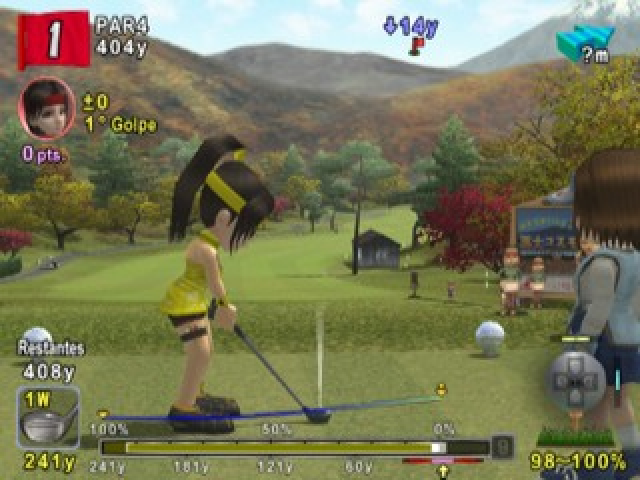
Before taking your shot, you can check course conditions from different viewpoints. For


_1.png)




_1.png)

_1.png)










.png)