Starting the Game
NEW GAME
•
Insert the Game Pak in your Game Boy correctly and turn on the power. The Title screen will be displayed.
•
Hit any button to advance to the Menu screen.
•
Once the Menu screen has been displayed, select "New Game" with the Control Pad (Up/Down), press the A Button or START, and enter your name.
CONTINUE
•
When launching a game from saved data, select "Continue" with the Control Pad (Up/Down), and press the A Button.
•
The Load screen will be displayed, and information on previously saved data is displayed.
•
If only one saved game is on file, the Load screen will not be displayed and the saved data will be loaded automatically.
Button Controls
•
Control Pad (Up/Down): Data selection
When there is no game data saved in the backup RAM, or when saved data is damaged and there is no correct data available, the game defaults to "New Game" mode.
Player's Home
The player's family consists of the player himself, his mother (Wreath), and his younger sister (Weedy).
Wreath's functions
Weedy's function
•
Letting the player see the monster book
A monster stable (where familiars are kept) is located to the back of the room.
On Storing and Withdrawing Items from the Safe
Items collected in the Tower or bought at the store may be stored in the safe. Up to 20 items may be stored.
Items stored in the safe do not disappear even when the player passes out during an adventure.
Button Controls
•
START: View item information
•
SELECT: Toggle between possessions and safe
Monster Stable
Monsters and eggs both collected in the Tower and bought at the store may be kept in the monster stable.
In addition, the monster stable is a place to add monsters and eggs kept there in the player's possessions.
The number of monsters and eggs that may be stored can be increased by contracting the carpenter.
Examples
•
M.Stable Items Keuse Take Status
•
M.Stable Items Kewne Harm Brine Keune Putback Status Place Discard
•
▲Take the familiar along.
•
▲Return the familiar to its stall.
Button Controls for Character Input
•
SELECT: Toggle between monster stable and bag
Monster Book
The Monster Book lists the monsters so far collected.
Contents Page Button Controls
•
Control Pad Up/Down: Scroll items
•
Control Pad Left/Right: Turn page
•
A Button: Display Book page
Contents Page/How to View Screen Display
•
Monsters previously fought: Number → Name
•
Monsters previously kept as familiars: ★ mark → Number → Name
Pages in the Book Button Controls
•
A Button: Return to Contents
•
SELECT: Switch between first and second page
Screen Display Explained
•
Monsters previously kept as familiars (Monsters received or hatched from eggs): Species/Picture + Explanations
•
Monsters previously fought: Only the species and the picture are displayed.
Getting Ready to Enter the Tower of Monstrosity
The door into the Tower of Monstrosity is protected by a mysterious power, barring the player from carrying in more than five items and familiars combined.
Tower Interior
The player must search the dungeon once inside the Tower. Collect the variety of items and monster eggs that can be found in the dungeon to make your familiar stronger.
Be cautious in your search however: the Tower of Monstrosity is filled with hostile monsters and a number of invisible traps. If the player loses consciousness during a search, he is forcibly returned home and all possessions collected in the dungeon will be lost.
Items stored in the safe and eggs kept in the Monster Stable will not disappear.
Button Controls
•
Control Pad: Player controls, cursor movement, etc.
•
B button + Control Pad: Player controls (Run)
•
A Button: Attack; Enter selection
Window Screen
Push START during a dungeon search or a battle to display the Window (Menu).
Button Controls
•
Control Pad (Up/down): Item selection
•
A Button: Enter selection
Viewing the Possessions Selection Screen
This screen displays the items, eggs and familiars in possession and allows the player to use them.
Select the item to use with Control Pad (Up/Down), and open the Possessions Selection Menu using the A Button.
Make an appropriate selection from among the menu items, and enter with the A Button. Use the B Button to cancel.
In addition, explanations on items and other possessions may be viewed by pressing START. Up to 20 possessions may be kept.
Button Controls
•
Control Pad (Up/down): Item selection
•
A Button: Enter selection
How to View the Status Screen
Status Window: View the player's status.
•
Level of the Player: LV 102
•
Experience Points: EXP MAX
.png)

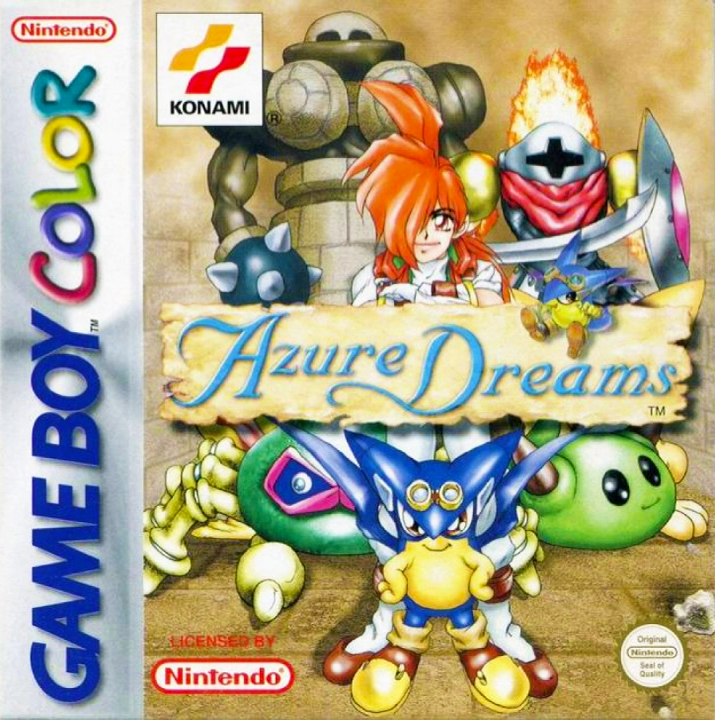


 (En,Fr,De) (SGB Enhanced) (GB Compatible).png)
 (SGB Enhanced) (GB Compatible).png)
