Getting Started
INSTALLATION
1. Set up your PlayStation® game console according to the instructions in its instruction manual.
2. Make sure the power is off before inserting or removing a compact disc.
3. Insert the Motocross Mania 2 disc and close the disc cover.
4. Insert game controllers and turn on the PlayStation® game console. Follow on-screen instructions to start a game.
Console Top View
Console Front View
Introduction
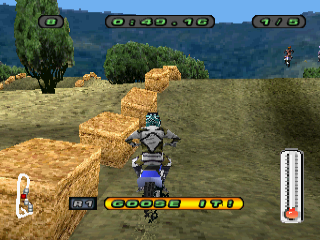
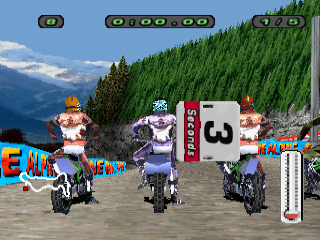
Motocross Mania 2 is an all out dirt bike thrash. With Arcade you can get right into the action. Whether you want just a quick race or the full Career treatment, it's all here.
Main Menu
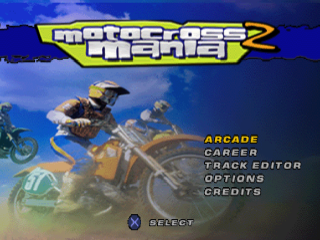
The Main Menu is where you can choose game modes and access the Options screen.
•
ARCADE: This allows you to select a track, skill level and bike so you can get into the action right away.
•
CAREER: Choose to compete in a Motocross Championship progressing through each of the three difficulty levels.
•
TRACK EDITOR: Create and race your own track. And, you can save it too!
•
OPTIONS: See the Options Section.
•
CREDITS: See who all the great people are who worked so hard to bring you Motocross Mania 2.
Arcade
In ARCADE you have the following options: Select SINGLE RACE, PRACTICE, OR RECORDS.
SINGLE RACE
•
1 OR 2 PLAYERS: Choose between 1 or 2 players. (2 Players option is only available if 2 controllers are connected to the console.)
•
Select GENDER: Choose between Male and Female.
•
LEVEL OF DIFFICULTY: Choose between Amateur, Semi Pro and Professional levels of difficulty.
•
Select TRACK to race: Choose between 16 different tracks for each level of difficulty.
•
Select NUMBER OF LAPS: Choose between the options presented.
•
Select BIKE: Choose the bike to race. Select from 5 different bikes in the 125cc class for Amateur and Semi-Pro. Select from 5 different bikes in the 250cc class for the Professional levels.
•
Select BIKE SETUP: Adjust Suspension, Exhaust and Brakes.
•
RACE: Select to race the track.
PRACTICE
This option allows you to make the same selections as in Single Race but without having to race against any opponents.
RECORDS
This option allows you to view the best course records and lap records for each track.
Career
In CAREER you race, bump, jump and grind your way through an entire championship. The following options are available to the racer:
•
Select NEW RIDER or LOAD RIDER. If you select LOAD RIDER, then you will be able to load previously saved rider information.
•
After selecting NEW RIDER, you will be asked to enter a name. Use the up and down directional buttons to enter letters or numbers in the name. Use the left and right directional buttons to move the cursor, and to add a space.
•
Select GENDER: Choose between Male and Female.
•
Select BIKE: Choose the bike to race. As you move from Amateur to Semi-Pro and from Semi-Pro to Pro, you will have the opportunity to select a different bike to race. You may check a bike's specifications by highlighting a bike and pressing the button. After highlighting the bike you desire to race, press the button to advance.
•
You are asked to confirm your BIKE selection on the next screen. Select YES or NO.
From the CAREER screen, you can:
•
QUIT: Allows you to exit Career and return to the Main Menu.
•
SAVE DATA: Available only after each race.
•
PLAYER STATS: Displays your bike, Career Data (# of Wins and Rank) and difficulty level.
•
START/RESUME CAREER: Select to advance to the SERIES screen with the following options:
•
End Series: Allows you to quit the series.
•
NOTE: When you quit a series, you will begin again at the next race in the series.
•
Save Data: Available only after each race.
•
Series Stats: Displays the standings (Points and Wins) of each rider.
•
Bike Specs: This screen displays your bike's specs that you cannot adjust. Depending on your level of experience, you may see the bike's engine, exhaust, suspension and/or tires specs on this screen.
•
Bike Setup: Adjust the bike's brakes. And, depending on your level of experience, you may also be able to adjust the bike's engine, exhaust, suspension and tires.
•
Practice: Allows you to race the track without opponents. Lap time is displayed but number of laps is not. You may practice for as long as desired. Press the Start button then Quit to return to the Series screen.
•
Start Race: Select to race the next track in the series.
Track Editor
In TRACK EDITOR you have the following options:
•
CREATE TRACK: Create a Race Track, then piece together your desired track.
•
EDIT TRACK: Allows you to edit or change the Tracks you have created.
•
LOAD TRACK: Load Tracks from the MEMORY CARD.
•
SAVE TRACK: Save the Tracks that you create! You can save 16 different Race tracks.
.png)



.png)
_1.png)


_1.png)