Welcome to Point Blank!
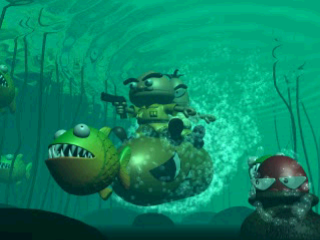
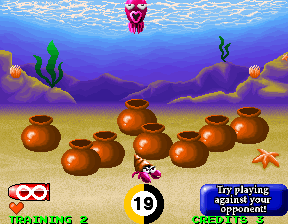
Join Dr. DAN and Dr. DON on a wild hunting trip. This PlayStation exclusive version of POINT BLANK™ offers five different modes of play, including a training mode. You can enjoy all stages of ARCADE mode (a conversion of the original arcade game) and SPECIAL mode (with all-new stages for PlayStation), both for two players. There's also PARTY PLAY mode for up to seven players, and QUEST mode, a Role Playing Game for one person featuring Dr. DON and Dr. DAN. Over the next few pages, you will learn how to get the most from POINT BLANK™ using either a Controller or the G-CON45™. Pay attention to the instructions for setting up your game and peripherals.
Setting Up
Set up your PlayStation™ according to its Instruction Manual. Insert the POINT BLANK™ disc and close the Disc cover. Turn the PlayStation™ ON at the POWER button. It is advised not to insert or remove peripherals or Memory cards once the power is turned on. Make sure there are enough free blocks on your Memory card before commencing play. Memory cards are only supported in Memory card slot 1.
How to Connect a G-CON45™ to Your Console
The G-CON45™ comes with an adapter to enable its connection to your PlayStation™. When connecting G-CON45™ light guns, you need to connect the yellow video-input plugs in series to the VIDEO OUT port at the back of your Console. If you experience any problems, please call your country PlayStation™ customer service care line listed in the back of this software manual. Choose Your Language
When you start POINT BLANK™, you can choose which language to display.
•
To select a Language with the G-CON45™: Pull the Trigger to scroll through available Languages (English/German/French) and press the A or B button to confirm.
•
Using a Controller: Press the X button to scroll through available languages, then press the O or A buttons to confirm.
How to Play Using the G-CON45™
NAMCO developed the highly accurate G-CON45™ light-gun for unprecedented realism in arcade-style games at home.
•
The button on the left is the A button.
•
The button on the right is the B button.
G-CON45™ Controls
•
Menu screens: Cancels commands
•
In-Game: Advances to next screen
•
Menu screens: Cancels commands
•
THE TRIGGER (SHOOT AT THE SCREEN)
•
Menu screens: Confirm selections
To exit the game, press the B button to access the PAUSE menu. Then press the A-button, B-button, and the TRIGGER all together. The screen will ask if you want to exit. Simultaneously press all three buttons again to confirm, or press the B button again to return to the PAUSE menu.
Warning!
The G-CON45™ is not a weapon; it is a highly sensitive light peripheral for use exclusively with PlayStation™. NAMCO accepts no liability for damage if this product is used with anything other than a TV game. Care When Using This Equipment With a Television
This product cannot be used with the following TV equipment (check with your television manufacturer):
•
TV monitors with an LCD display (LCD TV, LCD Projector, etc.)
•
Hi-Vision TVs, Hi-Vision Easy Reproduction TVs, Hi-Speed TVs, 100 Hz
•
TVs which have been magnetized (altering the colors), and some old-type TV sets
•
Small-screen TVs (less than 10") and some wide-screen TVs
•
Projection TVs (the screen may burn)
•
TVs which have a screen-memory function
How to Play Using a Controller
•
Directional buttons: Aim
•
ON ALL SCREENS: Cancel commands
•
MENU SCREENS: Advance to next screen
•
MENU SCREENS: Confirm commands (Shoot)
•
TITLE SCREEN: START the game
Set Your Sights!
When starting a game, you need to set the G-CON45™ sights. You can do this on the G-CON45™ SETTINGS screen when you first begin, or through the G-CON45™ SETTINGS screen in the CONTROLLER option on the OPTION menu.
If you start a game without setting the sights, your aim may be off, so it's always better to check beforehand. Refer to the information about the G-CON45™ CONTROLLER screen for how to adjust the sights.
If there are no special notes attached to the command, just shoot the command on the screen! To leave the command screen, shoot EXIT or press the A button or B button to cancel.
Using the G-CON45™ Settings Screen
1. Turn on the game and shoot OPTION, then shoot CONTROLLER.
2. Shoot the G-CON45™ graphic in the upper part of the screen.
3. A target will appear in the middle of the screen. Aim at the center of the target and shoot.
4. When you shoot, a mark appears (1P = red mark, 2
.png)






.png)

.png)

_1.png)

.png)
.png)
.png)
_1.png)
_1.png)
_1.png)

_1.png)
.png)

_1.png)
_1.png)


_1.jpg)
