SINGLE RACE
To select your rider's name, use the directional buttons to highlight a letter and press the button. Press the button to erase letters. When finished, highlight 'END' and press the button.
Difficulty
This screen allows you to select the difficulty of your race. You can choose between 'Unlicensed', 'License A', and 'License B' difficulty settings.
•
Novice: Steering assist is on, braking assist is on, and damage is off.
•
Amateur: Steering assist is on, braking assist is off, and damage is off.
•
Professional: Steering assist is off, braking assist is off, and damage is on.
'License A' and 'License B' modes are initially unavailable. To enable racing in these modes, you must complete the appropriate 'Skill Tests'.
After selecting your difficulty, you will proceed to the 'Choose Laps' screen.
Choose Laps
This screen lets you choose the length of your race. You can select between 3, 5, or 10 laps, or a full race of 100 kilometers. Once you have made your selection, you will proceed to the 'Choose Track' screen.
Choose Track
From here, you select the track you wish to race on. Sports Superbike 2 features a total of 15 tracks across many different countries. Many of these tracks are only available when all championships are completed at each of the game's difficulty settings.
You will then proceed to the Race screen. This screen displays an icon showing the weather conditions of your race. Wet weather (represented by a raindrop) is not available in 'Novice' mode.
Race
Choose either 'Start Race' to proceed to the Qualifying session for your chosen track or 'Setup Player 1 Bike' to change your bike's setup before a race.
•
Start Race: Advance to the qualifying stage of the race.
•
Setup Player 1 Bike: Advance to the 'Workshop' screen to customize the settings of your bike.
Workshop
This option allows you to alter the settings of your bike for maximum performance. Highlight and change selections using the directional buttons.
Your bike setup for every track can be saved to the memory card when you save the game. This allows you to have different setups stored depending on whether a particular track is slow and windy or fast with long straights.
To reach other setup options in this menu, highlight the Menu heading (displayed in capital letters) and press the directional buttons to move between menus. Press the button or the button to confirm any changes you make and return to the 'Race' screen.
•
GEARBOX: Choose between 'Automatic' or 'Manual' gears.
•
GEAR RATIOS: Choose one of 21 different sprocket sets to vary the performance of your bike through the gears. You can select between very tight gear ratios to give your bike high acceleration but a lower top speed, or you can choose more open gear ratios to give you lower acceleration, but with a higher top speed. For maximum performance, you will need to experiment with these ratios to find the ideal settings for each race.
•
NOTE: Use tracks to test the effectiveness of your gear ratios. Your bike should ideally be able to reach top speed on the longest straight of any given track, for gear ratios to be truly effective.
•
TYRES: Select between 'Hard' and 'Soft' tyres. Soft tyres give more grip but wear out quickly, making them ideal for qualifying. 'Hard' tyres grip the road less efficiently, but wear far more slowly, making these more suitable for full races.
Starting a Race
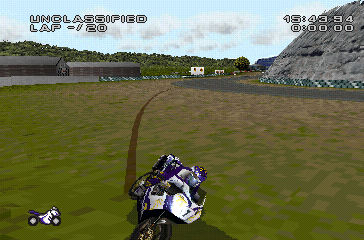
Once you have changed your setup, press the button to return to the 'Race' screen. Select 'Start Race' to proceed to your chosen track. You will then be taken to the Sports Superbike 2 Qualifying session.
Qualifying is vital (especially in License A and License B modes) if you wish to do well in a race. Failure to qualify will result in starting a race at the back of the grid, making it hard to compete effectively. Your first "out lap" does not count as a qualifying lap, just like a real race.
If you wish to skip Qualifying, press the START button to access the Pause menu and then select 'Abandon Session'. You will then be able to access the full race.
Pausing the Game
Once in a race, you may access the pause menu at any time by pressing the START button. This menu features the following options, which can be selected by pressing the button:
•
Continue: Resume the race.
•
Restart: Restart the race back at the grid.
•
Abandon Race: Cancel your race and return to the 'Choose Track' menu. 'Abandon Session' replaces this option during qualifying.
•
Controller 1 Vibration: Toggle this between ON and OFF using the directional buttons. This option is only compatible when playing with a DUALSHOCK® analog controller. In '2 Player Race' and '2 Player Championship' modes, player 2 is also able to select this option.
CHAMPIONSHIP
Select 'Championship' at the Main menu. Next, proceed through the 'P1 Enter Name', 'Difficulty', and 'Choose Laps' menus as instructed in the '1. SINGLE RACE' section of this manual. You will then arrive at the 'Choose Champ' menu, where you must select the championship you wish to complete.
Initially, you may only access the Tundra Trophy. After completing this in Unlicensed mode, you will then be able to access and complete the other championships in the following order: Mexican Rally, Countryside
.png)

.png)

.png)
.png)
.png)
.png)
_1.png)



_1.png)