Console Top View
•
POWER BUTTON/RESET BUTTON
Console Front View
Alternate Console Top View
Alternate Console Front View
Setting Up Your Console
Set up your PS one™ or PlayStation® game console according to the instructions in its Instruction Manual. Make sure the power is off before inserting or removing a compact disc.
Insert the Ultimate Brain Games disc and close the Disc Cover. Insert game controllers and turn on the game console. Follow on-screen instructions to start a game.
About Ultimate Brain Games
Welcome to the most comprehensive and feature-rich compilation of classic brain challenges ever available for electronic gaming.
An effort has been made to provide you with all required instructions within the game by using PC-style menus, HELP features, and HOW TO PLAY information. Always look for on-screen prompts and described button actions.
Title Screen
•
Press START BUTTON to access the Main Menu.
Main Menu
•
Select Game: Choose which game you want to play.
•
MultiPlayer: You play against a friend.
•
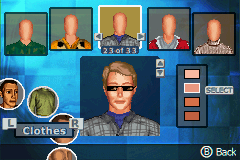
Face Creator: You can design your own likeness to appear within the game.
•
Options: Lots of adjustments to allow you to configure your game to your taste.
In-Game Menus
Once you have configured the basic set-up of your game to your satisfaction, you will select the game you want to play. Once inside the selected game, you can access the PC-style menus for more detailed configuration by pressing the SELECT BUTTON.
Move the DIRECTIONAL BUTTONS right or left to select the menus for Preferences, Game, or Help. Move the DIRECTIONAL BUTTONS down or up to select the sub-menus for the primary menu. Follow on-screen prompts to select an item, go back, or resume the game.
Menu Options
In-Game Action
•
X BUTTON: select piece or position
•
A BUTTON: cancel selection
•
DIRECTIONAL BUTTONS: control the cursor
•
START BUTTON: pause the game
•
SELECT BUTTON: access in-game menus
.png)

.png)
.png)

.png)
.png)


.png)
_1.png)

.png)