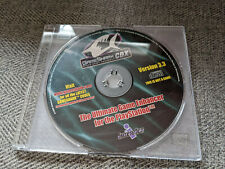
GameShark CDX Overview
GameShark CDX is a menu-driven game enhancer. It allows you to select enhancement codes for your games without re-entering them each time.
This device is designed to enhance your gameplay and allows you to create your own codes.
Adding New Codes
Adding new codes is quick and easy. You will need a PlayStation memory card. If you don't have one, visit www.gamesharkgear.com to purchase one and other gaming accessories. Start-Up Instructions
•
Make sure a game controller is inserted into Controller Port #1 on your PlayStation console. •
Open the lid on your console and insert the GameShark CDX CD.
•
Close the lid and press the power button on your console.
Main Menu
The Main Menu has 4 items:
Use the D-Pad to highlight an item, then press the X button to select it.
Start Game Menu
Selecting "Start game" from the Main Menu brings you to the Start Game Menu with these choices:
Use the D-Pad to highlight an option, then press the X button to select it.
Option 1: With Codes
This option starts the game using enhancement codes chosen from the Game Select menu. You will be prompted to remove your GameShark CDX and insert the game CD.
Option 2: Without (Codes)
This option starts your game without any enhancement codes. The game will play as normal. You will be prompted to remove your GameShark CDX and insert the game CD.
Option 3: Main Menu (Start Game Menu)
This option takes you back to the main menu.
Adding New Codes
To add new codes, first insert a regular memory card into one of the memory card slots on your PlayStation. We recommend a spare memory card specifically for saving codes. You must then add the game title if it's not already in the pre-loaded list. Adding a Game Title
•
Choose "Select Game" from the Main Menu and press X.
•
Select "New Game -" and press X to confirm. The Add New Game Menu will appear.
•
Use your D-pad to select characters (letters, numbers, symbols) for the game name.
•
Press "Select" on your controller.
•
Select "SAVE" and press X to confirm. This saves your new entry to the Select Game List.
•
To backspace, press the triangle button.
•
The O button toggles between letters and numbers.
New codes will be saved to your memory card and will appear in your games list whenever you use GameShark with your memory card inserted.
Add New Code Menu
After saving your New Game name, you'll go straight to the Add New Code Menu. Here you can enter codes and give them descriptions. You'll want to name codes after their functions, e.g., "Infinite Lives."
•
Enter the description of the code as you did for the game title.
•
When finished, press "Select" on your controller to move to the left of the screen.
•
If you don't want the code active by default, change "Default On" to "Default Off".
•
Highlight "SAVE" and press X to confirm.
Entering Code Values
After entering a description, the cursor moves to the Add New Value window.
•
Modify the code value using Left and Right on your D-Pad to highlight the digit, and Up and Down to change the value.
•
Press "Select" when finished entering your code value.
Most codes are a one-line combination of 12 digits, but some may be two lines or longer.
•
To continue adding code values for the title, select "New Value" and repeat the above sequence.
•
You can add additional codes to any game by selecting the game, highlighting "New Code", pressing X, and following the entry steps.
New codes will be saved to your memory card and will appear in your games list whenever you use GameShark with your memory card inserted.
Each code is usually only one line, and each code should have one description. Do not enter all of a game title's GameShark CDX codes into one description. Enter a description for each code you add.
Deleting an Enhancement Code
•
Highlight the description of the code.
•
Press "Select" on your controller.
•
Highlight "Delete Code" and press X to confirm.
•
A message will appear asking for confirmation. Use the D-pad to highlight "Delete Code" and press the X button.
Preloaded codes cannot be deleted as they are loaded from the CD.
Deleting a Game Title
•
Go to the Select Game Menu.
•
Highlight the game title you want to delete.
•
Press "Select" on your controller.
•
Select the "Delete Game" button.
•
You will be given a choice to "Delete Game" or "Cancel". Highlight "Delete Game" and press the X button. The game and its codes will disappear from the list.
Preloaded games cannot be deleted as they are loaded directly from the CD.
Select Game Menu
This option takes you to the Game Select Menu, which lists pre-loaded PlayStation game titles supported by GameShark CDX. Titles are listed alphabetically. The window below the code list shows how many codes are available for the highlighted game and how many are active. •
Press Up or Down on the D-Pad to highlight the desired game and press the X button to select it.