STARTING THE GAME
•
POWER button and indicator
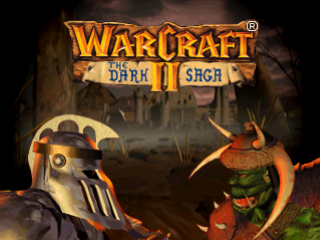
1. Set up your PlayStation™ game console according to the instructions in its Instruction Manual. Make sure the power is off before inserting or removing a compact disc. 2. Insert the Warcraft® II: The Dark Saga™ disc and close the Disc cover.
3. Insert a game controller into Controller port 1 and turn on the PlayStation™ game console. The LANGUAGE SELECTION screen appears. To select a language, use the Directional button LEFT or RIGHT to the flag representing the language you want and press the X button. The introduction sequence begins.
To skip the introduction sequence and title screens, press the X button. The MAIN MENU appears. See Main Menu.
It is advised that you do not insert or remove peripherals or Memory cards once the power is turned on. Make sure there are enough free blocks on your Memory card before commencing play.
GETTING STARTED
Warcraft® II: The Dark Saga™ includes the original Tides of Darkness missions, the additional Beyond the Dark Portal missions, and custom scenarios. Both sets of missions can be played from the Human Alliance or the Orcish Horde side.
You start by beginning a new campaign as Orc or Human. At the beginning of each mission, objectives are listed during the Scenario Briefing screen. When you complete the mission objectives, you receive a ranking and move on to the next mission. The missions progress sequentially, becoming more challenging and complicated.
MAIN MENU
•
Use a password to start a campaign mission
To use the Quick Start function and go directly to a random scenario, hold the SELECT button and Directional button UP. A random scenario begins.
NEW GAME
Select a new Human or Orc campaign from the Tides of Darkness or Beyond the Dark Portal, or a custom scenario.
To start a new campaign:
1. Select NEW GAME from the Main menu. The New Game sub-menu appears.
2. Select NEW CAMPAIGN. The New Campaign menu appears.
To select a campaign, use the Directional button UP/DOWN and press the X button. Introductory screens appear followed by the SCENARIO BRIEFING screen.
•
To skip introductory screens, press the X button.
3. The Scenario Briefing screen explains your mission and lists objectives.
To exit the Scenario Briefing screen, press the X button. The game begins.
To start a CUSTOM SCENARIO:
1. Select NEW GAME from the Main menu. The New Game sub-menu appears.
2. Select CUSTOM SCENARIO. The Custom Scenario screen appears.
3. Select CUSTOM SETTINGS to adjust scenario options, SELECT SCENARIO to choose your scenario, or START GAME to begin your game.
To change CUSTOM SETTINGS:
1. Select CUSTOM SETTINGS from the Custom Scenario screen. The Custom Settings screen appears.
2. Highlight the option you want and press the X button. An option sub-menu appears.
3. Use the Directional button UP/DOWN/LEFT/RIGHT to the selection you want and press the X button.
4. Press the button to exit the sub-menu. The Custom Scenario screen reappears.
To select a scenario map:
1. Select SELECT SCENARIO from the Custom Scenario screen. The Select Scenario screen appears.
2. To select from a list of larger/smaller maps, select MAP SIZE, then select the size you want from the Map Size pop-up menu.
3. To scroll through available scenarios, use the scroll bar (Directional button RIGHT when a map name is highlighted).
4. To select a scenario, highlight it and press the X button.
5. When finished, press the button. The Custom Scenario screen reappears.
LOAD GAME
See Saving and Loading.
ENTER PASSWORD
Use passwords to continue campaigns.
•
To select a letter, highlight the letter and press the X button.
•
To delete a letter, highlight the left arrow icon and press the X button.
•
To enter your password, highlight the check mark icon and press the X button. Your saved game begins.
OPTIONS
Adjust game settings, view game tips, or view game credits.
To adjust game settings:
1. Select OPTIONS from the Main menu, then SETTINGS from the Options sub-menu. The Settings menu appears.
To adjust speed options, select SPEED SETTINGS then use the scroll bars to set the levels of cursor and game speed that you want on the Speed Options screen. When finished, press the button. The Settings screen reappears.
To adjust audio options, select AUDIO SETTINGS. The Audio Options screen appears. See Audio Options.
To toggle the fog of war ON/OFF, highlight FOG OF WAR and press the X button. When set to OFF, areas that have been explored always remain visible. When ON, only areas that are currently occupied are visible.
To toggle the mini-map HIDE/SHOW, highlight MINI-MAP and press the X button. When set to SHOW, the mini-map is constantly displayed in the top left corner of the game screen.
Audio Options
•
To adjust music volume, highlight the music scroll bar and Directional button LEFT/RIGHT.
•
To adjust sound effect volume, highlight the sound effect scroll bar and Directional button LEFT/RIGHT.
 (En,Fr,De,Es,It).png)

.png)
.png)
 (En,Fr,De,Es,It).png)
 (En,Fr,De,Es,It).png)
.png)
.png)
