Console Components
Initial Setup
Set up your PlayStation®2 computer entertainment system according to its Instruction Manual. Ensure the MAIN POWER switch (on the back of the console) is ON.
Press the RESET button. When the power indicator lights up, press the OPEN button to open the disc tray. Place the Tom Clancy's Ghost Recon™: Jungle Storm™ disc on the tray with the label side facing up. Press the OPEN button again to close the disc tray.
Attach game controllers and other peripherals as needed. Follow on-screen instructions and refer to this manual for software usage.
Memory Card (8MB) (for PlayStation®2)
To save game settings and progress, insert a memory card (8MB) into MEMORY CARD slot 1 of your PlayStation®2. You can load saved game data from the same or any compatible memory card.
Online Play Memory Card Requirement
A memory card (8MB) is required for online play of Tom Clancy's Ghost Recon: Jungle Storm. Before playing online, a valid network configuration must be saved to the memory card using the Network Adaptor Start-Up Disc.
USB Headset (Optional)
The USB headset allows you to issue voice commands to your Ghost teammates during gameplay and communicate with other players in online lobbies and debrief screens. This is an optional feature.
The USB headset connects to either USB connector on the front of your PlayStation 2. Insert the cable with the USB symbol facing UP.
Setting Up for Online Play (Optional)
Configure your PlayStation 2 system for Internet connection. Tom Clancy's Ghost Recon: Jungle Storm Online requires a broadband (DSL or cable modem) connection.
Network Adaptor (Ethernet/Modem) (for PlayStation®2)
Install the Network Adaptor (for PlayStation®2) into your PlayStation 2 system as per its Instruction Manual.
Caution
Unplug the AC power cord on your PlayStation 2 system before adding any networking equipment.
Firewall Ports
The game uses ports 10070 to 10080, 40000 to 40200, 41005, 41006, 44000, 45000, and 6667 (both UDP and TCP protocols). If you have a firewall, these ports must be open. If you use a router with a unique IP address and wish to host games, you must route these ports to your console.
Troubleshooting Connection Issues
If a network connection cannot be established:
•
The MAIN POWER plug for the PlayStation 2 console may not be fully inserted into the MAIN POWER socket. Check the connection.
•
The Network Adaptor (for PlayStation®2) may not be properly installed. Check its installation.
•
The network may be busy. Wait a few minutes and try again.
•
Check that the network cable is properly connected.
Quick Starts
Single Player Games
•
Select Single Player from the Main Menu.
To Start the Training or the Tactical Exercises
•
Select Training from the Single Player menu to train your squad.
•
Select Tactical Exercises to improve your skills.
To Start a New Campaign
•
Select Campaign from the Single Player menu.
•
Select the campaign you would like to play (Island Thunder™ or Jungle Storm).
•
Select Difficulty and set the desired difficulty level.
•
You will be taken to the Briefing screen for the first mission.
To Start a New Quick Mission
•
Select Quick Mission from the Single Player menu.
•
Select Difficulty and set the desired difficulty level.
•
Select Game Type and choose the mission type.
•
You will then go to either the Briefing screen or the Platoon Setup screen, depending on the mission type.
Split Screen Games
•
Select Split Screen from the Main Menu.
•
Player 1 sets the options for the game session.
•
Player 1 should select Proceed, and both players will go to the Platoon Setup screen.
•
More information can be found in the Split Screen section.
Online Games
•
Ensure your PlayStation 2 system is configured for online play.
•
Select Online from the Main Menu.
•
The first time playing online, you will need to create your Network Configuration file, which depends on your Internet access provider.
•
You will also need to create a ubi.com™ account. If you have one, enter the information and save it to your memory card. You can also modify or remove accounts. Visit ubi.com for more information.
•
Once logged in, you can join an existing session by selecting Quick Join or Join Game.
•
To start a session, select Create a Game.
•
More information on online play and game modes can be found in the Online section.
File Select Screen
After powering up your PlayStation 2 and inserting the game disc, the File Select screen will appear. If this is your first time playing, you will need to create a profile.
Your profile contains information about completed tasks and unlocked rewards. A profile must be created and selected to play the game.
Main Menu
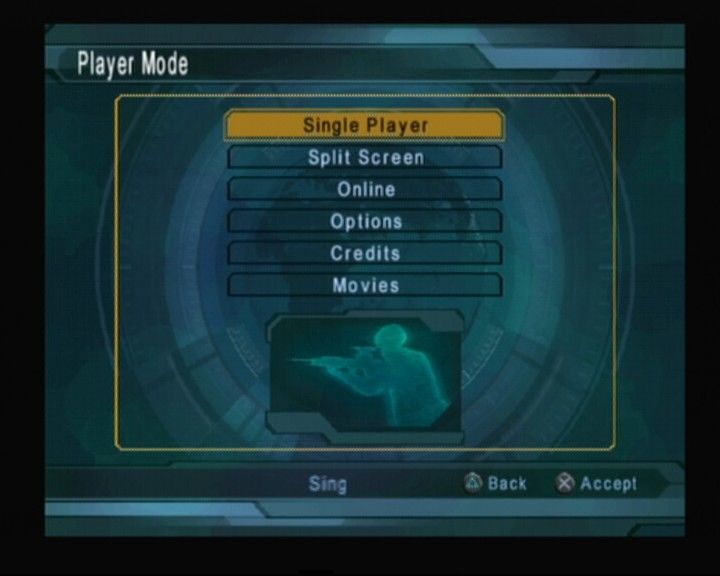
After creating your profile, you will be taken to the Main Menu. Here you can choose between single player, split screen, or online play, go to the Options menu, or view the credits.
**Single



.png)

.png)
_1.png)
.png)


.png)
.png)



_1.png)
.png)

