Getting Started
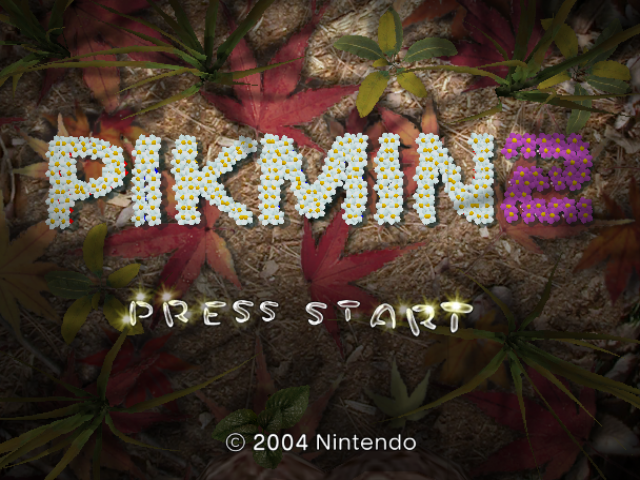
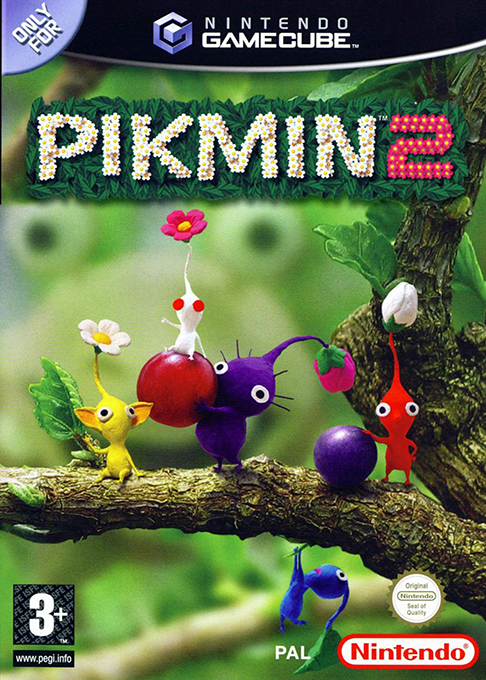
Place the PIKMINT™ 2 Game Disc into your NINTENDO GAMECUBE and insert a NINTENDO GAMECUBE Memory Card into Slot A. Close the Disc Cover and press the POWER Button. When the Title Screen appears, press START/PAUSE to access the Main Menu.
In-Game Language
The in-game language depends on the one set on your NINTENDO GAMECUBE. You can choose between five different languages: English, German, French, Spanish, and Italian. If your NINTENDO GAMECUBE is already set to one of these, the same language will be displayed in the game. If your NINTENDO GAMECUBE is set to another language, the in-game default language will be English. You can change the in-game language by changing the language setting of your NINTENDO GAMECUBE. Refer to the NINTENDO GAMECUBE Instruction Booklet for instructions on how to change language settings. 60Hz Mode
This game can be set to a better display with higher quality on TVs that support 60Hz Mode (PAL60 compatibility). To activate 60Hz Mode, select 60HZ MODE when the message THIS GAME IS COMPATIBLE WITH 60HZ MODE. PLEASE SELECT MODE. is displayed.
The mode last used when playing with the NINTENDO GAMECUBE will appear highlighted. If you do not make any choice, the game will choose this mode automatically. If the TV display does not appear properly after you selected 60HZ MODE, turn the NINTENDO GAMECUBE off, turn it on again, and select 50HZ MODE. When you connect the NINTENDO GAMECUBE RGB cable (sold separately) to a TV which has an RGB terminal and PAL60 compatibility, you can enjoy a smoother game screen with less flicker. Starting a New Game
Select BEGIN and press the A Button to create a save file and access the Ship's Log Selection Screen. Choose NEW to begin a new game.
Continuing a Game
If you want to continue a game that you have previously played and saved, select the Ship's Log you want to play on the Ship's Log Selection Screen and press the A Button.
You can save up to three game files.
•
The Memory Card in Slot A must have at least 27 blocks of memory free in order to save your progress.
•
Make sure that the Memory Card containing the PIKMIN 2 save file is correctly inserted in the NINTENDO GAMECUBE. Please refer to the NINTENDO GAMECUBE Instruction Booklet for directions on how to format and erase Memory Card files. Saving
How to Save
At the end of each day, you can save your progress by selecting SAVE from the Save Screen and pressing the A Button.
When you venture underground or descend to the next sublevel, the game will save automatically.
Do not remove the Memory Card or turn the power OFF when saving. Doing so can damage the NINTENDO GAMECUBE and the Memory Card. Copying and Deleting Save Data
From the Ship's Log Selection Screen, press the Y Button to copy a Ship's Log to another save file. To delete a Ship's Log, press the X Button.
Erased files cannot be restored, so please be careful!
Camera Control
Use the camera buttons to play from a wide variety of camera angles.
L Button
Move the camera behind the leader. Press the L Button fully to move the camera behind the leader.
•
Hold and press the L Button and rotate the camera using the Control Stick.
Remember to change the camera angle if you're having a hard time seeing the on-screen action. Zoom in and play close to the action!
R Button
Zoom camera.
•
Press the R Button to shift between the three levels of zoom.
•
Press and hold the R Button to shift the view to the leader's eye view.
Z Button
Change the camera view. Press the Z Button to shift the camera view between angled view and overhead view. Zoom out for an overhead view!
Goal of the Game
The company is in grave danger of going under! There's only one way to save the company: return to the planet of the Pikmin and salvage valuable treasures! Collect as many treasures as you can to repay the company's 10,000 Pokos debt!
The best way to find and collect treasures is to learn the unique abilities of each type of Pikmin and use them to your advantage. Caves and lairs may be dangerous, but they often hold a trove of treasures! There is no limit to the number of days you can spend exploring! Good Luck!
Hocotate Freight's esteemed president
All About Pikmin
What are Pikmin?
Captain Olimar first discovered Pikmin, a curiously helpful alien species, after crash-landing on an alien planet. These indispensable life-forms make locating and salvaging valuable treasures a breeze. Large hordes of Pikmin can swarm and conquer even the most massive beasts! Commanding Pikmin
Command up to 100 Pikmin! Pikmin follow closely behind their leader. Though you can have a maximum of 100 Pikmin under your control at any time, this number decreases if there are any Pikmin planted in the ground, working elsewhere, or wandering freely. If you can't add more Pikmin to the field while the counter shows you haven't reached your maximum of 100 Pikmin, there may .png)

.png)
_2.png)
_3.png)