PlayStation Setup
Set up your PlayStation® game console according to the instructions in the Instruction Manual. Make sure the power is off before inserting or removing a compact disc. Insert the COOL BOARDERS® 4 disc and close the disc cover. Insert one or two game controllers and turn on the PlayStation game console. Follow the on-screen instructions to start a game. Top View
Front View
2, 3, or 4 Player Games
Insert two controllers into your PlayStation game console. •
Players 1 and 3 use Controller #1.
•
Players 2 and 4 use Controller #2.
Memory Card and Saving Data
You must insert your MEMORY CARD before you save or load a tournament or record file. COOL BOARDERS 4 saves user-defined options and all data for tournaments, records, riders, and boards.
Two blocks of memory must be available on your MEMORY CARD in order to save all COOL BOARDERS 4 data. If you don't have a MEMORY CARD, all COOL BOARDERS 4 data will be lost after turning off your PlayStation game console. When saving a Tournament, the MEMORY CARD utility selects the last saved block. That block could contain record files. Be sure not to accidentally overwrite your record files with the tournament files.
Other Moves
•
Rail slide: R2 or L2 button
•
50-50 grind and back during slide: button + D-Pad down
Setting Up Cool Boarders 4
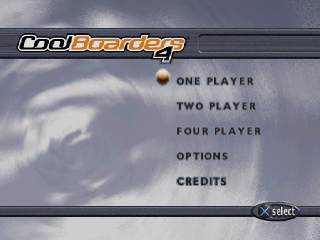
On the Main Menu, press the D-Pad up/down to highlight an option and press the X button. To cancel a selection, press the ▲ button.
One Player
Single player action against the computer. Start out as a Rookie with limited access to the event locations and a choice of five pro riders. Make your mark and gain access to tougher competitions, more pros and their boards. Each advance unlocks four more riders.
Single Event
Compete in: Begin by competing in Vermont, Colorado or France. You can adjust the challenge by selecting Rookie, Veteran or Pro. Only the Pro setting allows you to unlock additional features.
Tournament
Compete in all six events. Begin with a tournament in Vermont. Take on your first special course and continue your tournament career in Colorado. Every tournament win opens up new mountains and still tougher competition.
Trickmaster
Train to perform tough tricks. Trickmaster will call out a trick just before you hit a jump. If you pull off the trick correctly, more time is added to the clock. If you fail, the correct button sequence appears on screen.
Enter Trickmaster as a Rookie and learn easy tricks on less challenging jumps. Then move onto bigger jumps and tough combination tricks in the Veteran and Pro levels.
Two Player
Compete against another player in a single event or tournament. Each player takes turns competing in all events.
Four Player
Three or four players compete by sharing controllers.
•
Players 1 and 3 use Controller #1.
•
Players 2 and 4 use Controller #2.
During trick events, players take their turn when the computer prompts them. In race events, there will be three heats to decide a winner:
•
The winners of the first two heats square off.
Options
Press the D-Pad left/right to highlight or change an option. Press the X button to toggle a selection.
Controller 1 and 2
To change controller configuration:
1. Press the D-Pad up/down to highlight CONFIG.
2. Press the D-Pad left/right to select Configuration 1 or 2.
To turn Vibration function on or off:
1. Press the D-Pad up/down to select VIBRATION and press the X button.
2. Press the D-Pad up/down to select DISABLED or ENABLED and press the X button.
Fighting
Press the D-Pad left/right to turn fighting ON/OFF.
Audio
Press the D-Pad left/right to change Sound and Music volume.
Center
Press the D-Pad to center the display on your screen.
Save Options
To save your option settings:
1. Highlight SAVE OPTIONS and press the X button.
2. Highlight YES and press the X button.
3. Highlight a memory block and press the X button.
Load Options
To load your saved options, select LOAD OPTIONS and press the X button.
Credits
Check out the talent at 989 Studios and Idol Minds.
Record Keeping
After you select the Player Mode on the Game screen and press the X button, the Record screen appears where each player can enter his/her name. If you're not interested, highlight SKIP NAME ENTRY and press the X button to proceed.
In a multi-player game, each player enters a name and chooses a boarder in numerical order. When the last player is set, the Game Type screen appears. Player 1 chooses the game type.
To enter a name for the record books:
1. Highlight an empty name slot and press the X button.
2. Press the D-Pad up/down to select a letter or a space and press the
.png)

 (Demo).png)
_2.png)
_3.png)