STARTING UP
Set up your PlayStation game console according to the instruction manual. Make sure the power is off before inserting or removing a disc. Insert the Vigilante 8 disc and close the disc cover.
Insert game controllers and turn on the PlayStation game console. Follow the on-screen instructions to start a game. Make sure there is enough free blocks on your Memory card before commencing play. It is advised that you do not insert or remove peripherals or Memory cards once the power is turned on.
RESET BUTTON
POWER INDICATOR
POWER BUTTON
CONTROLLER PORT
SONY Playstation
OPEN BUTTON
DISC COVER
Controller Support
Vigilante 8 supports a number of popular analog controllers. This section defines commands only for the standard controller. If you want to play with an analog controller, see Analog Controllers on page 6.
The player can re-map the controls in the Options screen (see page 5).
Game Reset
To abort a game in progress, press the START button to pause the game. Choose Quit from the menu to return to the Vigilante 8 title screen. Then choose Yes to proceed with quitting or No to return to the pause menu.
Soft Reset
You can reset to the Vigilante 8 title screen at any time during gameplay by holding down the SELECT button, then pressing and holding the START button for two seconds.
MAIN MENU
One Player
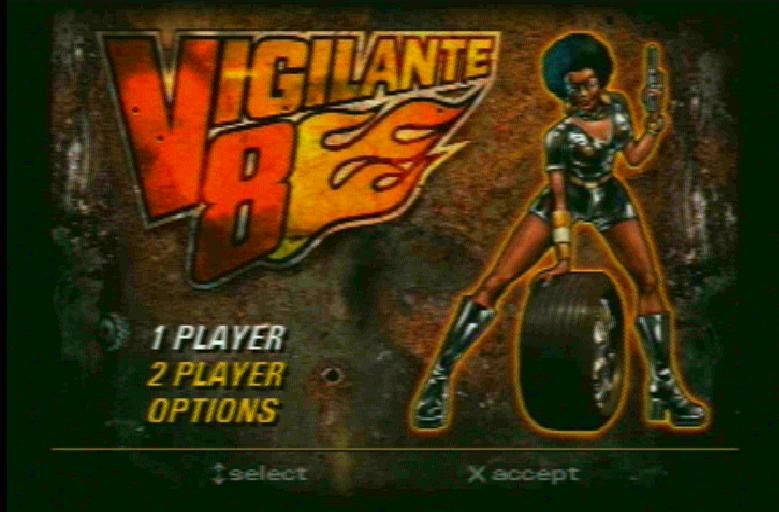
Choosing One Player allows you to choose between one-player Quest mode or one-player Arcade mode.
Quest
Quest mode consists of a series of four levels for each character. To complete each level, you must destroy all enemy vehicles. Enemy vehicles are automatically chosen and their number and skill increases with each level successfully passed.
After choosing the Quest mode you must select your vehicle. Press the Directional Buttons to cycle through the vehicles. After all four levels are completed, the ultimate fate of your character will be revealed.
Successfully completing all objectives will lead to "unlocking" additional characters/vehicles and arenas! If you fail to fulfil the mission objective in a Quest mode, you can replay that level.
Arcade
In Arcade mode, you must select an arena, a vehicle, and opponents. You may select up to 3 enemy vehicles per arena from a choice of 12. Use the Directional Buttons to select the opposing vehicles and the number of times each will appear in the level. Once you have chosen your opponent(s), press the X button to start the match.
Two Player
Choosing Two Player allows you to choose between two-player Versus mode or two-player Cooperative.
Versus
In the two-player Versus mode, you can battle it out with another human opponent. The match ends when one player successfully destroys the other. You can then select Replay to restart another battle. There are no enemy vehicles in Versus mode.
In two-player Versus mode, either player can select the arena. After the arena is selected, both players can select a vehicle. Each player uses the Directional Buttons to select a vehicle and then X to confirm the selection. Both players must select a vehicle to start the match.
Cooperative
The two-player Cooperative mode allows two players to team up against a group of enemies. The enemy vehicles engage both players. The game ends when either of the players dies, so be sure to help your buddy!
OPTIONS SCREEN
Game Status
Shows the status on all unlocked/available characters and arenas. Press O to enter a passcode. When done, press X to accept the passcode. If the passcode is incorrect, a buzzer will sound.
Press X to replay the ending movie for characters whose Quests have been completed. Please note that to unlock additional characters, you must complete two specific characters' quests as shown in the Game Status screen.
Memory Card
•
Load - Load a saved game
•
Save - Save current game
•
Delete - Delete a saved game
Difficulty
•
Super Unleaded - Medium Mode
•
Premium Hi Octane - Hard Mode
Vigilante 8 displays multi-block saves by displaying the Icon and filename for the first block, then all subsequent blocks as 'Used block'. Please make sure that there are enough free blocks on your Memory card before commencing play.
Controller 1 & 2
Control Configuration
Pressing the X button allows the player to alter the control buttons in the game. You can reassign the buttons using the Directional Buttons. First select a button using the up/down buttons, then select a function using left and right.
Analog Controllers
Vigilante 8 supports analog controllers and Mad Catz. To calibrate an analog controller, follow these steps:
•
If your controller has an Analog/Digital switch, it must be set to Analog to appear on the screen.
•
Press X to select the controller.
•
Then use up or down on the Directional Buttons to select an analog control.
•
Press O to bring up the calibration bar.
•
Move the stick to the left and right or up and down as far as possible.
•
Press START when the control is in its release position to accept calibration.
•
You may also configure other button functions in this screen.
Analog steering wheels are supported, however, several buttons are disabled so some controller functionality may be lost. Refer to the Control Configuration screen to see the button assignments for your individual wheel.
Use the LEFT/RIGHT Directional Buttons to turn Dual Shock on or off. Press the X or START button when finished.
When using the Analog Controller (DUal SH
 (Rev 1).png)

 (Rev 1).png)

.png)
.png)

_1.png)
.png)
.png)