OPTIONS
GAME OPTIONS
VIEWPOINT
Allows you to choose between 1st or 3rd person viewpoint when playing as infantry.
VIBRATION
Allows you to turn the DUALSHOCK®2 analog controller vibration ON or OFF.
FRIENDLY FIRE
Turn this ON or OFF to determine whether units on the same team can damage each other.
AUTO AIM
When this is set to ON, the game helps you aim when attacking enemies.
INSTANT ACTION HEROES
Turning this option ON or OFF determines if computer-controlled Heroes will be in Instant Action battles.
DIFFICULTY
Choose between Easy, Medium, and Hard. This affects all game types.
In Online Multiplayer, the difficulty setting is determined by the Session Host, and will override your setting. In Splitscreen, Player 1 determines the difficulty setting.
TOOL TIPS
This option allows you to toggle the in game tips to Auto, On, or Off.
AUDIO OPTIONS
Here you can adjust the sound, music, and speech volumes in the game. You can also choose between various speaker settings.
CONTROLS
Here you can completely customize the buttons of the DUALSHOCK®2 analog controller, invert the Y-axis for aiming, and adjust the aiming sensitivity. You can create separate control schemes for Infantry, Vehicle, and Starfighter configurations.
SPECIAL FEATURES
Here you can see what bonus items you have unlocked through successful combat.
CREATING A PROFILE
When you first attempt to play a game, you will be prompted to create a profile. This profile will be used to save single player games and to save your settings.
Before creating the profile, make sure a memory card (for PlayStation®2) is inserted into MEMORY CARD slot 1. You will need at least 118 KB of free space to save all data.
Once in the profile creation screen, use the Left Analog stick or D-pad to navigate the available characters, and press the X button to enter a character. Once you have chosen a name for the profile, you will then be able to choose a difficulty level of easy, medium, or hard. This difficulty setting will apply to all game modes when using this profile.
Once you have created a profile, you can then add more profiles, and delete or edit existing ones.
FIGHTING ACROSS THE BATTLEFRONT
Star Wars Battlefront offers multiple gameplay modes, each one centered around raging battles throughout the galaxy. On each planet the objective is to gain control of key areas called Command Posts. Before entering the battle as a frontline troop or reinforcement, the player selects a character from several available classes, each with their own specialties. Once on the battlefield, you must help advance your army by defeating enemy units and taking their Command Posts, which in turn reduces their ability to field reinforcements.
Each mission will have its own requirements for victory, but the key to gaining the advantage is tactical control of the map's Command Posts.
The map spins to orient its position relative to the player's facing when in the default mode. When the map is enlarged (by pressing the SELECT button), it remains static regardless of the player's facing.
Command Posts are always displayed even if they are beyond the radius of the map. They will appear at the edge of the map indicating the direction the player will need to travel to get to them.
By pressing the SELECT button, the map will expand to full screen and show the entire battlefield and all Command Posts. Pressing the SELECT button again will place the map back to its original default position.
COMMAND POSTS
Each battlefield contains tactical positions in key locations on the map. These areas of control are called Command Posts and they are vital because:
•
Reinforcements are deployed at Command Posts. Whenever a player dies, he rejoins the battle by choosing a friendly Command Post to deploy. Therefore, if a team has no Command Posts under its control, it cannot deploy any reinforcements until it recaptures a Command Post.
•
If a team controls the majority of Command Posts on a map, the opposing team will start to lose reinforcements automatically. If a team controls all the Command Posts, a victory timer will start counting down.
COMMAND POST OWNERSHIP
•
Command Posts with a green symbol always belong to your team.
•
Command Posts with red symbols belong to the enemy.
•
Command Posts with yellow symbols belong to native units.
•
Command Posts with a white column are neutral and belong to no one.
To capture an enemy or neutral command post, you must stand within its capture radius. You will know you are close enough if the capture icon appears on the screen. If there are no enemy units nearby, the capture icon will slowly change color from red to white to green. When the capture icon is completely green, the Command Post will now belong to your team.
The rate of capture will increase if you have additional friendly units nearby. If there are enemy units nearby, the capture icon will alternate between green and red until one side is driven off. You cannot capture a Command Post if you're in a vehicle.
Some Command Posts belong to one team only and cannot be captured by the opposing team. However, they can be destroyed by weapons fire; these destructible Command Posts can only be repaired by human players. Destructible Command Posts appear on the map as diamonds instead of circles.
Certain vehicles, such as the Imperial AT-AT, are Mobile Command Posts. Mobile Command Posts deploy reinforcements just like stationary Command Posts; the only difference is that they can bring troops to any point on the battlefront. Mobile Command Posts cannot be captured by the enemy team but they can be destroyed. If destroyed .png)

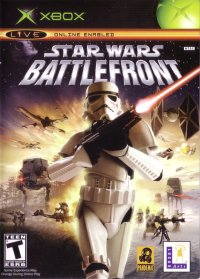
![Star Wars Battlefront [Action Pack] box art for Playstation 2](https://media.retro.gold/Sony_-_PlayStation_2/Named_Boxarts/Star Wars - Battlefront (USA).png)
![Star Wars Battlefront [Action Pack] screenshot 3 for Playstation 2](https://media.retro.gold/Sony_-_PlayStation_2/Named_Snaps/Star Wars Battlefront.jpg)
![Star Wars Battlefront [Action Pack] title screen for Playstation 2](https://media.retro.gold/Sony_-_PlayStation_2/Named_Titles/Star Wars - Battlefront (USA).png)
![Star Wars Battlefront [Action Pack] media 5 for Playstation 2](https://media.retro.gold/Sony_-_PlayStation_2/Named_Media/Star Wars - Battlefront (USA).png)




_1.jpg)
_1.png)

_(En,Fr)_[b].png)


.png)

.png)
_1.png)
.png)




_1.png)