STARTING THE GAME
1. Set up your PlayStation® game console according to the instructions in its Instruction Manual. Make sure the power is OFF before inserting or removing a disc. 2. Insert the Toys disc and close the Disc Cover.
3. Insert a Controller into Controller port 1 and turn on the console.
4. After the opening visuals, the Language Select menu appears. Use ↑↓←→ to highlight a language & press ✖ to select.
It is advised that you do not insert or remove peripherals or Memory cards once the power is turned on.
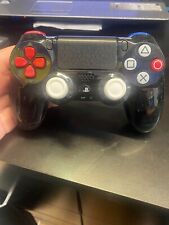
BASIC CONTROLS
•
Action: Exit Current Screen
•
Action: Select colour on palette
•
Action: Select colour on palette
•
Action: Select colour on palette
•
Action: Select colour on palette
MAIN MENU
The Main Menu screen allows you to choose one of the following options, each of which is explained below:
•
Camera Icon = Cartoon Video
•
Palette Icon = Colouring Book
•
Jigsaw Icon = Puzzle Activity
If you do not touch any of the buttons on your Controller within 60 seconds of entering the Main Menu screen, the Video will play automatically.
1. CARTOON
After selecting the Camera Icon at the Main Menu, you will be taken to this screen. This option starts the cartoon video playing. At the end of the video you will be returned to the Main Menu.
By pressing the ▶ button at any time whilst viewing the CARTOON screen, you access the Pause menu. Here, you are given the option to QUIT back to the main menu, RESUME play, or access the OPTIONS (which are explained later in this manual).
Simply use the directional buttons to select one of these options and press the ✖ button to confirm.
2. COLOURING
After selecting the Palette symbol at the Main Menu, you will be taken to the Choose Picture menu. This menu offers a choice of six pictures to colour in.
These can be selected using the directional buttons to highlight the picture you want, and then pressing the ✖ button or the ▶ button to confirm your selection. If you press the ● button on the Controller you will be returned to the previous menu.
Once you have confirmed the picture that you want to colour, you reach the colouring screen itself, with the outline picture taking up most of the screen and the colour palette at the bottom of the screen (which contains the 11 colours).
You control a paintbrush pointer using the directional buttons, which can be moved around the outline picture. If you press the ✖ button, the section of the picture that the paintbrush is over is filled in with the colour currently selected from the palette.
You can select one of the 11 palette colours by using the L1 button or the L2 button to move selection to the left, and the R1 button or the R2 button to move it to the right. You can also pick a colour by moving the brush over any of the colours on the colour palette using the directional buttons and then pressing the ✖ button.
To help you remember how to select colours quickly, a key highlighting the fast colour select functions is displayed at the bottom of the screen.
By pressing the ▶ button at the COLOURING screen, you access the Pause menu. Here, you are given the option to QUIT back to the main menu, RESUME play, or access the OPTIONS (which are explained later in this manual). Simply use the directional buttons to select one of these options and press the ✖ button to confirm.
3. PUZZLE ACTIVITY
After selecting the Jigsaw symbol at the Main Menu, you will be taken to the Puzzle Select menu, which contains six pictures to choose from. These are selected by using the directional buttons to highlight the picture you want and then pressing the ✖ button or the ▶ button to confirm your selection. If you press the ● button on the Controller you will be returned to the previous menu.
After you have selected the picture of your choice, you will be taken to a menu where you can select the number of tiles for your puzzle. This screen offers you a choice of options displayed as 3x3, 4x4, 5x5 and 6x6 icons.
You can select one of these options by using the directional buttons to highlight your chosen icon and then pressing the button or the button. If you press the button on the Controller you will be returned to the previous menu.
The next screen is the puzzle screen itself, with the puzzle taking up most of the screen, along with a small image of the completed picture. When this screen first appears, the puzzle is 'scrambled'. A timer will start counting up in seconds.
You then control a pointer using the directional buttons, which can be moved around the puzzle tiles. By pressing the button, the tile under the pointer will move to the adjacent empty square if there is one.
When you have solved the puzzle, the timer will stop and the message "WELL DONE PLAY AGAIN Y/N" will be displayed. After selecting your decision with the directional buttons and pressing the button, the puzzle will either return to the Puzzle Select menu, or take you back to the Main Menu.
By pressing the button at the PUZZLE ACTIVITY screen, you access the Pause menu. Here, you
 (En,Fr,De).png)

.png)
.png)
 (En,Fr,De).png)
 (En,Fr,De).png)
.png)

_1.png)

_1.png)
_1.png)

_1.png)
_1.png)
