Setting Up Your PlayStation 2
Set up your PlayStation®2 computer entertainment system using its Instruction Manual. Ensure the MAIN POWER switch on the back of the console is ON.
•
When the power indicator lights up, press the OPEN button to open the disc tray.
•
Place the R:Racing Evolution™ disc on the disc tray with the label side facing up.
•
Press the OPEN button again to close the disc tray.
•
Attach game controllers and other peripherals as appropriate.
•
Follow on-screen instructions and refer to this manual for software information.
About Saving Games
To save your progress, insert a memory card (8MB) (for PlayStation®2) into MEMORY CARD slot 1. The memory card needs at least 22 KB of free space.
Do not press the RESET button or remove the memory card while saving a game. Doing so could result in lost or corrupted game data.
Getting Into the Game
Title Screen
After the game starts, an opening movie plays, followed by the Title screen. Press the START button on the DUALSHOCK® 2 analog controller or the X button on the GT FORCE steering wheel.
The game will check MEMORY CARD slot 1 for R:Racing Evolution saved data.
•
If saved data is found, you will go to the Entrance screen to resume a saved game.
•
If no saved data is found, you will proceed to the Main Menu to select a game mode.
Entrance Screen
From the Entrance Screen, use the directional buttons or steering wheel to select LOAD GAME and press the confirm button. Then select a save file.
On the confirmation screen, select YES and press the X button to load the file and resume the game.
Saving Game Data
You can save your game data and/or replay data to a memory card. Before saving, ensure at least 22 KB of free space is available in MEMORY CARD slot 1.
Use the Save/Load Menu to save your game data.
Main Menu
After selecting either a saved game or a new game, you proceed to the Main Menu. Here you can choose one of eight game modes. Use the directional button on the Controller or the directional Pad on the Steering Wheel to make your selection and press the button.
Racing Life
This is a story mode with 14 chapters. After selecting this mode, you can choose NEW GAME, CONTINUE, and CHAPTER MENU.
Event Challenge
Compete in various racing events, each with a required entrance fee. You can also tune up your car at a Performance Shop or buy another car at a Car Dealer.
Arcade
Race against computer-controlled players.
Time Attack
Time your driving performance on the track. Try to beat your own best time.
VS
Go head-to-head with a friend for track domination!
Garage
Watch replay footage and movies and review the cars you have acquired.
Save/Load
Save and load game data from a memory card.
Options
Change various in-game settings.
Multifunction Display
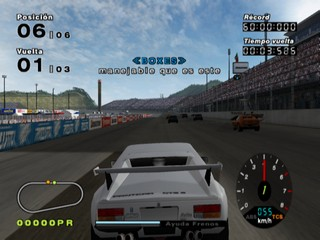
The Multifunction Display updates you on race conditions throughout the competition. You can also use it to make real-time car setting adjustments while racing.
The information displayed depends on your car and the course. Higher class cars show more information. You can select the information to be displayed using the Race Screen option in the Options Menu.
Real Time Settings
In Real Time Settings, you can adjust the following items. Press the directional buttons ▲/▼ to select an item, and ◄/► to adjust that setting.
Adjust the brake balance in the front and back.
Adjust the sensitivity of the steering wheel.
Adjust the stability of the front wheels.
Adjust the stability of the rear wheels.
Adjust the turning performance by limiting the front and rear drive distribution (certain cars only).
Nitro
When driving a drag car, a Nitro button appears. When this button is lit, you can accelerate rapidly by pressing the directional button on the controller or the L button on the steering wheel.
Pressure Meter
The Pressure Meter measures the psychological pressure you are applying to the car in front of you. As you close the distance, the meter fills up.
When full, it flashes, indicating the car ahead could make a mistake. Be ready to take the lead! If the distance increases, the Pressure Meter returns to 0.
Pause Menu
During a race, press the START button on the controller or the button on the steering wheel to display the Pause Menu. Move the cursor to make your selections, then press the confirm button.
Resume the race from the point where you paused.
End the race and start the same race over from the beginning.
End the race and return to the Select screen for the current game mode.
End the race and proceed to the Results screen.
End the race and return to the Main Menu.
Results Screen
When a race ends, a replay is shown, then the Results screen appears. Here you can check your final placement and other race scores. Press the button to go to the next screen.
Car Acquired Screen
If you've won a car in Racing Life or Event Challenge, a Car Acquired screen will appear after the Results screen.
Results Select Screen
.png)

.png)
.png)
.png)

.png)
.png)



.png)

.png)


_1.png)
_1.png)