Welcome to UNO!
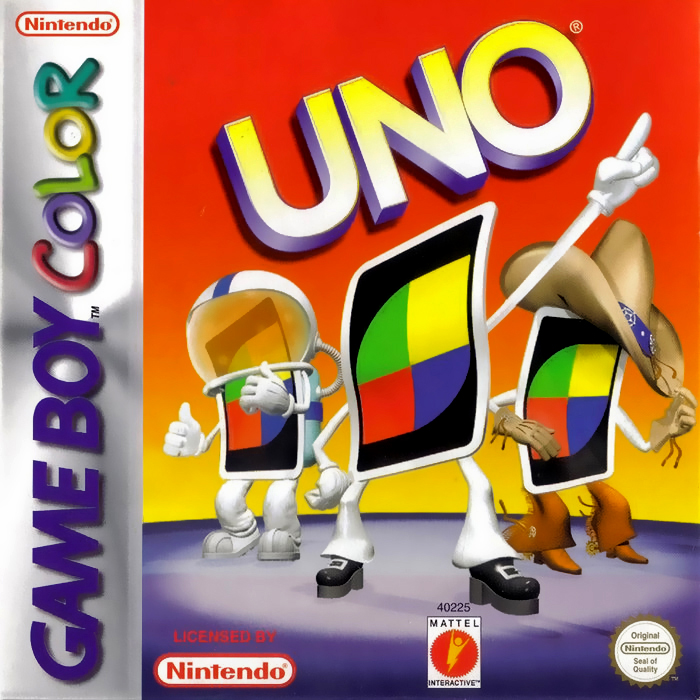
UNO is the best-selling card game, now available on Game Boy Color and Game Boy. It features exciting animation, music, and special effects.
Three new special cards are included that are not found in UNO card packs. You can choose standard UNO, CHALLENGE UNO, or use Link Mode to play against a friend.
The game includes a standard UNO deck and three cool theme decks: Wild West, Space, and Groovy. Each theme deck has special characters, animation, and backgrounds. You can play with one, two, or three Game Boy opponents at a time.
The Object of the Game
The object of UNO is to be the first to score a selected number of points. Points are scored by getting rid of all the cards in your hand before your opponent(s) do.
If you go out first, you win the round. Your score is the sum of the cards left in all the opponents' hands.
Select Button
Press during a game to choose one of three Game Actions: Call UNO!, Catch another player for failing to call UNO, and Help (identifies cards).
Game Action choices are displayed at the bottom of the screen and can be cycled using left and right on the Control Pad. Press the A Button to carry out the selected action. Press Select again to cancel actions and return to the game.
Start Button
Moves you from screen to screen. Pressing it during play pauses and unpauses the game.
Quit and Restart
Use the Game Boy on/off switch to quit or reset/restart the game at any time.
Alternatively, pressing all four buttons simultaneously will reset the game.
Getting Started and Choosing Play Options
•
Insert the UNO Game Pak into the Game Boy Color.
•
Turn the power on. The handheld system will automatically determine if you have a Game Boy or Game Boy Color system.
•
When the UNO title screen appears, press Start. The Enter Name screen appears.
•
Use the Control Pad to highlight the letters of your name.
•
Press the A Button to choose a letter.
•
Press right on the Control Pad to insert a space.
•
Press the B Button to delete the currently selected letter.
•
You can also choose the right-pointing arrow on the lower right portion of the screen to insert a space, or the left-pointing arrow to delete previously entered letters.
•
Press Start when you are finished entering your name.
Main Menu
The Main Menu screen will appear. Use the Control Pad to highlight UNO, CHALLENGE UNO, and LINK GAME. Press Start to make your selection.
•
UNO - Plays the standard UNO game.
•
CHALLENGE UNO - This game is played the same as standard UNO, however it is scored in a different manner.
•
LINK GAME - Play head to head with another person with the Game Link Cable (sold separately).
Playing UNO on Game Boy Color
Your hand appears at the bottom part of the screen. Above it are the DRAW and DISCARD piles. At the top of the screen are your opponents' mini-hands.
Next to each mini-hand is the player's name, which highlights to show when it's their turn. The arrow next to the draw pile shows the direction of play (clockwise or counter-clockwise).
Game Boy Color automatically selects the player to go first. You control the cursor-hand holding your currently selected card. When you play a card, the cursor-hand flicks it to the discard pile.
When drawing a card, the cursor-hand picks it up, carries it to your hand, and adds it to your hand in color and numeric order.
The other players' mini-hands can only display a maximum of eight cards. An opponent with eight mini-cards by his or her name may have more cards than are displayed.
You will be able to see many more cards in your own hand. If your hand becomes too large to fit on the screen, an arrow will appear to indicate that you have more cards to the left, the right, or both. Use the Control Pad to see your off-screen cards.
In-Game Actions
During play, press Select to display the Game Actions at the bottom of the screen. You can cycle through the actions by pressing left and right on the Control Pad.
•
"Call UNO!" - when you only have one card remaining in your hand.
•
"Catch [player name]" - catch another player who fails to "Call UNO".
•
"Help" - displays screens showing the card faces and their names.
To give all players time to catch UNO, there is a timer countdown between turns. The length of this countdown is determined by the speed of play and can be set on the Options screen.
Set-Up Features for UNO and CHALLENGE UNO
Use the Control Pad (up-down) to highlight the game features. Use the Control Pad (left-right) to view the feature selections.
•
Choose 2, 3, or 4 opponents. Default is 4.
•
Select the difficulty level of your opponents 1-5 (five is the most difficult). Default is 3.
•
Select to use the new Special cards or to use only the Normal Pack.
•
For UNO, the Special Pack includes All Draw Two cards.
•
The CHALLENGE UNO game includes Boomerang cards.
•
Use the Control Pad to select the number of points needed to win.
.png)



 (En,Fr,De,Es,It,Nl) (GB Compatible).png)
 (GB Compatible).png)
