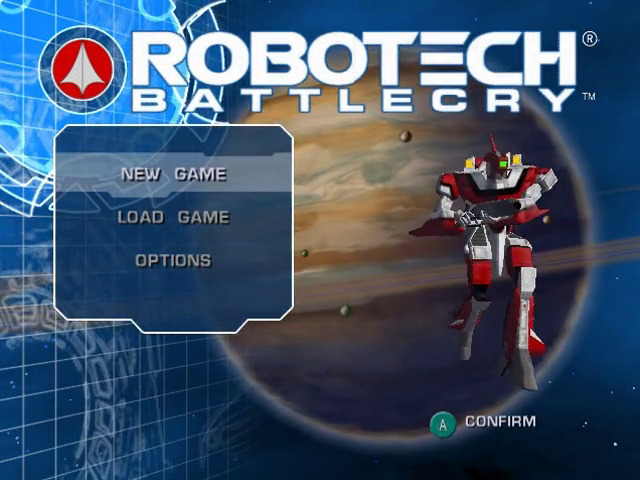
OPTIONS MENU
From the Options screen, you can adjust various features and settings for Robotech: Battlecry.
Controller Diagram
This selection displays a control layout diagram.
Settings
•
Use the Control Pad up and down to highlight an option.
•
Use the Control Pad left and right to adjust Controls, Music, SFX, Subtitles, Difficulty, and the Rumble Feature.
•
Confirm your choice with the A Button.
Credits
This selection displays a list of the people responsible for creating and publishing Robotech: Battlecry.
PLAYING THE GAME
Mission Screen
This screen shows the available mission(s) in the current stage of the game. There can be several missions available, as well as previous missions you can return to at any time.
All missions that are not selected are dimmed. Completed missions display the RDF logo stamp. The currently selected mission will be highlighted.
Some longer missions have multiple parts. You can change between these sections of the mission using the Y Button.
•
Use the Control Pad to highlight the mission you wish to fly.
•
Use the A Button to confirm your selection and proceed to the Veritech Selection screen.
Veritech™ Selection Screen
This screen allows you to select the Veritech you wish to fly during the mission and customize its appearance. At the start of the game you only have access to the training and basic Veritech with a limited number of paint schemes.
As you progress through the game, good performance is rewarded with additional Veritechs and additional paint schemes. This includes the combinations from the original Robotech as well as several new paint schemes.
•
VF-1A: Standard model Veritech flown by the majority of the RDF.
•
VF-1D: Training model incorporating a second cockpit seat. Although slightly more robust than the 1A, the 1D is less maneuverable and does not have as sophisticated of a targeting system.
•
VF-1J: The junior officer version flown by flight leaders. It incorporates a double head laser design, and is slightly faster and more agile than the 1A. While it carries a larger missile payload, it has the same targeting sensors as the 1A.
•
YF-1R: The newest Veritech model intended to replace the VF-1A and 1J in general use. It mounts an autocannon in addition to two head mounted lasers. It sacrifices some armor protection for increased agility and a greater missile payload. It has the same targeting suite as the VF-1S.
•
VF-1S: The Squadron leaders version of the Veritech incorporates four head mounted lasers with a large missile payload and unsurpassed multi-targeting ability. It is both robust and fast. This is the Veritech the aces fly.
•
Super Veritech: This is a common description applied to any of the Veritech models when equipped with super Veritech modifications. These add on boosters and light armor give any Veritech increased speed and armor, and incorporate additional missile launchers and missile magazines. The packs are only issued for space and orbital missions.
•
Armored Veritech: This is an add-on heavy armor system that is best suited for space due to its massive weight. In addition to the extra protection, the Armored Veritech incorporates several light missile launchers. Armored Veritechs are limited to Battloid mode and must jettison the armor pack before transforming. Because of its cumbersome appearance it has been nicknamed the "Sumo".
Mission Briefing
While the mission is loading, the current situation and mission briefing is displayed. This information is also available through the Pause Menu.
PAUSE MENU
During your mission you can access OPTIONS, MISSION LOG, or RESUME your game through the Pause Menu.
To access the Pause Menu press START.
Options
•
CONTROLLER DIAGRAM – To display a control layout diagram.
•
SETTINGS – Control Set-up, Sound and Video
•
RESTART MISSION – To restart your current game at the beginning of the current mission highlight RESTART and press the [A] Button.
•
QUIT – To quit your current game highlight QUIT and press the [A] Button. This will end your current game and all changes since your last game save will be lost.
Mission Log
Displays all dialog that has been spoken up to the current point.
Resume
To resume your game, highlight RESUME and press the [A] Button.
SAVING AND LOADING
Robotech®: Battlecry™ enables you to save data during a game with the use of the Memory Card (sold separately). Insert a Memory Card into Memory Card Slot A before you attempt to save or load a game to a Memory Card.
The Robotech®: Battlecry™ requires 1 file and 1 block to save.
Loading
Select the desired game using the Control Pad and press the A Button to load your selection.
Saving
This saves your progress. Note that the game automatically saves your game after the successful completion of any mission.
The game language which is set in the game and saved on a Memory Card has priority over the language which is set in the NINTENDO GAMECUBE console. (For more information please refer to the hardware console manual.) Please refer to the NINTENDO GAMECUBE instruction booklet for directions on how to format and erase Memory Card files. PRODUCT SUPPORT/TIPS
The TDK Mediactive Product Support Department provides technical support, customer service and game hints. There are several different ways to receive assistance:
Online Support
TDK Mediactive provides support via the World Wide Web 24 hours a
.png)

.png)

.png)

.png)

 (Rev 1).png)


_1.jpg)
.png)


.png)


.png)