Top View
Starting the Game
1. Set up your PlayStation® game console according to the instructions in the Instruction Manual. 2. Make sure the power is OFF before inserting or removing a disc.
3. Insert the American Pool disc and close the Disc Cover.
4. Insert game controllers and turn on the PlayStation game console. It is advised that you do not insert or remove peripherals or memory card(s) once the power is turned on. Make sure that there are enough free blocks on your memory card before commencing play. If a memory card containing game data is inserted into MEMORY CARD slot 1, the game data will be automatically loaded at the game start-up.
Playing American Pool
When the title screen appears, press the START button to open the Main Menu. You can select your desired game mode from here.
About the Rules
•
The Nine Ball game uses the "Texas Express Rules."
•
The Eight Ball game does require that you "call your shot."
•
In "14-1 Rack" the player who loses at banking will take the break shot.
Game Modes
Training
Training Mode allows you to learn various pool techniques by providing a series of pre-created tasks and problems. After you select a problem, you will first see a demo of what is required.
Pocket Game
The Pocket Game allows you to enjoy five different types of pool: Nine Ball, Eight Ball, Basic, Rotation, and 14-1 Rack. After you have selected the game that you want to play (you can view the rules for each game by pressing the button), the game settings screen appears.
Here you can set the conditions for winning the game. If you are playing against another human player, then set the "Player 2" option here to "Controller 2." Select "Start Game" when you are ready to begin.
Pool Contest
In the Pool Contest Mode, you can create your own character and use it to participate in a Nine Ball tournament. As your character progresses through the matches, s/he will level up and acquire special shots and techniques.
Starting Pool Contest Mode
The first time that you play Pool Contest Mode, select "Begin a New Game" and create a character. If you already have a character saved to a memory card, then select "Load Game" and you can load your character.
To create a character, you must give them a name, and choose their sex, age, and face. Once you have finished creating a character then the Contest Menu will be displayed.
•
"Play Contest" will display the Contest Grid and then your game will begin.
•
"Save Game" will display the character save screen.
•
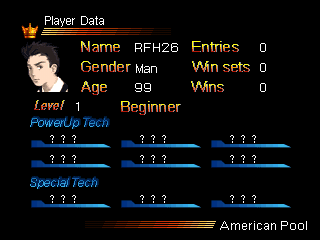
"View Player Data" will allow you to check your character's level and skills.
*In order to save a character to memory card, 1 free block is required. Also, during the saving and loading process, do not remove the memory card or the controllers.
Level Up and Special Shots
By taking part in a match and obtaining a certain amount of experience, your character will go up a level. Furthermore, once you have achieved a certain level, you will acquire special techniques and shots.
Using Special Shots
When you want to use or switch your special skills during a match, select "Special Shot" from the function menu by pressing the START button. On the special skills screen, the power up techniques that you are currently using are lit up.
Use the button to switch them on or off. By pressing the button, you can turn off all currently activated abilities.
When you select a special shot, a confirmation window will open. To use it, select "Yes." However, you can only use a special shot once per set.
Special Skills Introduction
•
Low Tech. Adds a line from the front of the cue ball, which reaches to either the cushion or the first ball.
•
Easy Shot The speed of the power gauge drops by one third.
•
Free Ball You can move the cue ball to wherever you want.
There are other, even more powerful abilities that become available at higher levels.
Function Menu
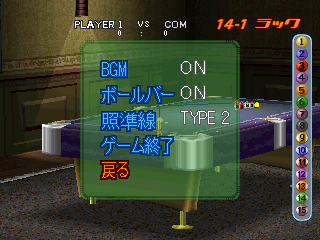
Pressing the START button during game play will open up the Function Menu.
•
Select (BGM) "Background Music" and use the directional buttons to switch it on and off.
•
Select "Ball Bar" and use the directional buttons to switch it on and off.
•
Select the "Tracer" option and use the directional buttons to change the style of the tracer or to turn it off.
•
During Tournament Play only you may select the "Special Shot" option to access your Special Skills (see the Special Shots and Skill section in this manual).
•
Select "Return" to return to the game play.
•
Select "End Game" to end the game.
.png)

.png)



.png)
.png)