GETTING STARTED
Set up your PlayStation® game console according to its Instruction Manual. Make sure the power is off before inserting or removing a compact disc. •
Insert the (Arcade Party Pak) disc and close the Disc Cover.
•
Insert game controllers and turn on the PlayStation® game console. •
Follow on-screen instructions to start a game.
TOP VIEW
FRONT VIEW
PAUSING AND QUITTING
Press Start to pause the game. To quit a game in progress, press Select to bring up the Confirm Exit Menu.
•
To abort a game, select YES.
•
To return to your game, select NO.
Please see Pages 5-7 for information on other menus in the game.
CONTROLLER
Some games in Arcade Party Pak support the DUAL SHOCK™ analog controller (analog mode only) and the PlayStation® Mouse. Please refer to the appropriate game in this manual for the button configurations. DUAL SHOCK ANALOG CONTROLLER
CONTROLLER COMPATIBILITY NOTES
•
Compatible only in Digital and Analog mode.
•
Compatible only in Digital and Vibration mode.
•
Compatible only in Digital mode.
•
You may have a controller that looks like this, if so please follow the digital instructions outlined above.
The above peripherals will be displayed if a game is compatible with them. If a game does support the PlayStation® Mouse or DUAL SHOCK™ analog controller, the appropriate diagram will be displayed. For game location in this manual, please refer to the Table of Contents on Page 2. MAIN MENU
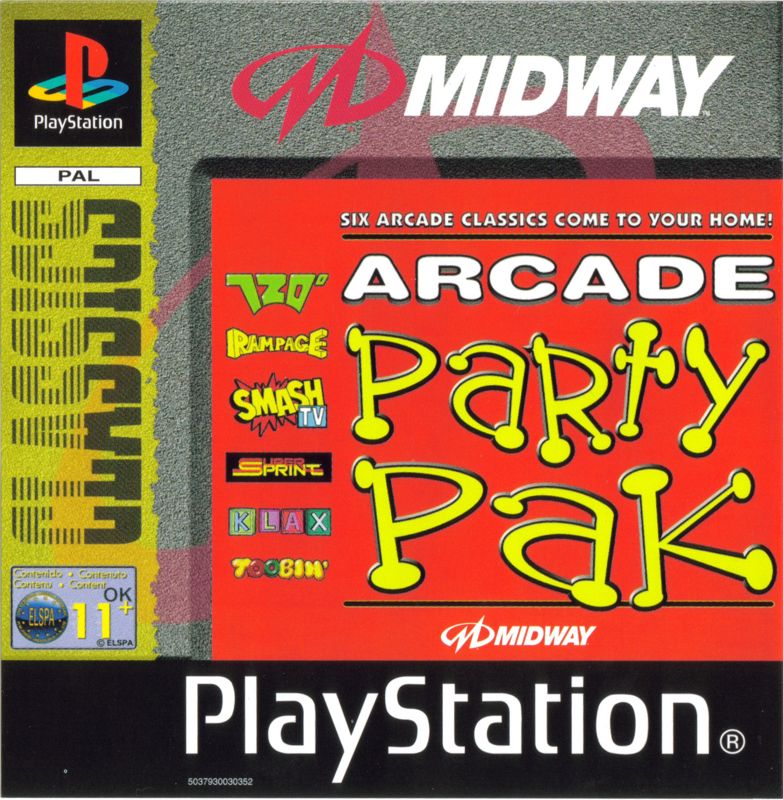
The first screen you'll encounter in Arcade Party Pak is the Main Menu. The Main Menu will display all six classic arcade games in Arcade Party Pak. These games are Toobin', Klax, 720°, Smash T.V., Rampage and Super Sprint.
To select a game to play, highlight the game using the Directional button and press the X button. This will take you directly to the game you chose. For information on how to play the games, refer to the Table of Contents (Page 2) for the location of the game.
VIDEO PRESENTATION
You can also view a video presentation from the creators of the original arcade games. To watch the different movies, highlight the game you want to see and press the button. After a few seconds, the video will play. To go back to the Main Menu, press the X button.
OPTIONS MENU
Arcade Party Pak also allows you to adjust each game's settings via the Options Menu. To access the Options Menu, select the game you want to change the options to from the Main Menu, then press the button.
Each game's options can be adjusted. Each option can be selected by pressing the Directional button Up and Down. You can switch between games by pressing Left or Right on the Directional button.
When selecting options, highlight the option and press the X button to accept the adjustments made. To go back to the Main Menu, press the A button. For information on the Options Menu, see the next page.
EXITING TO MAIN MENU
To exit back to the Main Menu while a game is in progress, press Select. A screen will be shown asking you to Confirm Exit. Highlight Yes and then press the X button.
GAME OPTIONS
Each game has its own options that can be adjusted. To enter the Options Menu, press the button at the Main Menu.
•
To select a game to adjust, press the Directional button Left or Right.
•
To select an option, highlight the option by pressing Up and Down on the Directional button.
•
To activate your game settings, press the X button.
•
To exit back to the previous menu, press the button.
•
You can also reset the settings by pressing the button.
MEMORY CARD OPTIONS (LOADING AND SAVING)
Memory card options (Loading and Saving) can only be performed if you have a Memory card inserted into either Memory card Slot 1 or Slot 2.
•
When saving your options, highlight the "Save to Memory card now" option and press the X button. The game will search for the Memory card and automatically save the settings.
•
When loading, highlight the Load option and press the X button. The game will automatically load your settings (if a Memory card is inserted).
ADJUST GENERAL SETTINGS
The General Settings options include the Effects and Music Volume as well as an Auto-Save feature. The Effects and Music volume can be adjusted by pressing Left and Right on the Directional button.
You can choose to Auto-Save on exiting the game by selecting Yes or No (you can adjust them by pressing Left and Right on the Directional button again). The Auto-Save feature will automatically save your game data to an inserted Memory card upon exiting the game.
ADJUSTING GAME SETTINGS
Each game has its own unique settings. Some of these settings include the game's difficulty and how many lives (or credits) you will begin with. You can also clear the game's
.png)

.png)
.png)
