STARTUP INFORMATION
Console Top View
Console Front View
Setup your PlayStation™ game console according to the instructions in its Instruction Manual. Make sure the power is off before inserting or removing a compact disc.
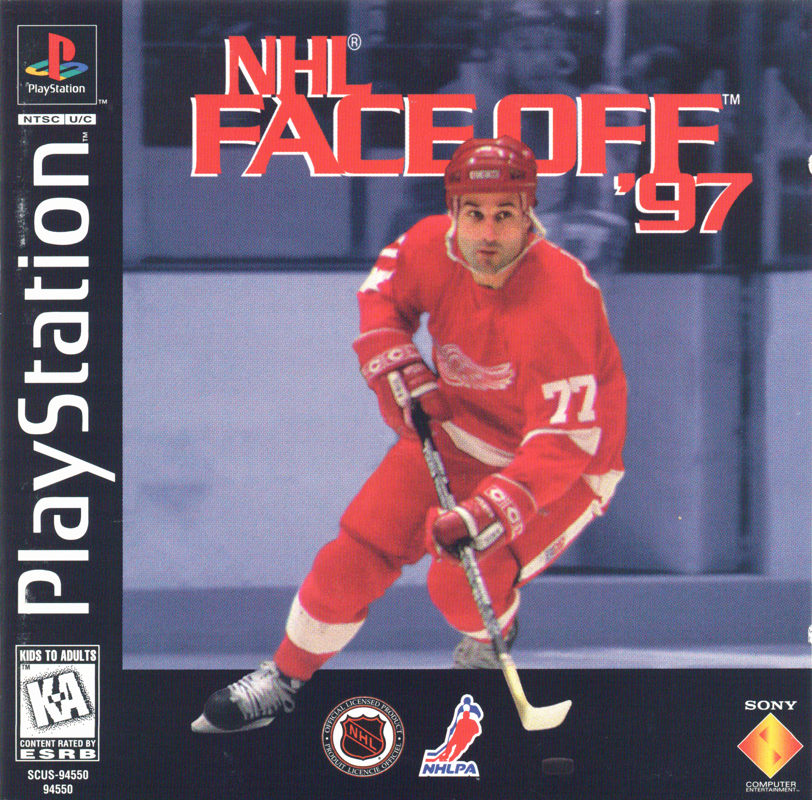
Insert the NHL FACE OFF '97 disc and close the CD door. Insert game controllers and turn on the PlayStation™ game console. Follow on-screen instructions to start a game.
Main Menu
•
Use the up/down directional arrows to move the highlight up and down the menu, and press X to select an item.
•
To return to the Main Menu from any screen, press SELECT.
Select Game
There are four different Game formats: Exhibition, Practice, Season, and Playoffs. See pages 9-12 for specific information about each game format.
Rosters
•
An 'I' next to a player's name means that he is Injured.
•
A capital 'S' means he is Suspended.
•
A small 's' means he has sustained a season ending injury.
The Rosters menu allows you to modify team rosters in a wide variety of ways. If you wish to save changes made to the Rosters, make sure you save the Season or Playoffs in which those teams appear.
Roster Rules
A team must have at least 17 and no more than 25 players, including at least 2 and no more than 3 goalies. You'll need to use these figures when making changes to a roster. If there's a conflict with the rules, a violation message appears to indicate that the change is not allowed.
Edit Lines
The Edit Lines function takes you to the Line Manager screen, where you can edit the different lines for any team. Follow the instructions at the bottom of the screen to make the necessary changes.
Trade Players
The Trade Players screen allows you to execute legal trades from one team to another. If the trade you're attempting is illegal, a violation notice appears. Follow the instructions at the bottom of the screen to make the desired trades.
Create Player
The Create Player screen allows you to construct Free Agents from scratch. Every new player starts with a rating of 40 for each of the eleven skill attributes. You have 450 additional rating points to work with when increasing the skills of the new player (Goalies have 310 points to work with). Skill ratings range from 40 to 99.
When you're finished creating a player and exit the screen, the player appears in the Free Agent pool. Follow the instructions at the bottom of the screen to create a new player.
Release Player
The Release Player screen allows you to remove players from a team roster. Each team must have a minimum number of players. If you try to release too many players, a violation notice will appear. Released players go to the Free Agent pool. Follow the instructions at the bottom of the screen to release players.
Sign Free Agent
The Free Agent pool lists all the available free agents. Make sure you select the appropriate team before you attempt to sign the free agent. The program will let you know if a free agent signing violates the roster rules. Follow the on-screen instructions at the bottom of the screen to sign a free agent.
Player Cards
The Player Cards database provides valuable information about every player in the game. The up/down arrows cycle through the players on a given team. The X button toggles back and forth between player stats and player attributes.
Options
The Options screen allows you to customize the upcoming contest to suit your individual preferences and skill level. Once you begin playing you can change most of the options by Pausing the game and going back to the Options menu. Period Length and Difficulty cannot be changed once the game begins.
Records
The Records screen keeps track of twelve important performance records by the user. You must "Login" on the Controller Setup screen before or during the game in the pause menu to have the stats saved on the Records screen.
Each saved Season or Playoffs keeps track of Records separately, and Records are saved on a Memory Card until such time as you delete them. Follow the instructions at the bottom of the screen to display Records for different skill levels and period lengths.
Memory Card
The Memory Card screen is where you manage your Memory Card(s). Seasons and Playoffs can be saved. Follow the instructions at the bottom of the screen to save your game.
Save Game
You need to go to the Save Game screen before you turn off the machine if you wish to save the current Season or Playoffs. If need be, you can go to the Delete Files screen to free-up space.
Important
You will lose your season or playoffs if you don't save them before starting a New Season or Playoffs.
Load Game
To resume a saved Season or Playoffs, go to the Load Game screen. Follow the instructions at the bottom of the screen to display and load the desired Season or Playoffs.
Save Records
If you wish to save the Records for a Season or Playoffs before deleting the Season or Playoffs, go to the Save Records screen. If you don't save the Records, they will be deleted when you delete the Season or Playoffs to which they pertain.
Load Records
If you wish to attach a set of Records to a new Season or Playoffs, load those Records before you begin
.png)



.png)


.png)
.png)