GETTING STARTED
Before playing, read this instruction manual for useful information.
Set up your PlayStation® game console according to its Instruction Manual. Ensure the power is off before inserting or removing a compact disc. Insert the Team Buddies™ game disc and close the Disc Cover. Insert game controllers and turn on the PlayStation game console. Follow on-screen instructions to start a game. PlayStation Console Layout
Multiplayer Setup
Team Buddies™ supports up to four players. For multi-player games, you will need the Multi Tap. This allows all players to play simultaneously.
The game supports the Memory Card to save game data. Insert your Memory Card into Memory Card Slot 1 on your PlayStation® game console before turning the power on. Multi Tap Warning
If using the Multi Tap, a controller must be plugged into Controller Port A on the Multi Tap before connecting the Multi Tap to Controller Port 1 on the PlayStation game console. Additional controllers must be connected in consecutive Controller Ports. If using a Memory Card with the Multi Tap, insert it into Memory Card Slot 1-A on the Multi Tap to save your game data.
MAIN MENU
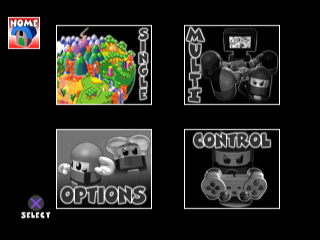
After the introduction movie (which can be skipped by pressing at any time), you will reach the Main Menu. There are four squares to choose from, each leading to a sub-menu.
Highlight the desired sub-menu using the Directional buttons or Left Analog Stick. Press to access the sub-menu.
Main Menu Options
Go to the Single sub-menu to begin a one-player game.
Go to the Multi sub-menu to begin a multi-player game.
Go to the game's Options Menu to configure game settings. You can also LOAD and SAVE game information from your Memory Card here.
Go to the Control Menu to configure your controller settings.
OPTIONS MENU
From the Main Menu, highlight OPTIONS and press . To highlight an option within the Options Menu, use the Directional buttons or Left Analog Stick.
Options Menu Settings
Controls the volume of the game's Sound Effects. Press Left and Right to adjust the volume bar.
Controls the volume of the game's Background Music. Press Left and Right to adjust the volume bar.
Controls the volume of the Buddies' Speech. Press Left and Right to adjust the volume.
Allows you to change the position of the game on your screen. Press and hold R2 to begin. Four corners will appear to guide you. Keep holding R2 and use the Directional buttons or Left Analog Stick to position the screen.
Shows the names of the people who worked on the game. Highlight this sub-menu and press .
Saves game data to your Memory Card (if one is inserted). Highlight SAVE and press . The game will look for an inserted Memory Card with saved information. If saved information exists, the game will ask to overwrite it. Select YES or NO and press . If no saved information is present, a new file will be created.
Requires saved Team Buddies data on your Memory Card. Press to begin loading your saved game. The game will search for saved information. If found, the game will ask if you want to load. Select YES or NO and press . If no saved information is found, you will exit back to the Main Menu.
Highlight this and press to go back to the Main Menu. Always exit this way when changing options, otherwise your configurations will not be available in the game.
USING CRATES
The law of the land is Destroy or be Destroyed. These next few pages will help you do just that. The first thing we'll talk about are those wonderful little gifts from the sky known as crates.
STACKING CRATES
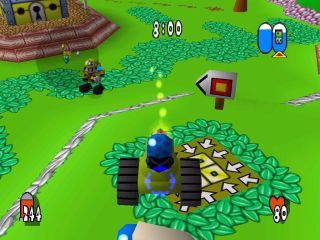
To arm yourself, find an area near your base where red & yellow crates fall from the sky. These are your supplies.
•
Stand next to a crate then press to pick it up.
•
Take it over to your stacking pad (the block of four squares where you started the game).
•
Press again to drop the crate on the stacking pad.
•
An icon will appear above the crate to tell you what's inside.
•
Stand by the crate and press to kick the box open and reveal the weapon inside.
•
Walk over the weapon to pick it up. Be quick, as the weapon will disappear if not collected after a short while.
•
Learn how to stack crates in different combinations to get better weapons and other useful gadgets.
Sometimes there's a distance between the crate collection point and the stacking pad. A quicker way to get the crate to the pad is to throw it. Simply jump up (press ) and then quickly press to throw the crate. It will take a few tries to get it right.
ADVANCED STACKING
The four squares on your stacking pad allow for stacking combinations. Stacking more than one crate at a time creates different outcomes.
For example,
.png)


.png)




_1.png)
_1.png)
_1.png)
.png)


.png)