Moving the View
To scroll the landscape, hold the SCREEN MODE button and press the directional button in the desired direction.
DUALSHOCK analog controller users can scroll using the right analog stick. To use Analog mode, press the analog mode switch (so the LED is red) on your DUALSHOCK analog controller.
Changing Worms
If Worm Select is enabled, press the WORM SELECT button to choose a different Worm from your team. You can only change Worms if you haven't moved one or selected a weapon.
Moving Worms
Move your Worm using the directional button or the left analog stick on the DUALSHOCK analog controller.
Jumping
•
Press JUMP 1 to jump forward.
•
Press JUMP 1 twice quickly to jump backwards.
•
Press JUMP 2 to perform an upward jump.
•
Press JUMP 2 twice quickly to perform a back-flip.
Tip: Certain weapons can be used while your Worm is jumping.
Quit Menu
Press the START button to open the Quit Menu. From here, you can select Draw Game, Force Sudden Death mode, and Quit Game. You can also view the number of rounds won by each team.
When the Quit Menu is accessed, the game is paused. Press the START button again to resume play.
Name Switch
Press the NAME DETAIL LEVEL button to toggle Worm name visibility between full, partial, and none. This can be useful if names hinder visibility.
On-Screen Information
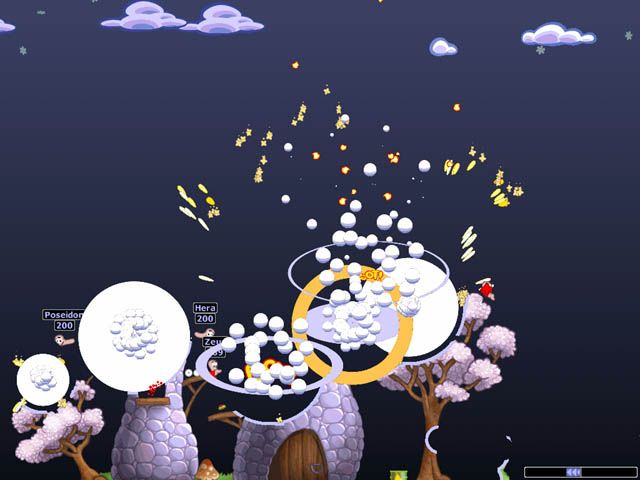
The game screen provides useful information.
Turn/Round Time Indicator
Your Turn Time counts down at the bottom left of the screen. When it reaches zero, play passes to the next team.
Wind Bar
Some weapons, like the Bazooka, are affected by wind. A wind strength indicator at the bottom-right of the screen helps you gauge your shots.
Team Status
Each team has an overall energy bar at the bottom of the screen. When this is fully depleted, that team is removed from the game.
Worm Status
Worm names and energy values appear above each Worm.
Utilities
Enabled utilities (Double Damage, Crate Spy, etc.) will appear above the wind indicator in a small box when in use.
Deathmatch Challenge
Similar to standard games, you will face computer teams of increasing difficulty. Statistics are kept, and rewards are given for high-ranked teams. Select your team, then start.
Create a New Game
Multiplayer
This menu is for creating traditional Worms World Party multiplayer games on your PlayStation game console. Multiplayer games can have 2-4 teams, any of which can be computer-controlled at various skill levels. Barracks
All available teams are listed in the Barracks. To add a team to the game, highlight it and press the button. The team will move from the barracks to the GAME ROSTER window. Select all desired teams and press the button to exit the barracks window.
Game Roster
As you add teams, they appear in the game roster. Up to four teams can be added. To remove a team and return it to the Barracks, highlight it and press the button. Once teams are in the ROSTER, you can select several options.
Allied Teams
You can ally teams together, meaning they will play on the same side. Highlight the team you wish to ally and press the button until its color matches the team you want to ally with. Allied games play like normal games, with a few exceptions.
Allied players are credited with a victory if their alliance wins, even if their team is defeated. During the game, alliances take turns to move. Teams within alliances will take turns to move within that alliance.
Handicapping
Highlighting a team and pressing the button will toggle through handicap options. A team will have 25 energy points added to (+) or removed from (-) its starting energy level. If neither symbol is shown (default), Worms start with the level set in General Game Options.
Number of Worms in the Team
You can change the number of Worms a team starts with. Highlight the team and move the directional button left and right to toggle the amount from 1 to 4.
Multiplayer Missions
You can play multiplayer missions within the 'create new game' menu. You can override core game settings by changing the GENERAL GAME OPTIONS.
General Game Options
These basic options govern simple game rules. Highlight the option and press the button to toggle through available settings.
Turn Time
This is the time (in seconds) you have for your turn. A lower time makes it more difficult.
Round Time
This is the time (in minutes) before the round ends and Sudden Death begins.
Starting Energy
This is the starting energy of all Worms before any handicapping. The default and recommended energy level is 100.
Victories Required
Select the number of victories (rounds won) for a team (or alliance) to win the match. The default is two rounds to win.
Worm Select Mode
You can choose whether to allow players to select which Worm to move next.
•
NO WORM SELECT: You cannot choose which Worm to move.
•
WORM SELECT: You can use the WORM SELECT button to choose which Worm to move.
We feel that Worms World Party is more skillful when Worms in a team take turns to cycle round to their turn.
WormPot
The WormPot offers a fast and attractive way to experience many different ways to play
 (En,Fr,De,Es,It,Nl,Sv,Da).png)

_1.png)
 (En,Fr,De,Es,It,Nl,Sv,Da).png)
.png)