GETTING STARTED
Set up your PlayStation®2 computer entertainment system according to the instructions in its Instruction Manual. Make sure the MAIN POWER switch (located on the back of the console) is turned on. Press the RESET button.
When the power indicator lights up, press the open button and the disc tray will open. Place the (C.A.R.T. FURY™) disc on the disc tray with the label side facing up. Press the open button again and the disc tray will close.
Attach game controllers and other peripherals, as appropriate. Follow on-screen instructions and refer to this manual for information on using the software.
GAME SELECTION
At the game's Title Screen, press the START button to access the game's greeting screen. The greeting screen is where you will begin your racing career. There are three choices available to you.
1 PLAYER
Play against the computer in a variety of game modes including ARCADE MODE, SIMULATOR MODE & SEASON MODE.
2 PLAYER
This allows two players to compete against each other in every game mode except Driving 101®. Make sure you have two controllers connected before attempting to play a 2 Player game. When you're ready to go, highlight 2 PLAYER and press the button.
LOAD GAME
This sub-menu allows you to load a previously saved game on your memory card. You must have saved game data on your memory card in order to load a game. To load a game, highlight LOAD GAME and press the button.
You will now choose from which Memory Card Slot (1 or 2) to load your game. Highlight the appropriate memory card slot and press the button. Next, highlight the file you want to load and press the button to load the saved game data.
NOTE: Do not remove the memory card or turn the power off while loading game data!
After you have successfully loaded a saved game, you will be taken to the game's Main Menu.
MAIN MENU
The game's Main Menu is your passageway to everything this game has to offer.
RACE
This sub-menu is where you will select the different game modes to play.
PLAYER STATS
When you entered your name after starting the game, you created a player profile for yourself. This profile records your overall performance in the game. Your stats reflect game modes and sub-games beaten as well as any features or other secrets you unlocked.
This sub-menu is available to you whenever you need to access it by going to the Main Menu. Player profiles are updated when you save your progress, so save often!
OPTIONS
The Options Menu is where you can adjust the different settings in the game. We'll get into the options on the next page.
PRESS ROOM
The Press Room is loaded with extras for you to enjoy. High Scores allows you to view each track's High Scores. Press Left or Right on the Directional buttons or Left analog stick to view a different track.
You can learn about each driver featured in the game under the Driver Bios section. Finally, once you have unlocked movies, you can watch them in the Danny Sullivan Theater.
OPTIONS MENU
Before you head out on the raceway, you may want to adjust a few options. At the Main Menu, highlight OPTIONS and press the button. The four sub-menus in the Options Menu are AUDIO, CONTROLLER, CHEATS and GAME FILES. The next two pages will give you a detailed description of each sub-menu.
AUDIO
This sub-menu controls all audio settings in the game. To change an option here, press Up or Down on the Directional buttons or Left analog stick to highlight the option. Next, press Left or Right to adjust the setting. When you are finished, highlight DONE and press the button.
•
SOUND QUALITY - Select from STEREO (both speakers) or MONO (one speaker).
•
MASTER VOLUME - This setting controls the volume output of the game.
•
SPEECH VOLUME - This controls the volume of every voice heard in the game.
•
MUSIC VOLUME - This setting controls the volume of the background music.
•
SFX VOLUME - Engines too loud? This allows you to adjust the volume of each sound effect in the game.
RACING MODES
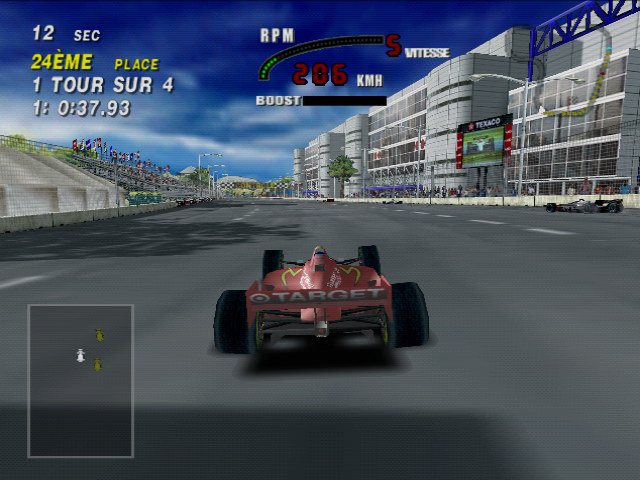
The next few pages will describe the five different racing modes in C.A.R.T. FURY™. At the Main Menu, highlight RACE and press the button to access the Race Mode Menu. Press Up or Down to scroll through the different modes. Press the button again to start playing that game mode. Remember to check out Page 18 for what to look for during a race.
ARCADE MODE
This mode plays exactly like you remember C.A.R.T. FURY™ in the arcade. Pick a driver, pick a track and start racing! Boost is enabled in this mode, but remember to use it sparingly. Also remember that only first place wins races!
SIMULATOR MODE
Simulator Mode is definitely a challenging game mode. Pick a driver and then make adjustments to the car itself. These adjustments are crucial to your performance on the track. Press Up or Down on the Directional buttons or Left analog stick to scroll through the four car settings. To adjust the settings, press Left or Right.
The meter on the bottom-right of the screen will display your car's attributes. When
.png)

.png)
.png)
.png)
.png)
.png)
