PlayStation 2 Console Overview
Note: Illustration may not match all PlayStation 2 console types. For owners of SCPH-70000 series PlayStation 2 systems, refer to the setup instructions supplied with your system. Starting the Game
Set up your PlayStation®2 computer entertainment system according to its Instruction Manual. Ensure the MAIN POWER switch (located on the back of the console) is turned ON.
•
When the power indicator lights up, press the OPEN button to open the disc tray.
•
Place the Call of Duty® 2: Big Red One disc on the disc tray with the label side facing up.
•
Press the OPEN button again to close the disc tray.
•
Attach game controllers and other peripherals as appropriate.
•
Follow on-screen instructions and refer to this manual for information on playing the game.
Memory Card (8MB) (for PlayStation®2)
To save game settings and progress, insert a memory card (8MB) (for PlayStation®2) into MEMORY CARD slot 1 of your PlayStation®2 system.
You can load saved game data from the same memory card or any memory card (8MB) (for PlayStation®2) containing previously saved games.
Starting Up
To select menu options, use the ↑ and directional buttons to navigate. Highlight the desired option and press the button to accept.
To select a menu option, follow the on-screen button prompts and press the button to accept and the button to go back.
Call of Duty 2: Big Red One supports the DUALSHOCK®2 analog controller. The left analog stick works the same as the directional buttons when navigating menu options.
Multiplayer
Take the war online! Get ready to fight with or against players from around the world in up to 16-player games! Please read the Multiplayer section to learn more about how to get started in Call of Duty 2: Big Red One online play.
Options
In the options menu, you can customize your game settings.
Gameplay Options
•
Subtitles—When this is On, subtitle text will appear for all cinematic voiceovers.
•
Crosshair—Turn Off your crosshair for a greater challenge.
•
Friendly Tags—Select On to view the name and rank of your allies when you target them.
•
Alternate Tank Control—With this On, the tank will move in the direction the left thumbstick is pushed. With this Off, the left thumbstick controls the direction the chassis is facing, and pushing up or down actually moves the tank.
•
Enable ADS Toggle—With this On, pressing the L1 button once enables ADS, which can then be disabled by a second press of the L1 button.
Controller Options
•
Invert Aim—When set to On, moving the right analog stick up makes your character look down, and vice versa.
•
Vibration—Turn the controller vibration Off or On.
•
Horizontal Sensitivity—Adjust your left and right look sensitivity.
•
Vertical Sensitivity—Adjust your up and down look sensitivity.
•
Configuration—Choose between four preconfigured controller settings.
Screen Options
•
Size—Select either 4:3 (normal) or 16:9 (widescreen) aspect ratios.
Sound Options
•
Channels—Select Mono, Stereo or Dolby® ProLogic® II settings.
•
Volume—Adjust the slider to change the volume.
Bonus Materials
All unlocked rewards can be found in this menu. Rewards are unlocked as single player missions are completed.
Heads-Up Display
Health Bar
This bar indicates your current health status. The bar reduces in size as you lose health. Once the bar is empty, you're officially killed in action.
Throughout your journey you'll encounter various types of health kits. Walk over a health kit or get near it and press the button to pick it up for a quick boost of health.
Ammunition Counter
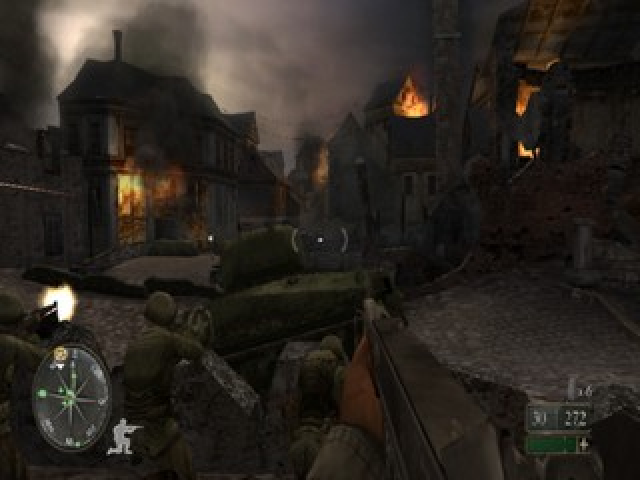
The box above the health bar is your ammunition counter. The first number indicates the number of rounds in your current weapon's clip. The second number indicates the total number of available bullets for the current weapon. The number of remaining grenades is shown above the ammunition counter.
Crosshair
Use your crosshair to aim your weapon. When you run or walk, the crosshair widens, indicating the lack of accuracy that comes from attempting to aim while moving. The wider the crosshair, the less accurate your shots will be.
When you stop moving, you automatically steady your weapon and the crosshair narrows. It's often wisest to fire when completely stopped to ensure accurate shots. Crouching or lying prone also keeps the crosshair focused, and it's advisable to use these positions whenever possible.
Damage Indicator
Anytime you take damage, a red marker appears around the center of the screen, indicating the direction from which you're being attacked.
Mission Objectives
Throughout your campaign, mission objectives change dramatically depending on the situation. Press the SELECT button to show your mission objectives and get a status on each one.
Incomplete or in-progress mission objectives appear in green text. Completed mission objectives appear in grayed-out text.
Movement
Walking and Running
Though walking is slower than running, walking allows you to shoot more accurately (your crosshair doesn't widen as much as when running). Move the left analog stick slightly to walk





.png)
.png)

.png)
