Getting Started
Wipeout® Pulse uses profiles to save your progress and game settings. When you first start a game, the most recently saved profile will be automatically loaded from the Memory Stick Duo™, and a short introductory movie will play. Press ⓧ to skip the movie sequence and the Main Menu will be displayed.
If no existing profiles are found, the following message will be displayed: "No profile found on Memory Stick Duo™. Would you like to create a profile now?"
Creating a profile will enable the autosave feature, which will automatically save your progress after most races and when exiting some menu screens. To create a profile, enter your name and tag and then press ⓧ to access the Main Menu.
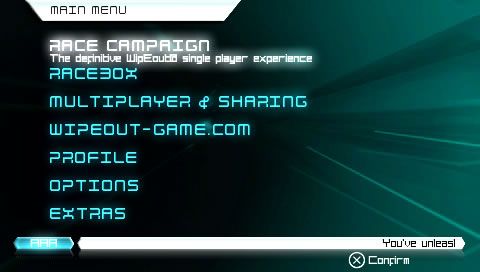
Race Campaign Mode
Race Campaign Mode is an extensive series of race events arranged over dozens of grids. Each grid is made up of cells, and each cell contains a unique race event. Only one grid is unlocked at the start of the campaign. Highlight a grid from those available and press ⓧ to access it.
Inside the chosen grid, highlight a cell to view the details of the event it contains, including its speed class, the number of opponents who will be racing, the track you will be racing on, and the objectives you will need to meet in order to win gold, silver or bronze in the event. If the race features computer-controlled opponents, press Ⓛ to adjust their difficulty. Press ⓧ to start the event. Winning gold, silver or bronze in an event will unlock the cells adjacent to it in the grid.
Online (Infrastructure)
Compete against other WipEout® Pulse pilots across the globe via Infrastructure Mode.
Choose a Network Connection and press ⓧ to confirm and access the WipEout® Pulse online servers. You must log into the WipEout® Pulse servers in order to race via Infrastructure Mode. When you have entered your login details, press ⓧ to confirm and access the Online Menu.
Online Menu
•
Create Game: Create a new race event. Adjust the race settings, then choose a track and a ship to race in. Enter the game lobby and wait for other players to join you. When you are ready to race, highlight "Start Game", and press ⓧ.
•
Join Game: Compete in a race event created by another player. Choose a race from the list of events available and press ⓧ to confirm. Choose a ship and enter the game lobby. The race will begin when the host player is ready. When the race is over, players will be returned to the lobby, where further options will be displayed.
•
Read EULA: View the End User License Agreement for playing WipEout® Pulse online.
•
Quit Online: Return to the Main Menu.
Ad Hoc Mode & Sharing
Ad Hoc Mode allows two or more players to compete via a Wireless (WLAN) connection between their PSP® systems. For more information on creating or joining a game in Ad Hoc Mode, please follow the guidelines for creating or joining a game as described in the "Online (Infrastructure)" section. •
Share Data: A list of other WipEout® Pulse players using this function will be displayed. Select a player to share data with, and choose what data you want to share. When the other player has chosen to share with you, and chosen what data they want to share, each player must press ⓧ to confirm and begin the transfer.
Game Options
•
Music Volume: Adjust the volume of the music.
•
SFX Volume: Adjust the volume of the sound effects.
•
Music Playlist: Choose whether the in-game music tracks play in sequential or random order.
•
Camera: Adjust the default camera viewpoint.
•
Dynamic HUD: Choose the style of the in-race gamescreen.
•
Multiplayer Tags: Choose whether to show other players' tag names above their ships during multiplayer races.
•
Ghost Ships Visable: Choose whether to display ghost ships during Time Trial and Speed Lap race events.
•
Auto Load Ghost: Choose whether a ghost of your ship is automatically loaded after the first lap of Time Trial events.
•
Language: Choose an on-screen language from English, French, German, Italian and Spanish.
•
Controls: Choose between Dual Airbrake or Single Airbrake control schemes, or choose Custom to access the Custom Controls Screen and customize the controls manually.
Custom Controls Screen
Choose between Dual Airbrake or Single Airbrake, then highlight an action and press the button to which you want to reassign that action. Once satisfied with the adjustments made, highlight "Accept" and press X to continue. FX400 Anti-Grav Racing, 2207: The Teams
•
FEISAR: Speed 7, Acceleration 8, Handling 10, Shield 8
•
AG Systems: Speed 7, Acceleration 9, Handling 9, Shield 8
•
Assegai: Speed 8, Acceleration 8, Handling 9, Shield 7
•
EG-X: Speed 8, Acceleration 9, Handling 7, Shield 7
•
Piranha: Speed 10, Acceleration 6, Handling 6, Shield 9
•
Qirex: Speed 8, Acceleration 7, Handling 8, Shield 9
•
Triakis: Speed 9, Acceleration 6, Handling 6, Shield 10
•
Goteki 45: Speed 7, Acceleration 10, Handling 7, Shield 8
Track Types
Each track in WipE