GETTING STARTED
Set up your PlayStation® game console according to its Instruction Manual. Ensure the power is off before inserting or removing a compact disc. Insert the Muppet Monster Adventure disc and close the disc cover. Insert game controllers and turn on the PlayStation® game console. Follow on-screen instructions to start a game. TOP VIEW
FRONT VIEW
MEMORY CARDS
Do not insert or remove peripherals or Memory cards once the power is turned ON. Make sure there are enough free blocks on your Memory card before commencing play.
Your Memory card is supported in MEMORY CARD slot 1 only.
MAIN MENU
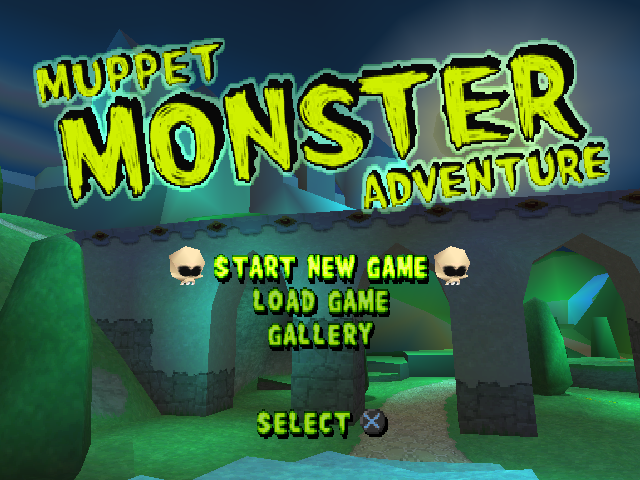
After a short cinematic introduction, the Title Screen will appear. Press the Start button to access the Main Menu.
START NEW GAME
Start a new game.
LOAD GAME
With a Memory card inserted in your console, you can load previously saved Muppet Monster Adventure games from this menu.
GALLERY
When you return to a previously played level and destroy an enemy for the second time, you'll be awarded a coin instead of a piece of evil energy. You can collect these coins and save them to your Memory card while performing a normal save game. These coins give you access to various sections of the Gallery, found in the Main Menu. You must have a valid Memory card that contains saved data. When you enter the Gallery's first screen, five coffins will display the various open sections of the gallery. Underneath each coffin, you'll find the number of coins required to open it. When this value has been reached, the coffin icon will be shown "Open". Inside each coffin are 32 individual items, each with the specific amount of coins you need to access that item. If the number underneath the item is glowing, it is accessible. •
Press `⬆` or `⬇` to move the selector.
•
Press the `✖` button to select each item.
GALLERY ICON TYPES
•
Clapperboard - Film Clip
•
Art Brush - Production Art
•
Picture Frame - Team Scream Picture
PAUSE OPTIONS MENU
Press the START button during the game to activate this menu.
CONTINUE
Returns you to the game.
SAVE GAME
You must have a Memory card inserted in your Console to save a game. Please ensure that there are at least 2 free blocks on the Memory card.
•
To save your current game, press `⬆` and `⬇` to choose a Memory card block.
•
Press the `✖` button to confirm.
•
Once the save has been successfully completed, press the `✖` button again to return to the Pause Options Menu.
OPTIONS
SOUND SETUP
•
Press `⬅` to decrease or `➡` to increase the volume of the SFX, Speech and Music.
SCREEN SETUP
•
Press `⬆`, `⬇`, `⬅` or `➡` to adjust the position of the screen.
•
Press the `✖` button to confirm the new position.
•
Press the `△` button to reset the screen to its former position.
CAMERA
Choose either Passive or Active camera. In Passive Mode, the camera can be rotated around Robin by using the L2 and R2 buttons.
VIBRATION
•
Press `⬅` or `➡` to turn the vibration function on or off.
•
Press the `✖` button to confirm.
•
NOTE: This option only applies when using a DUALSHOCK analog controller.
INVENTORY
The inventory can be accessed through the In-Game Menu and also by pressing the SELECT button. It displays information about the levels that you have visited.
The inventory consists of pages that can be flipped through, back and forth. Each page contains information relevant to the levels within a certain world.
When first accessed, you will see the six world pages displaying the names of the levels within each world.
•
Press `⬅` and `➡` to select the relevant world.
•
Press `⬆` and `⬇` to select the required level within that world.
Each level page will display which Monster Morph powers are available in the level, bonus letters, evil energy, and Muppet Tokens you have collected within the level. Finally, in the bottom center of the screen, you'll see the Level Completion Percentage. You'll also see boss level pages displaying the status of the boss and whether or not you've defeated them. You will only be able to flip through to worlds that have been opened, and the inventory will default to the world that you are currently in.
HUB
When you select this option, the following on-screen message will be displayed: "Are you sure?"
•
Highlight YES or NO and press the `✖` button to be taken out of the current game and back to the central Hub.
Built by Petri von Honeydew to transport him around his world, the Hub is a large wheel that displays all of the available levels in the game.
•
From here, you can scroll the wheel by pressing `⬅` or `➡`.
•
Press the `✖` button to select the level you wish to visit.
Not all of the levels are open; some are locked. The locked levels can only be opened by collecting enough
.png)

.png)
