Pregame Setup
Menu Navigation
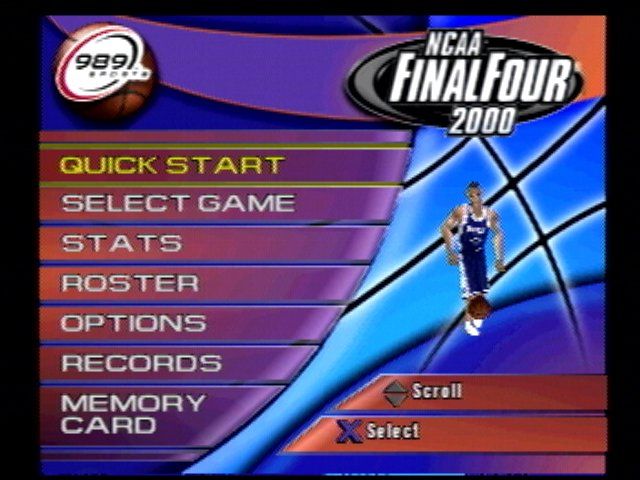
From each menu, use the D-Pad Up/Down to highlight options. When an option is entered, use Left/Right to cycle through available options.
Press to bring up the next menu or to return to a previous menu.
Rosters
The Rosters option allows you to alter the roster of any collegiate team. A team's roster cannot exceed 12 players.
Select Team
Change the look of a team's roster by selecting the team here. To view the Conferences and Schools in alphabetical order, press L1/R1.
•
D-Pad Left/Right to choose a CONFERENCE.
•
To select a team from our entire field of NCAA teams, make the selection ALL.
•
D-Pad Up/Down to SCHOOL and then Left/Right to choose a team.
Line Up
Edit the starting lineups for the team you've selected. Substitute a starter for a player off the bench or from the list of recruits whose attributes you can change.
•
D-Pad Left/Right to view the attributes of each starter.
•
D-Pad Up/Down to select a starter to replace.
•
Press to choose a player from the bench or to choose from the list of recruits.
•
D-Pad Up/Down to highlight a player as the replacement.
•
Press to substitute a player from the bench or to use a recruit.
Recruits
Create 12 recruits that can be added to your starting lineups. Use the attributes listed to shape a player into an All-American talent or simply create yourself using your own characteristics.
•
Press L1/R1 to choose a recruit.
•
D-Pad Up/Down through the player attributes and then Left/Right to make changes.
•
Press when you are done.
Reset Rosters
Rosters can easily be restored to their original setup. Choosing this option will also reset any season or playoff not saved to the MEMORY CARD.
Options
Use the following options to control game attributes.
Half Length
Choose the length in minutes of each half.
Game Speed
Choose the speed of the game. The higher the number, the faster the game action moves.
Difficulty
The player difficulty will determine each player's offensive and defensive ability. To prepare yourself for the challenge of playing at the Junior or Senior levels, first master the Freshman and Sophomore levels.
Injuries
Keep Injuries ON to allow player injuries during the game.
Fatigue
Turning Fatigue OFF will keep your players from getting tired during the game.
989 Sports Tip
Don't let fatigue become a factor in your team's performance. Make substitutions to keep your players fresh.
Fouls
Turn Fouls OFF to play a game without fouls being called.
Substitution
Choose a setting for game substitutions. Manual allows you to make substitutions. With a setting of Auto, the CPU controls the player substitutions.
Touch Shooting
Keep Touch Shooting ON to control the accuracy of your shot. See the Touch Shooting screen of your game setup for a demo of Touch Shooting.
Sound
Turn the game sound ON/OFF.
Surround
Keep Surround ON to hear the sound of the game in surround sound.
Crowd
Control the excitement of the crowd during the game by adjusting the level of the crowd noise.
Play-by-Play
Adjust the volume of the play-by-play commentator.
SFX
Adjust the volume of the special sound effects of the game.
Music
Adjust the volume of the game and front-end music.
Auto Replays
Adjust the frequency in which replays are shown. A high setting will cause replays of exciting plays to automatically be shown.
6th Man
Turning 6th Man ON will allow the home team to fire up the crowd and use it as a 6th defensive man. On defense, press L1 + L2 + R1 + R2 as your opponent goes up for a shot to bring the crowd noise to a maximum and disrupt his rhythm.
989 Sports Tip
Time your offensive rebound perfectly and you will be rewarded with a "put back" dunk.
Select Game
Quick Start
Quick Start games allow you to start an Exhibition game quickly without any set up of the game. If you decide after selecting Quick Start that you would prefer to set up your game format:
•
Press from the Controller screen to go back to the main menu.
Controller
Choose a team and configure your controller for the game. Adding a Multitap allows you to play up to a five-player game. With two Multitaps, up to four users (eight players total) can play on each team.
•
When using the Multitap, at least one controller must be connected to Controller Port 1-A or 2-A.
•
D-Pad Left/Right to choose a team.
•
Press to configure your controller to use different offensive and defensive game controls.
•
D-Pad Up/Down to highlight a game action.
•
D-Pad Left/Right to switch the action button symbol with that of a different action button symbol.
•
If after you make changes to your controller setup you decide to use the default settings, press.
•
Press to accept the new configuration or press to cancel.
•
Press to start the game.
Touch Shooting
Touch Shooting allows you to control a player's shooting ability. Turn Touch Shooting ON for maximum game play ability.
.png)


.png)
