MULTITAP
The following diagram illustrates when a Multitap (sold separately) is connected to Controller port 1 or 2 of the PlayStation game console. WHEN USING THE MULTITAP
Connect the Multitap to Controller port 1 or Controller port 2. Next, connect the controllers to the controller ports on the Multitap.
When the Multitap is connected to Controller port 1, always make sure to connect a controller to Controller port 1-A on the Multitap first and then connect additional controllers to each of the other Controller ports B, C and D.
GOLF TERMS
•
PAR: The standard number of strokes for a hole.
•
BIRDIE: Term for scoring one stroke under par on a hole.
•
EAGLE: Term for scoring two strokes under par on a hole.
•
ALBATROSS: Term for scoring three strokes under par on a hole.
•
HOLE IN ONE: Getting the ball into the cup in one stroke.
•
BOGEY: Term for scoring one stroke over par on a hole.
•
DOUBLE BOGEY: Term for scoring two strokes over par on a hole.
•
TRIPLE BOGEY: Term for scoring three strokes over par on a hole.
•
FAIRWAY: The groomed grass that makes up the majority of the area surrounding the green.
•
GREEN: The area of short, cut grass surrounding the cup.
•
ROUGH: Patches of tall, dark green grass.
•
BUNKER: Sand filled obstacle.
•
WATER HAZARDS: Water filled obstacle. A player is penalized one stroke if their ball is hit into a water hazard.
•
OB: Short for out-of-bounds. Term describing the area outside the normal confines of the hole. A player is penalized one stroke if their ball is hit out-of-bounds.
GETTING STARTED
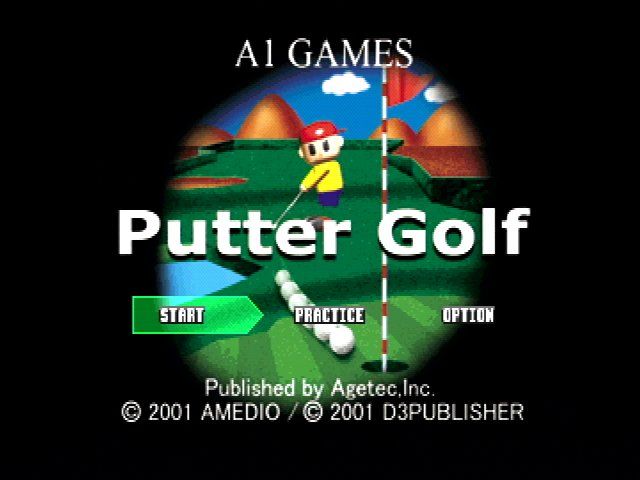
Press the START button at the Title screen to display the Main Menu. Use the directional buttons to highlight the desired menu and press the button to confirm the selection.
Start
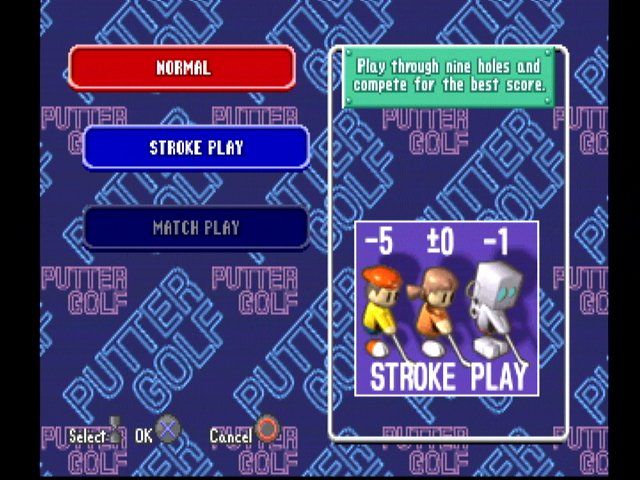
Select from the three main course types here: Normal, Trick and Mix. Each of these courses consist of nine holes that can be played using either Match or Stroke rules against a CPU opponent or friends.
Practice
Select this option to practice putting. One Normal and one Trick hole are available in this mode. The following settings can be adjusted on the Normal hole: distance to cup, cup position, and terrain elevation.
The practice Trick hole provides an opportunity to experience all the different obstacles that are encountered on the main Trick course. Use the practice options to familiarize yourself with different shots and obstacles.
Option
Make adjustments to various game settings here. Highlight menu options using the directional buttons and confirm selections by pressing the button. Press the button to return to the Title screen.
•
BGM Settings: During the game, choose to listen to only sound effects, or both music and sound effects.
•
Sound: Set the sound setting to either Stereo or Mono.
•
CPU Difficulty: Set the difficulty level of CPU opponents to either Normal or Hard.
•
Memory Card: Access this option to Save/Load game data.
COURSE SELECTION
Course selections can be made after selecting the Start option on the Main Menu. Highlight the desired course using the directional buttons and confirm the selection by pressing the button. Press the button to return to the Title screen.
1.
Select a course
•
Normal: A nine-hole course with standard golf obstacles.
•
Trick: A nine-hole course with unique obstacles.
•
Mix: A nine-hole course with holes randomly selected from both the Normal and Trick courses.
2.
Select a style of play
•
Stroke: Play through nine holes and compete for the best score. The player with the best overall score after all nine holes wins. This is for 1-4 players.
•
Match: Compete to see who can win the most holes. The player with the fewest strokes on a hole wins that hole. This is for 1-2 players.
3.
Select opponent
Compete against a mix of human and/or CPU opponents.
•
VS Human: Select the number of players, the controller assigned to each player (as necessary), and character representations here.
•
VS CPU: Compete against the CPU. This is for 1-player mode.
4.
Character selection
This screen only appears when VS CPU is selected. Assign the CPU opponent's character here.
5.
Confirm settings
Select OK to confirm game settings and begin the game. Select Previous Screen to go back one screen. Select Start Over to return to the course selection screen. All selections are confirmed by pressing the button.
GAME SCREEN
1.
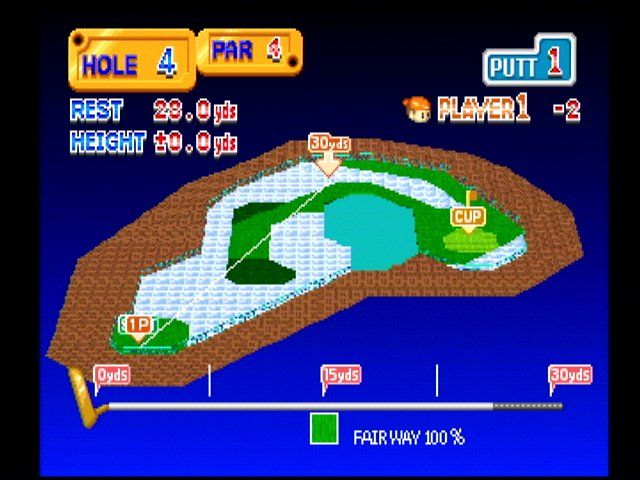
Select shot distance/change putter (0)
Press the button to switch between putters (15yds and 30yds). Switching between the two putters changes the shot gauge. The distance to the pin is the determining factor when selecting a putter.
Press the button to initiate the shot gauge, press the button again to determine the strength of the shot. Take into account the distance
.png)


.png)
