Setting Up
Set up your PlayStation®2 computer entertainment system according to its Instruction Manual. Ensure the MAIN POWER switch (on the back of the console) is turned on.
Press the RESET button. When the power indicator lights up, press the OPEN button to open the disc tray. Place the DROPSHIP: UNITED PEACE FORCE™ disc on the disc tray with the label side facing up. Press the OPEN button again to close the disc tray.
Attach game controllers and other peripherals as appropriate. Follow on-screen instructions and refer to this manual for information on using the software.
PlayStation®2 Components
Memory Card (8MB) (for PlayStation®2)
Throughout this U.P.F. PILOT HANDBOOK, "Memory Card" refers to the Memory Card (8MB) (for PlayStation®2).
To save game settings and progress, insert a Memory Card into MEMORY CARD slot 1 of your PlayStation®2. You can load saved game data from the inserted Memory Card, or any Memory Card containing previously saved DROPSHIP: UNITED PEACE FORCE™ data.
Make sure there is enough free space on your Memory Card (8MB) (for PlayStation®2) before commencing play.
Tactical Map
The pilot can use the Tactical Map to locate both friendly and enemy targets. They can also plan routes to objectives or bases.
•
Left analog stick: activate Tactical Map
•
Right analog stick: move around map
•
Ⓧ button: zoom in and out of map
•
L1 button: select target
•
R1 button: select Player Vehicle as target
•
L2 button: cycle through primary objectives
•
button: cycle through and select friendly units
•
▲ button: cycle through and select enemy units
System Damage
The pilot can use the System Damage Screen to see how damaged their systems are. It also shows how long they will take to come back online.
•
▲ button: activate System Damage
Mission Objectives
This enables the pilot to quickly review their current objectives. They can also discover what objectives have already been met.
•
button: activate Mission Objectives Screen
Scanning
•
When scanning, try using Zoom Mode to increase the accuracy of the scan.
TAC Map
•
Use the TAC Map to plan your route to your targets. You can also locate both friendly and enemy units, and friendly and enemy bases.
Radar
•
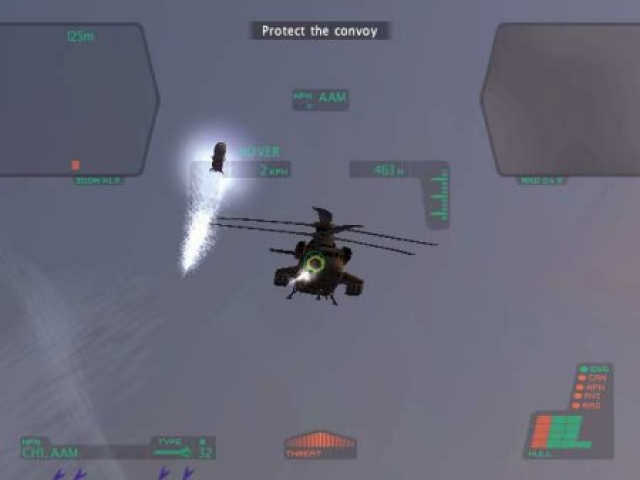
Always check your radar to see if you have any unwanted attention or to see where your next target is.
Target Arrows
•
Always use the target arrows around the edge of the screen to guide you to your selected target or your current objective.
U.P.F. INTRANET NAVIGATION
NEW PILOT/LOAD PILOT
New U.P.F. recruits must first enroll their identification details. Select NEW PILOT and press or to navigate the on-screen keyboard. Press the button to choose a keyboard character. Then highlight the keyboard return key and press the button to confirm your Pilot I.D.
To load previously saved pilot data from a Memory Card, select LOAD PILOT. The on-screen message "PLEASE SELECT A PILOT TO LOAD" will be displayed. Press ↑, , or to highlight a previously saved pilot and press the button to confirm. When the pilot data has been successfully uploaded, press the button again to continue the campaign.
A short, cinematic sequence will then be displayed before accessing the Main Menu. From here, you can also survey the Dropship hangar and study the assault craft within it.
MAIN MENU
•
TRAINING MISSIONS - see 8.5
•
MISSION RECORDS - see 8.6
•
CLASSIFIED FILES - see 8.7
•
CONTINUE CAMPAIGN - see 8.9
OPTIONS MENU
Game Settings
For extra guidance, new U.P.F. recruits can benefit from turning the following settings ON: AUTO-LANDING, VIBRATION and MISSION SUBTITLES. More experienced campaigners may well elect to turn the AUTO-LANDING and MISSION SUBTITLES options OFF.
Audio Settings
Press to decrease or to increase the volume level of the in-game music, SFX or radio communications. Press or to choose either MONO, STEREO or SURROUND sound output.
Display Settings
To alter the screen to your satisfaction, select SCREEN ADJUST and press ↑, ↓, ← or →. Finally, press the ◉ button to confirm the adjustment.
New Pilot
See 8.1
Save/Load Pilot
•
SAVE PILOT: Commit current progress to a Memory Card. Recommended for taking well earned breaks midway through a campaign.
TRAINING MISSIONS MENU
Recommended for rookie pilots, there are five separate training missions to complete. Battle Unit Guidance (BUG) training will provide a new recruit with essential combat skills. Use the RETRY option to have another attempt at a failed mission.
MISSION RECORDS MENU
Pilots can review scores from previously completed missions and choose to re-engage the enemy. Each mission is graded for Fire Accuracy, Enemies Killed and Time Taken. Each score is recorded individually and can be viewed in the Mission
.png)

.png)

.png)

.png)
_1.png)
.png)


_1.png)