Getting Started
Set up your PlayStation®2 computer entertainment system according to the instructions in the Instruction Manual. Make sure the MAIN POWER switch (located on the back of the console) is turned on.
Press the RESET button. When the power indicator lights up, press the OPEN button and the disc tray will open. Place the EVOLUTION SKATEBOARDING™ disc on the disc tray with the labeled side facing up. Press the OPEN button again and the disc tray will close.
Attach game controllers and other peripherals, as appropriate. Follow the on-screen instructions and refer to this manual for information on using the software.
PlayStation®2 Components
Memory Cards
To save game settings and progress, insert a memory card (8MB) (for PlayStation®2) into MEMORY CARD slot 1 of your PlayStation®2. You can load saved game data from the same card, or from any memory card containing previously saved games.
At least 230Kb of free space must be available on the memory card in order to save game data. If there is not 230Kb of free space available, then some older game data must be erased before saving.
Do not remove the memory card or turn off the power on the PlayStation®2 while data is being saved or loaded. Your game data may be lost if you do.
For more information, see "Saving & Loading Game Data" on page 21.
Starting the Game
Pressing the START button at the title screen will yield the Mode Select Screen. Select items using the directional buttons and enter selections with the button.
Mode Select Screen
Mode Menu
•
Arcade: Players attempt to clear a series of mission-based stages. Each skater has a different route. Complete objectives within each level to advance through the game. Clearing the objectives stated in each stage enables the Player to gain access to more stages. Routes, levels, and objectives differ depending on the skater chosen.
•
Trial: Participate in 2-run contests with the pros in different settings, including Vert and Park. The skater with the highest average score wins. 2-Player compatible.
•
Free: Players may revisit stages already unlocked for unlimited riding time.
•
Practice: A tutorial feature that trains the skater in basic skills needed for riding. Trick demonstrations can also be viewed.
•
Challenge: This mode presents increasingly difficult obstacles to be cleared.
•
VS: 2-Player mode. Players compete against each other.
•
Edit: Create an original skater, edit your board, assign combos, or produce a skate video.
•
Quick: Set up shortcuts in this mode. This simplifies preference settings.
•
Option: Various option settings, record confirmation, and saving and loading of data take place here.
Arcade Mode
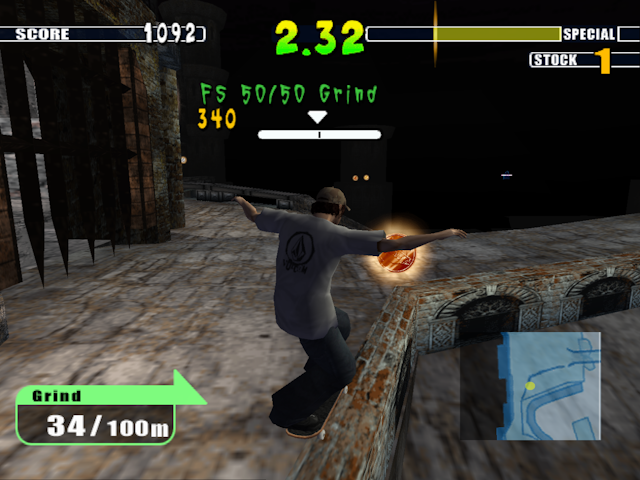
Clear the objectives within the given time frame as listed in the stage preview screen. As objectives are cleared, the Player may gain access to a new stage, depending on the number required for that stage. Skater selection dictates the objectives the Player will need to complete, as well as the level sequence and layout.
Arcade Mode Display
Skater Select
Choose one of 8 pro skaters to play, or create an original character. Select the skater using the directional buttons, and enter selections with the button. Pressing the button displays the skater's stats.
Skater Information
In Arcade Mode, available levels and objectives vary based on the skater chosen.
Skater Stats
•
Ollie: Vertical leap ability
•
Speed: Speed of movement and jump distance.
•
Grind: Grind trick balance
•
Balance: Handplant/Manual balance
•
Turning: Turning ability
•
Stance: Skater stance (regular/goofy)
Pro Skaters
Stage Select
Select a stage to play. Browse the menu with the directional buttons, and enter the selection with the button. Only unlocked stages are available for selection.
Stage Information
•
STAGE: Philadelphia government office
•
After clearing all five missions, you will be able to continue to the next stage.
Objectives List
The objectives for the stage selected are shown. A check mark appears next to each objective when it has been completed.
Example Objectives
•
Turn the valve of a fountain
Pause Window
The Pause window comes up when the START button is pressed during the game. Press the button to toggle between the Pause Menu and the Game Options Menu. Select items using the directional buttons, and press the button to enter the selection.
Pause Menu
•
Continue: Return to the current game
.png)

.png)

.png)


_1.jpg)



.png)