Console Ports
Console Buttons
Getting Started
Set up your PlayStation®2 computer entertainment system according to its Instruction Manual. Make sure the MAIN POWER switch (located on the back of the console) is ON.
Press the RESET button. When the power indicator lights up, press the OPEN button to open the disc tray.
Place the OVER THE HEDGE™ disc on the disc tray with the label side facing up. Press the OPEN button again to close the disc tray.
Attach game controllers and other peripherals as appropriate. Follow on-screen instructions and refer to this manual for information on using the software.
Note
Illustration may not match all PlayStation 2 console types. For owners of SCPH-70000 series PlayStation 2 systems, refer to the setup instructions supplied with your system. Memory Card (8MB) (for PlayStation®2)
To save game settings and progress, insert a memory card (8MB) (for PlayStation®2) into MEMORY CARD slot 1 of your PlayStation®2 system.
You can load saved game data from the same memory card or any memory card (8MB) (for PlayStation®2) containing previously saved games.
The Woods
Choose a Level to Play
To explore a new area in the neighborhood, go to the corkboard and press the ⦿ button to access the Game Mode selection menu.
Use the directional pad or left analog stick to move and highlight the Game Mode you want to play. Press the ✕ button to play a new mission or a mini-game.
Press the R1 and L1 buttons and scroll through the pages of levels that you have unlocked. Press the ▲ button to exit the corkboard and return to the woods.
Choose a Character
To change the characters you're using, get near the playable character of your choice and press the ⦿ button.
Examine your Loot
Items you've found in the neighborhood will appear in the woods. All looted items will activate when you get close to them.
Wear a collected hat by moving to the Hat Rack Tree and pressing the ⦿ button to view your hats. Highlight the desired hat using the directional buttons and press the ✕ button to wear a hat. Press the ▲ button to leave the Hat Rack Tree with your desired hat.
Menu Controls
•
⬆, ⬇, ⬅, ➡ – Navigate menus.
•
✕ button – Press button to accept.
•
▲ button – Press button to go back to previous menu or cancel.
Main Menu Components
•
Continue – Lets you play a previously saved game.
•
Options – Adjust audio, video and other game options.
•
Extras – View additional content that you can unlock by locating the hidden items throughout the game. Extras include comic strips, movie clips, concept art and game music.
•
Credits – View the names of the people who worked on the Over the Hedge™ video game.
Options Menu Components
•
Audio Modify effect, music, movie volume and sound mode.
•
Game Modify controller vibration and difficulty.
Pause Menu Components
•
Options - Lets you adjust audio, video and other game options, as listed in Option Menu Components.
•
Restart - Restarts game from the beginning of the current level.
•
Exit to Main Menu - Lets you exit to the main menu.
•
Return to Woods - Lets you exit back into the Woods.
Saving a Game
Saving will occur automatically at the end of each level sequence. The save will include the current level, pick-ups collected and all unlocked mini-games.
Game Modes
Adventure
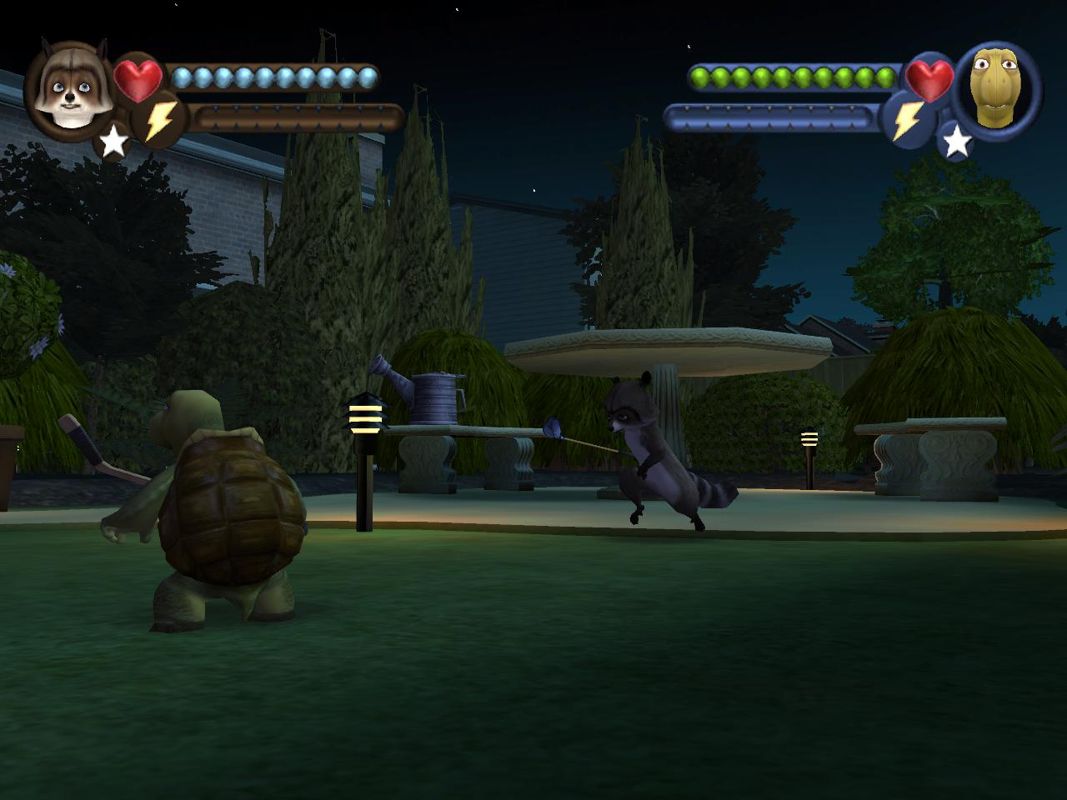
Explore the 'burbs by yourself or with a friend. It's a treacherous journey littered with traps and hazards.
Armed with golf clubs, hockey sticks, ping-pong ball launchers and your desire for partially hydrogenated anything, you'll take on new obstacles to complete your missions.
While on your missions, look out for interactive objects you can pick up and use; you will recognize them by the blue glow around the object. When you're close enough to an item, the button will appear over it, telling you that the object is ready for use.
Single Player
This mode allows you to navigate and enjoy the game at your own pace. With the added help of a computer-controlled buddy, you'll be able to explore and conquer things on both sides of the hedge.
Gameplay Hints
Revive
As characters are knocked out, there are two ways to return them to the action: you can "nudge" them awake with your melee weapon, or you can simply keep on going and they'll rejoin you shortly. Attack Timing and Combos
Different melee attack moves can be executed by varying the timing of the inputs. Holding the button down (melee attack) and releasing can result in a stronger attack.
Golfing/Ranged Attack
Quickly pressing the button will result in a quick golf shot or ranged attack. Holding the button down will allow you to aim the shot for better accuracy.
Carry and Toss
Characters can pick up and throw many objects. The button will throw an item, while the button will drop the item at the character's feet. In some cases, carrying items can
.png)


.png)
