GETTING STARTED
Set up your PlayStation®2 computer entertainment system according to the instructions supplied with your system. Check that the system is turned on (the on/standby indicator is green).
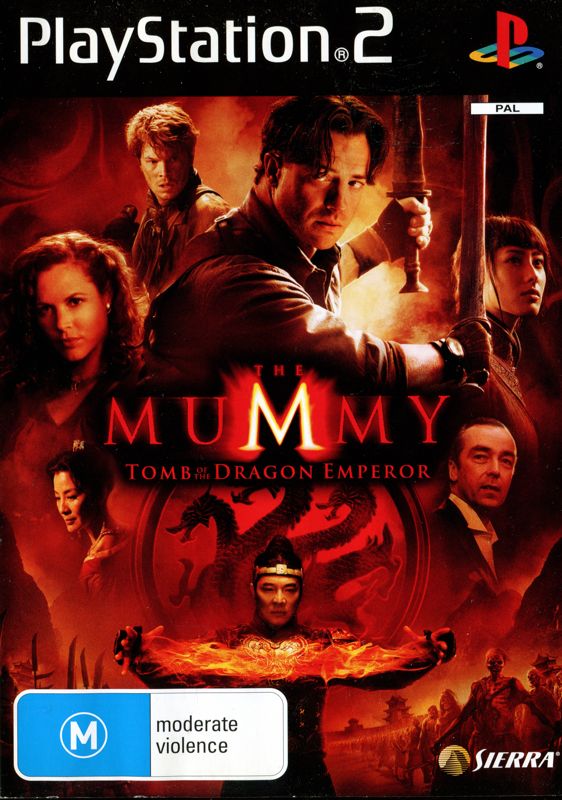
Insert The Mummy™: Tomb of the Dragon Emperor disc in the system with the label side facing up. Attach game controllers and other peripherals as appropriate. Follow the on-screen instructions and refer to this manual for information on using the software. Memory Card (8MB) (for PlayStation®2)
To save game settings and progress, insert a memory card (8MB)(for PlayStation®2) into MEMORY CARD slot 1 of your PlayStation®2 system.
You can load saved game data from the same memory card or any memory card (8MB) (for PlayStation®2) containing previously saved games.
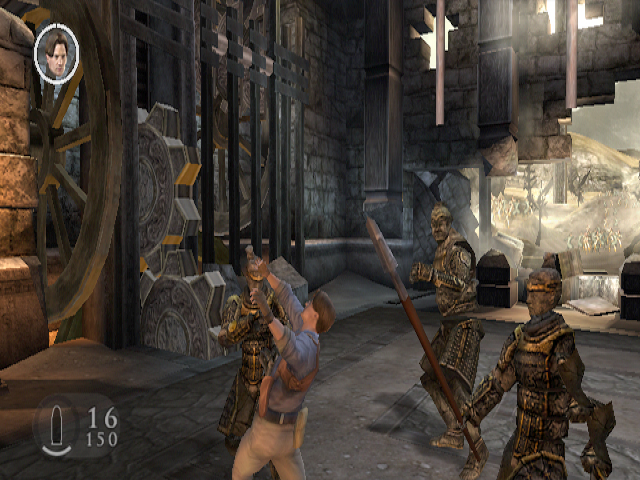
In-Game HUD
The larger number shows how many rounds you have in the currently active weapon, and the smaller number shows how many rounds you have left.
When you press the L1 button to Lock-On, a targeting reticule appears over the enemy or object you are targeting. The reticule mirrors the design of the weapon HUD so you can see which weapon slot is selected without taking your eye off the target.
Tip
When the backgrounds of the on-screen HUD and your targeting reticule start to pulse red, you are running low on ammunition and will soon need to reload.
Object Interaction
Object interaction occurs in first-person, meaning you see the puzzle through the eyes of either Rick or Alex. You will see their hands on-screen, holding various levers or switches.
The Analog Sticks represent the left and right hands; to move the hands, simply push the Analog Sticks in the direction indicated to complete the hand gesture.
Each object is accompanied by on-screen Gesture Hints, which give you instructions on how to interact with the object. When you are familiar with the controls, you can turn off the Hints in the Options Menu.
HUD Elements
•
Weapon Select, Ammo Count and Ammo picked up from an Ammo Crate
Weapon Grade
Your current weapon grade is denoted by 4 small dots underneath the ammo icon. Each dot represents one of the 4 upgrades you can unlock.
Ammo Pack Size
Your current Ammo Pack Upgrade is denoted by small 4 dots between the two ammo counts. Each dot represents one of the 4 upgrades you can unlock.
INTRODUCTION
Rick and Alex O'Connell must defend the world from the evil Dragon Emperor, who has been resurrected from his terracotta tomb by the warlord General Yang. Fight across six different locations taken from the movie and ultimately confront the Emperor himself.
If you fail to defeat the Dragon Emperor, he will continue the quest he began 4000 years ago—to become immortal and take over the world.
PLAYING THE GAME
After pressing the START button, select either New Game to start a new game or Load Game to continue a previously saved game. Press the button to confirm.
You can now select one of the following options:
Highlight the selection you want, then press the button to confirm.
GAME MENU
If you want to start a new game, select New Game. If you have already loaded a saved game, select Continue to carry on where you left off.
You can revisit a level you have already cleared in a saved game by selecting Replay Level. Press the button to confirm.
Once you've cleared a level, you can choose to replay it and complete any achievements that you missed. The Achievements screen displays anything you missed.
OPTIONS MENU
(Also Available on the Pause Menu)
Access the Options Menu to adjust the game's various settings.
Gameplay Settings
•
Vibration ON/OFF: When turned ON, your controller will vibrate with the on-screen action.
Visual Settings
•
Widescreen ON/OFF: If you have a widescreen TV, turn this setting ON for an optimized 16:9 picture.
•
Subtitles ON/OFF: When ON, all story cut scenes will display subtitles.
•
Gesture Hints ON/OFF: When ON, all First-Person Interactive Objects will provide you with control hints.
•
Screen Position: Using the directional buttons, position the display so that the four arrows fit inside the edges of your TV display.
Audio Settings
•
Mono/Stereo/Surround: Press the button to cycle through the different sound settings.
•
Sound ON/OFF: Turn all the in-game sound effects ON or OFF.
•
Music ON/OFF: Turn all the in-game music ON or OFF.
BONUS MENU
Access the Bonus Menu to view your achievements and unlockable items.
Weapons
Press the or directional button to cycle through the four weapon slots. Each screen displays the weapon you currently have and what grade it is. You will also see which achievements you need to complete to upgrade the weapon.
Achievements
Press the or directional button to cycle through the six levels. Each screen will show you all the possible achievements for that level.
If you have completed any achievements, the screen will show you what you've unlocked. When you've completed all the achievements for all six levels, you will achieve 100% Game Complete.
Hidden Artifacts
Displays



.png)

.png)
_1.png)
.png)


_1.png)