GETTING STARTED
Set up your PlayStation®2 computer entertainment system according to its Instruction Manual. Ensure the MAIN POWER switch (located on the back of the console) is turned on.
Press the RESET button. When the power indicator lights up, press the Open button to open the disc tray. Place the X-Men™ Next Dimension disc on the disc tray with the label side facing up. Press the Open button again to close the disc tray.
Attach game controllers and other peripherals as appropriate. Follow on-screen instructions and refer to this manual for information on using the software.
Memory Card
X-Men™ Next Dimension requires a memory card (8 MB) (for PlayStation®2) to save your games. A saved game's data takes up 140 KB. You can obtain a memory card through the retailer where you purchased your PlayStation®2 game console or this game.
To access your memory card (8 MB) (for PlayStation®2), insert it into MEMORY CARD slot 1.
STARTING THE GAME
DUALSHOCK®2 analog controller CONFIGURATIONS
•
left analog stick (L3 button When Pushed Down)
•
right analog stick (R3 button When Pushed Down)
GAME CONTROLS
All references to button selection in this manual refer to the default controller configuration. Selecting CONTROLLER from the Options Menu allows the default settings to be changed, as well as the ability to turn the vibration function ON or OFF.
Arcade Mode
Arcade Mode is a one-player game where you fight a series of ten matches against the CPU. Opponents become progressively more difficult as you battle towards the final match.
At any time during Arcade Mode, another player can challenge you to a Versus Mode match by pressing the START button on the other controller.
Versus Mode
Versus Mode is a two-player game designed for one-on-one combat. There is no limit to the number of matches that can be fought. Two controllers must be plugged in for this mode.
Survival Mode
Survival Mode is another one-player game. Unlike Arcade Mode, here you test your fighting abilities against a never-ending series of enemies. The goal is to achieve as many wins as possible with only one life bar. For each match won, you will be rewarded with extra health.
Practice Mode
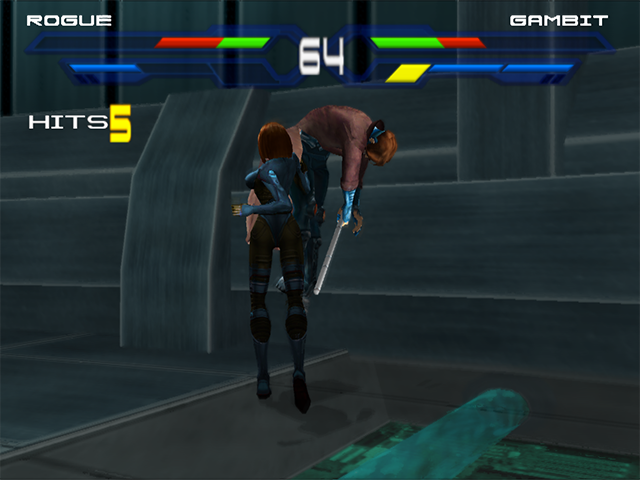
Practice Mode allows you to learn a character's moves in a controlled environment. As attacks are executed against the opponent, the actual controller sequence, total hits, damage, and total damage are displayed on the screen. There is also no time limit, so you can practice as long as you need to.
There are a few items that can be toggled while practicing. This includes the ability to change the current player, opponent, or map. Hit points shown are based off of 30,000 hit points.
Practice Mode Options
To Change the Player:
•
Press the START button to display the Pause Menu.
•
Use the directional buttons to select CHANGE, and then press the X button.
•
Use the directional buttons to select CHANGE PLAYER, and then press the X button.
•
Use the directional buttons to select a new player, and then press the X button.
•
Use the directional buttons to select YES when asked to confirm the selection. Otherwise, select NO, and choose another player.
To Change the Opponent:
•
Press the START button to display the Pause Menu.
•
Use the directional buttons to select CHANGE, and then press the X button.
•
Use the directional buttons to select CHANGE OPPONENT, and then press the X button.
•
Use the directional buttons to select a new opponent, and then press the X button.
•
Use the directional buttons to select YES when asked to confirm the selection. Otherwise, select NO, and choose another opponent.
To Change the Map:
•
Press the START button to display the Pause Menu.
•
Use the directional buttons to select CHANGE, and then press the X button.
•
Use the directional buttons to select CHANGE MAP, and then press the X button.
•
Use the directional buttons to select a new map, and then press the X button.
•
Use the directional buttons to select YES when asked to confirm the selection. Otherwise, select NO, and choose another map.
Practice Mode Customization Options
There are an abundance of options that you can toggle to customize the learning environment.
•
Supers - supers can be set to infinite, all four meters completely filled just once, or set to default
•
Panel Display - the super meters can be enabled or disabled in the panel
•
Key Display - turn on or off the display of buttons being pressed
•
Dummy - the dummy can be setup to be controlled by a human or the A.I.
•
Action - the dummy can be setup to perform a specific action (e.g. counter, jump, block, etc.)
•
Block - the dummy can be setup to block punches, or kicks
•
Transitions - animated sequences showing the opponent being knocked into the next section
To Toggle Options:
1. Press the START button to display the Pause Menu
.png)

.png)
.png)
.png)
