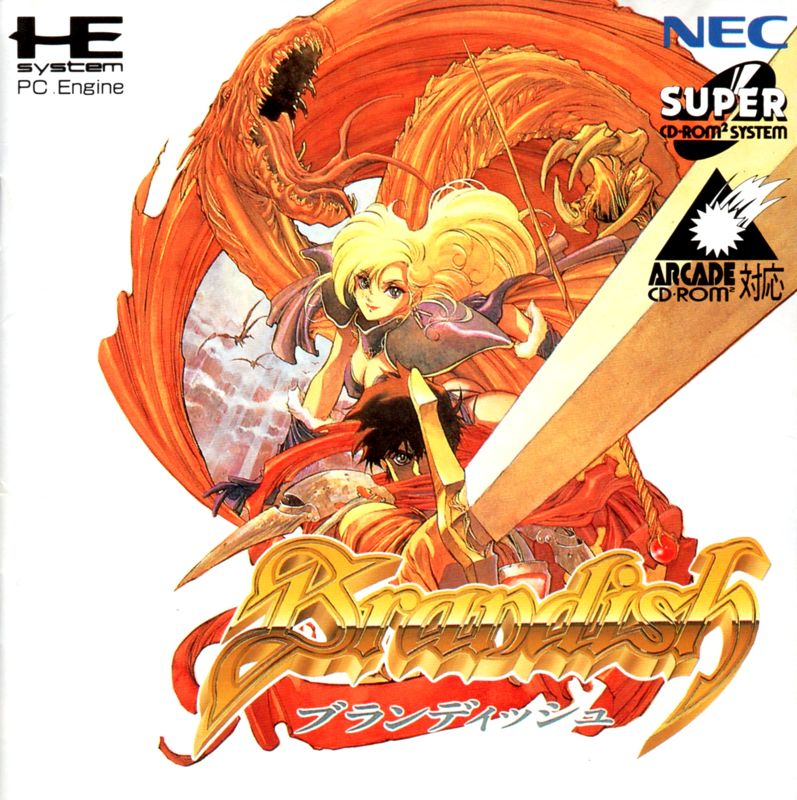
The Story
The ground shook and cracked, opening a wide hole at the bottom of the crater. Rocks and dirt showered Alexis and Varik as the crater rumbled violently. Varik lost his grip on the crater walls and fell, while Alexis was thrown into the dark hole with no magical power to save herself. They both fell into the dark, curious hole with no idea how to escape.
Your Goal
You will role-play the main character, Varik, starting as he falls down the hole to Ruins Area 1. Your goal is to escape the intricate underground mazes and return to civilization. You must defend yourself against monsters, find hidden treasures, solve puzzles, and evade Alexis, who is hot on your trail for revenge.
Game Flow
There are five main stages in the game:
Each floor has passageways leading to other floors. You must discover treasures, solve puzzles and riddles, and battle monsters to find your way out. Watch your step, as falling through traps may drop you to lower floors.
Key to Play
•
1. Make sure the power is turned OFF.
•
2. Insert the BRANDISH game pak.
•
3. Turn the game system on.
•
4. The introduction will begin. Push START to skip to game set-up.
Starting a New Game
•
1. Select NEW GAME in game set-up.
•
2. Select which game slot you would like to use. Use the Control Pad to answer YES to begin, and press Button A. Any previously saved game in the slot will be erased.
Resuming a Saved Game
Select CONTINUE at game set-up to resume a previously saved game. Choose which game to load and press Button A. Answer YES to loading this game by pressing Button A. The selected game will be saved automatically.
Auto Save
Each time you advance to a higher floor, the game will automatically save. However, if you do not save periodically during the game and you die, the treasures and rooms you discovered on that floor will not be saved.
Game Over
The game ends when Varik's HP (HIT POINTS) reaches zero.
Options Menu
Press the START Button to view the Options Menu. Push the RIGHT or LEFT Button or use the Control Pad to scroll through the menu to MAP, STATUS, SAVE and CONFIGURATION. Pushing Button B or the START Button again will cancel the Options Menu.
The game will pause while you view the Options Menu.
Map
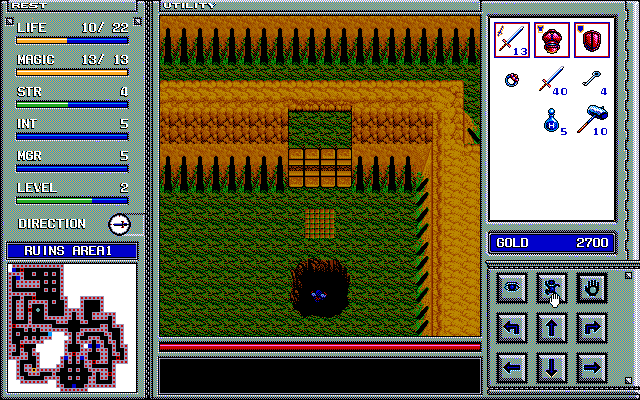
The map helps you determine your location and identify the rooms you have discovered on that floor. Open space on the map may indicate areas you have not yet discovered.
The markers on the map indicate the following:
•
Blinking Red X: Where you are in the maze.
•
Blinking Purple Square: Discovered treasures.
•
Blinking Yellow and White Spots: Staircases.
•
Blue Squares with White Dots: Shops.
Battling Monsters
You automatically switch to a defensive mode when you confront a monster.
•
ATTACK: Press Button A to attack the monster with your weapon or bare hands.
•
DEFEND: Press Button A while moving to defend with your shield.
Restoring HP
There are two ways to revive your HP when it is reduced by monster attacks and traps: Rest and Medicine.
•
REST: Press LEFT and RIGHT Buttons simultaneously to Rest. Press LEFT and RIGHT Buttons simultaneously again, or press Button B to cancel resting.
•
MEDICINE: Use H. Potion or Heal Magic to restore HP.
The game does not pause while you are resting. If you are attacked by monsters while resting, you will suffer significantly more damage than when you are active.
Action Commands
Dump
Throw away an unnecessary item. Open the Item Window with the SELECT Button, select the item you want to throw away, and press Button Y. To throw away an item that is in the Dimensional Box, you must first transfer it to the Item Window.
You can only throw away an item if there is space in front of you or in an empty chest.
A trash can will be displayed to indicate you have thrown the item away, and the dumped item will turn into a green pot. To pick it up again, close the Item Window and press Button Y. Green pots are placed randomly throughout the game as items dropped by people before you.
View
View information on your possessions or objects in front of you, such as items, treasure chests, doors, people, and monsters. You can check if treasure chests are locked, see the contents of green pots, and view the ground in front of you to see if it is safe.
To view information on your possessions, open the Item Window, select the item, and press Button Y and the LEFT or RIGHT Button together. To view an item in the Dimensional Box, you must first transfer it to the Item Window.
This action displays the name, value, and characteristics of an item in your possession, such as: You cannot display the name and value when the Dimensional Box is open.
Shops
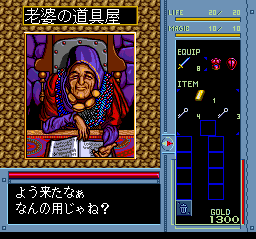
The labyrinth is full of Weapon shops, Tool shops, and Magic shops
.png)



.png)