Super Baseball Simulator 1.000
Super Baseball Simulator 1.000 is the ultimate baseball game, allowing you to reform your own team in EDIT mode by inputting a team name, color, players' names, and their data.
Up to 6 people can enjoy a complete pennant race in two different modes: an action Baseball game mode, and a regular simulation game mode. You can check the stats and ratings of your favorite players or team.
The game also features fascinating Ultra Plays, including balls that disappear, multiply, or fly zig-zag.
Battery Back-Up System
The battery Back-up system saves all game data on the Super NES. In order to protect your data from deletion, follow these directions:
•
1) Do not turn off when the title screen is on.
•
2) Do not turn off right after the game (during the 3 OUTS, GAME SET, or BLACK OUT screens). Wait until the NEWS screen to do so.
•
3) Do not turn off right after a mode you do not watch (during the PLAYING GAME or BLACK OUT screens). Wait until the NEWS or MENU screens to do so.
Choose Mode
When you insert the game pak and turn the set on, the title screen will appear. Press the START button to display the SELECT MODE screen. Move the cursor with the control pad and press the A button to select a mode:
•
EXHIBITION: Choose your favorite team and play against the computer or your friend.
•
SEASON: Up to six players can participate. Important statistics on all 27 items are saved through the season with the full-auto season system. A statistical simulation can also be played out.
•
EDIT: This mode lets you create and save up to six of your own teams.
Exhibition Settings
•
PLAYER (S): Choose 1 PLAYER or 2 PLAYERS.
•
SELECT INNINGS: Choose the number of innings (1, 3, 5, or 9). If you choose 1, you play only one inning per game.
•
SELECT TEAM: Choose one of 18 different teams. Choose two different teams for 2 PLAYERS.
•
CHANGE SETTINGS: Choose PLAYBALL to start the game, or CHANGES to enter the ERRORS screen.
•
ERRORS: Choose YES to allow fielders to make errors during the game, or NO to play without errors.
Ultra League & Stadium Settings
The following screens will come on only when you select the "ULTRA league", not when you select the regular leagues:
•
THE LEVEL OF THE COMPUTER: Select one of three game difficulty levels depending on the skill level you want.
•
DISPLAYS OF THE ULTRA PLAY: Choose whether the type of ultra play being used is displayed on the screen. Choose OFF for a more thrilling game without the display.
•
SELECT THE ULTRA POINTS: Choose the Ultra points you can use during the game. Options include 50, 100, 150, 200, 250, 300, or unlimited.
•
PICK A STADIUM: Choose one of six stadiums.
Match Setup
•
MATCH MODE: Choose MAN for manual play, COM for autoplaying, or MGR for manager mode.
•
STARTING PITCHER: Move the cursor up and down to see the pitchers, their abilities, and their current conditions. Choose one of six pitchers and press the A button. A smiling face indicates the pitcher is in the best condition.
•
STARTING LINEUP: Select CHANGE to modify your team's starting lineup, batting order, and fielding positions using any of your twelve team members. Fill in each position in the batting order starting with the first batter, then assign fielding positions.
Season Setup
Select SEASON to enter the command screen, then select START to start a new season or CONTINUE to continue a previously saved season. When playing for the first time, configure the following:
•
SEASON LENGTH: Choose the number of games each team plays through the season (5, 30, 60, or 165).
•
NUMBER OF INNINGS: Choose the number of innings per game (1, 3, 5, or 9).
•
CHOOSING A LEAGUE: Six teams play in a season. Choose the Atlantic league, Northern league, Ultra league, or Original league. Only one game can proceed at a time.
•
CREATING AN ORIGINAL LEAGUE: Select six different teams of your choice to form a custom league.
*Note: The length of the season and the number of innings set at the beginning cannot be changed during the season.*
League Settings & Auto Season
•
1. ERRORS: Choose either errors or no errors in the game.
•
2. THE LEVEL OF THE COMPUTER: Choose the difficulty level of the computer.
•
3. DISPLAY OF THE ULTRA PANEL: Choose whether the Ultra Play symbol is displayed on the screen.
•
AUTO SEASON: Choose AUTO SEASON in command mode, move the cursor with the pad, and press the A button to set. The games will be played by the computer during the period you set. All teams must be set to COM in the PLAY MODE screen. You can also set AUTO SEASON for the entire season (SKIP mode).
Season Menu
Choose END in the schedule screen to enter the Season Menu:
•
1) NEXT GAME: Start the game. Select PLAY MODE -> STARTING PITCHER -> STARTING LINEUP -> PLAY BALL.
•
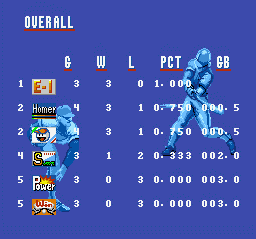
2) STANDING: Review team standings and player stats.
.png)


.png)
