The Speed of Virtua Racing
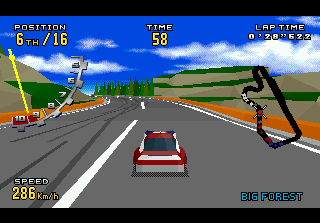
You cut into the pack of jostling, screaming cars and thread your way through. The terrain whips by as you accelerate high down the first straightaway, competing with the other drivers for the best position heading into Turn 1. A car cuts you off, and as you fight to get past, you enter the turn too fast. Your car swings wide. The ground tilts wildly as you skid up the bank, dangerously close to the edge of the track. You save yourself from a spin, but you're drifting toward the wall, and another car is coming up fast behind you. Can you avoid both in time to keep your car from flipping end-over-end, completely out of control?
Virtua Racing Deluxe gives you a choice of three high-performance cars, each with its own special characteristics. Feel the speed as you race—against fifteen other drivers, against the clock, against your own best time, or against a friend—on your choice of five different courses! At the end of the race, check out the special coverage of your race from different camera views in the Instant Replay feature.
Strap into the driver's seat, and get ready to race!
Starting Up
•
Set up your Genesis 32X system as described in its instruction manual. Plug in Control Pad 1. For two-player games, plug in Control Pad 2 also.
•
Note: Control Pad 2 should not be plugged in during play. Always switch the power OFF before plugging in or unplugging Control Pads.
•
Make sure the power switch is OFF. Then insert the Virtua Racing Deluxe™ cartridge into the console.
•
Turn the power switch ON. The Sega logo appears. In a few moments, the Title screen appears. •
If the Sega logo doesn't appear, turn the power switch OFF. Make sure your system is set up correctly and the cartridge is firmly inserted in the console. Then turn the power switch ON again. •
Press Start when the Title screen appears.
•
Important: Always make sure the power switch is OFF before inserting or removing the cartridge.
32X Cartridge
Genesis 32X System
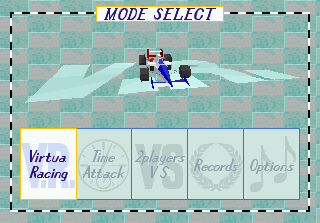
Following the Sega logo is a brief demonstration and a list of top driving times. Press Start to see the Title screen, which is followed by the Mode Select screen. Press the D-Button left or right to highlight the desired mode, and press Start, or Button A or C. Game Modes
•
Virtua Racing: Play the 32X version of the hit arcade game!
•
Time Attack: It's just you against the clock. Hone your driving skills and go for the fastest lap.
•
2Players VS: Challenge a friend to a race of five, ten, fifteen or twenty laps. This mode cannot be chosen unless both Control Pads are plugged in before the power is turned on.
•
Records: Check out the top times for each course and type of car.
•
Options: Use this mode to alter certain aspects of gameplay.
Options
Press the D-Button up or down to select the desired feature, and left or right to make choices within that feature.
•
Level: This allows you to select the level of difficulty for Virtua Racing mode. The more difficult the level, the fewer seconds you receive to complete the race, and the more competitive the other drivers become.
•
B.G.M., S.E., Voice: Use these features to play selections of background music (B.G.M.), sound effects (S.E.) or voices used in the game. Press the D-Button left or right to select the desired track, and press Button A or C to play the music or sound. Press Button B to stop the track.
•
Control: Use this feature to configure your Control Pad. Press Button A, B or C to bring up the Control screen. Your Control Pad appears, with the button functions labeled. Press the D-Button left or right to select one of six different control types, or use the EDIT feature to customize the functions of each button.
With EDIT selected, press Button A or C and the first control (D-Button UP) is highlighted in yellow. Press the D-Button left or right until the desired function appears, then press down to go on to the next control. To go to a previous control, press the D-Button up. If you want to exit the Edit feature, press Button B. Exit the Control mode by pressing Start.
To exit the Options mode, press Start, or select EXIT and press Start or Button A, B or C.
Car Select
Once you choose the Virtua Racing mode, the Car Select screen appears. Press the D-Button left or right to highlight the type of car you want to take onto the track.
•
Formula: The classic car of Virtua Racing. Airfoils in front and back increase traction, and the open cockpit provides maximum visibility.
•
Stock: A racing car which is based on a commercially produced passenger sedan but which has been modified for greater strength and performance. Heavier and less aerodynamically structured than the Formula car, the Stock car has less road adhesion and requires a greater degree of control.
•
Prototype: A special class of race car where the designers have pulled out all the stops. This car is the most powerful of the three and takes a great deal of control to keep on the course.
Press the D-Button down to highlight the TRANSMISSION window, and press left or right to select an automatic or 7-speed manual transmission. A manual transmission feeds your car power more evenly than an automatic and gives you a faster "pickup" and

.png)