Prologue
The world lies shrouded in darkness. The winds die, the seas rage, and the earth decays.
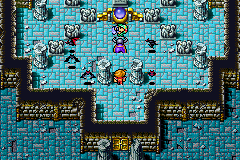
The people believe in a prophecy, patiently awaiting its fulfillment: “When darkness veils the world, four Warriors of Light shall come.”
After a long journey, four young travelers did at last appear, each clutching a crystal in hand.
Starting and Saving the Game
Insert the Game Pak into your Game Boy Advance system and turn the power ON. When the title screen appears, press START to display the Title Select screen, then select FINAL FANTASY and press the A Button. •
New Game: Select "New Game" and press the A Button to begin character creation.
•
Load Game: Select "Load Game" and press the A Button, then select the file you would like to load and press the A Button to confirm.
Character Creation
From the Character Creation Screen, you can assign each character's name and class.
•
Choosing a Class: Move the cursor to one of the character icons and press the A Button. Select the desired class from the list and press the A Button to confirm.
•
Assigning a Name: Move the cursor to "???" and press the A Button. To choose from several pregenerated character names, move the cursor to "???" and press SELECT.
When you have finished assigning names, press START to begin the game.
Saving the Game
Select "Save" from the Main Menu to save your progress. You can have up to three separate save files.
Using the Main Menu
With the exception of battles and cutscenes, access the main menu by pressing START.
1. Party Members: Displays each character's current level, HP, MP, and status ailments (if any).
2. Menu Commands: Lists the commands available in the main menu.
3. Gil: Shows the party's current amount of money.
4. Time: Displays the number of hours spent playing the current game.
5. Crystals: Shows the crystals held by the Warriors of Light. These crystals regain their glow as you progress and restore light to them.
6. Location: Displays the name of the party's current location.
Items Menu
Select “Items” to use items from the party's inventory. Press the B Button to choose subcommands other than “Use.”
•
Item List: Displays the names and quantities of the party's items.
•
Item Description: Shows the description of the currently selected item.
•
Using Items: Select “Use,” move the cursor to the item you want to use, and press the A Button twice. Some items require that you target a character.
•
Moving Items: Swap any two items by selecting an item, pressing the A Button, selecting another item, and pressing the A Button once more.
•
Sorting Items: Organizes items by category: consumable items, weapons, and armor.
•
Key Items: Displays a list of items that are vital to progressing in the game.
Magic Menu
Select "Magic" to view or cast spells the party has learned.
•
MP Cost: Shows the amount of MP required to cast the selected spell.
•
Magic Level: Indicates the character's current magic level.
•
Spell List: Displays spells that can be learned. Spellcasters can learn up to three spells in each magic level. Spells that cannot currently be cast are grayed out.
•
Spell Description: Provides a description of the currently selected spell.
•
Casting Spells: Select "Use," move the cursor to the spell you want to cast, and press the A Button. Some spells require you to select a character as the target.
•
Discarding Spells: Select "Discard," move the cursor to the spell you want to discard, and press the A Button. If you discard a spell, you must purchase it from a magic shop or find a tome to learn it again.
•
Learning Spells: Spells can be purchased in magic shops or found in treasure chests. Use the magic tomes in the "Items" menu to learn spells. Each character is limited to a maximum of 16 spells at a time.
Equipment Menu
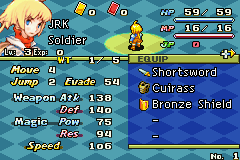
Select "Equipment" to outfit characters with weapons and armor from the party's inventory.
•
Current Equipment: Shows what the character is currently wearing.
•
Available Equipment: Lists equipment in the inventory that can be equipped.
•
Effect: Compares the character's attributes now versus attributes after equipping the selected equipment. Yellow numbers represent an increase, gray represent a decrease, and white shows no change.
•
Equipping Weapons and Armor: Select "Equip," move the cursor to the body part, press the A Button, select the equipment, and confirm your selection.
•
Optimal: Select "Optimal" to automatically equip available weapons and armor to maximize attack and defense.
•
Remove: Select "Remove," move the cursor to the equipment, and press the A Button to remove it.
Status and Formation
•
Status: Select “Status” to view detailed information about your characters, including name, class, level, current HP/MP, magic level, current equipment, and attributes.
•
Formation: Select this command to adjust characters' positions in battle. Select a character and press the A Button to move them between the front and rear row. Characters in the rear row are harder for enemies to hit but are limited to long-range weapons for attacks

 (En,Fr,De,Es,It).png)
 (En,Fr,De,Es,It).png)
.png)

_1.png)
.png)


.png)

_1.png)
_1.png)
_1.png)












.png)
.png)
