Basic Operation
First, we will explain the basic controller operations. Please refer to the diagram on the right for the names of each part of the controller, and the table below for how to use each button. We will explain the control methods in more detail on the following pages.
How to use each button (●=Simulation Battle / ●=Event)
•
D-Pad: Used for moving characters, party units, and the cursor, as well as selecting commands.
•
Select Button: Not used.
•
Start Button: Used to bring up the system command screen.
•
L / R Buttons: Possible to switch parties on the formation screen, and to select during your unit's phase or party units.
•
A Button: Used for confirming various commands, talking to people, sending to the next message, and checking terrain or info on friendly/enemy units.
•
B Button: Used for canceling various commands, returning to the previous screen, or returning a character when using the "Move" action command.
•
X Button: Used to display information screens for parties or dragons, whether friendly or enemy, when the cursor is on them.
•
Y Button: When used together with the D-Pad, allows for high-speed movement of characters or the cursor.
Start & End
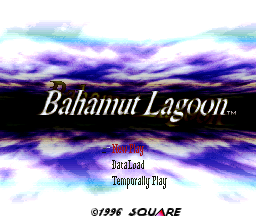
Pressing the Start button on the opening screen switches to the screen on the right. Three modes are displayed, so refer to the following explanations, select and confirm the mode you wish to start with, and begin.
•
New Play [Start the game from the beginning]: You can start the game from the beginning. The player operates Viuve, and can experience the events of this world as they unfold.
•
Data Load [Start from the beginning of a chapter]: You can start the game from a save made between events (see page 7), from a chapter data file. First, use the up/down D-Pad buttons to select which file to start from. Then, press the A button to confirm, and that chapter will begin.
•
Temporally Play [Start from the middle of a field]: You can start the game from a save made in a field (see page 16), from temporary data. When this mode is selected, it will switch to the field where you saved, so you can enjoy the game from where you left off.
If you have saved during an event or a simulation battle, please turn off the main unit's power. Also, if all of Viuve's party members become unable to fight or are petrified (see page 21), it is Game Over.
Formation System
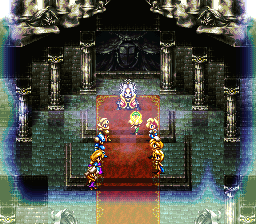
When the introductory events of each chapter end, the Formation Screen appears. Here we will explain how to read and use this screen. Formation has a major impact on battle, so please be sure to grasp each item properly.
How to read the Formation Screen
The Formation Screen contains various information. First, let's understand what the displayed information represents. Also, pressing the left/right on the D-Pad or the L/R buttons on this screen switches the displayed party.
1. Number of the selected party unit
2. The dragon accompanying the selected party unit and its appearance
3. Formation Command (See P99)
4. The leading character of the party unit (the character displayed in the field)
5. Members of the currently selected party unit
6. Character's name
7. Current level
8. Character's job
9. Character's appearance
10. Max HP
11. Max SP, or Max MP
[There are many patterns of messages for 'Deployment']
After finishing an event and switching to the Formation Screen, various characters will display a message for "Deployment". There are many patterns, and the message may change depending on your choices within the same chapter.
How to use the Formation Command
On the Formation Screen, you can do more than just form your party; you can prepare various things necessary for battle. Select commands using the up/down on the D-Pad, and confirm with the A button. Pressing the B button on each screen returns you to the previous screen.
Rest (HENSEI) [Character Switching / View Individual Info.]
This is a command that allows you to swap party members or view a character's personal data. Also, pressing left/right on the D-Pad on this screen allows you to switch pages.
Screen View
1. Party unit number
2. Leading character's appearance
3. Party member's name
4. Party member's job
5. Party member's level
6. Current page / Total pages
7. Number of the selected party unit
8. Leading character of the selected party unit
9. Field commands available to the selected party unit
Swapping Characters to Form Party Units
In this game, by swapping characters, you can form your own party units. The maximum number of party units is 6. Follow the steps on the right to swap characters. As the story progresses, the characters you can swap will increase as new companions join. When adding a character displayed in the "Others" column, perform the same operations.
Steps for Swapping Characters
1. Select the first character. Select a character using the up/down on the D-Pad and confirm with the A button. However, Biuta cannot be swapped.
2. Select the second character. Next, select the character to swap with. If you select a character in "Others", they will be added to the party.
3. Confirm the swap. Check the two cursors and confirm with the A button. Repeat the same operation to form all party units
.png)

.png)



 (Rev 1).png)
.png)


_1.png)
