Display Options
•
Display DMG Point (Player/Character): Display controlled character damage in hit points after each attack. Set ON/OFF.
•
Enemy's HP Display: Display the enemy's life meter during battle. Set ON/OFF.
•
Display Character Name: Display the names of people and monsters. Set ON/OFF.
•
Farside Soft Focus: Distant views are softly focused when set to ON. Distant views are sharper when set to OFF.
Note: You can also change options during gameplay by opening the Command menu and selecting OPTION.
Starting a New Game
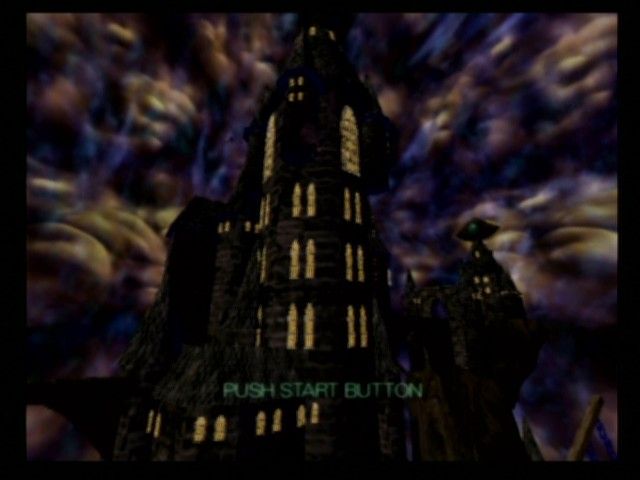
1. Press the START button to open the Title Screen and press the START button again when prompted.
2. Select START.
3. Press the button to advance through the story text and display the Register Name screen.
4. Register your name for the main character. Select a character and press the button to enter it.
•
ALPHABET/NUMBER or SYMBOL: Decide the type of character you want to enter.
•
ARROWS: Move the cursor to a new character position.
•
INS: Insert an empty space.
•
DEL: Delete an entered character. (Or press the button.)
•
DEFAULT: Use the character's default name.
•
DECIDE: Select the currently entered name.
5. At the prompt, press the button to confirm your name and begin the game.
Playing Dark Cloud
Your village and others were blown to pieces and scattered by the Dark Genie's attack. Each piece lays encased in protective Atla in far-flung regions of the continent. All can be retrieved and reassembled. Find the lost pieces and begin to rebuild your world.
Talking
Walk up to someone and press the button to begin conversation. Press the button to advance through the dialogue screens.
Starting a Conversation
Often, you will start a conversation. When you talk to someone, a list of questions you can ask may display in a dialogue balloon over your head. Select the question you want.
Discovery and the "!" Alert
When the "!" alert appears over Toan's head (both on the surface or in dungeons), there is something of value or interest directly in front of him. Press the button.
Chests
Walk up to chests and press the button to reveal their contents when the "!" alert appears.
Dungeons
The Dark Genie and Flag have infested once peaceful areas of your world with monsters and traps. These areas also contain the mysterious Atla that must be collected to restore your world.
Atla
Each Atla contains pieces of the lost Western Continent rescued by the Spirit King. Use the Atlamillia to collect the contents of each of the Atla you find. Then begin the task of rebuilding the world. Whenever you discover an Atla, walk up to it and when the "!" alert appears, press the button to collect its contents.
Allies
You will gain allies you can control. You can control one character at a time. Allies have special skills that make them vital to completing the quest.
Thirst and HP
...and HP begins dropping. Use water items to quench your thirst or find water springs to replenish your thirst and health completely.
Active Items Slots
These are items that you can instantly use by pressing the button. Press the Directional button LEFT/RIGHT to select the item you want to use.
Floor Number
This identifies the dungeon floor you are exploring.
Speed
This meter shows your ability to attack. While it is full or partially full, your character can attack. When it's empty you cannot attack. As a weapon's speed increases, the speed of your attacks increase.
Status Alerts
A Status Alert appears at the top of the screen to warn when you are poisoned or under a spell.
Edit Mode
See "Resurrect Your World in Edit Mode" on page 35.
The Command Menus
Use the Command menus to perform specific tasks. The Command menus differ depending on where you are. See "Resurrect Your World in Edit Mode" on page 35 for Edit Mode commands.
Item
In the Items inventory you can:
•
Make items active by dragging them to one of the Active Item slots or highlight them and press the button. You can hold up to nine identical items in one slot.
•
Press the button on the item and attachment inventories to auto-sort.
•
Discard items by dragging them to the trash.
Weapon
View your weapons and attachments in the Weapons inventory. See "Weaponry" on page 22.
Allies
Change your Allies while in the dungeons.
Georama Part
Begin the re-assembly of your world after you have collected Atla. Use this option when in Edit Mode or in a Dungeon only. You can view Georama in Walking Mode, but you will be unable to edit them. See "Resurrect Your World in Edit Mode" on page 35.
Go Outside
Use this to leave the building you are in.
Go to other Area
Transport to different regions. Press the Directional button or Left analog stick to move the cursor over the World Map to the region you want to visit and press the button.
•
Regions displaying a red "X" are places you can go.
•
The region displaying the blue "X" is where you are now.
Leave Dungeon
Select this to mind connect with the Spirit King who will transport you
.png)

.png)
