System Components
Getting Started
Set up your PlayStation®2 computer entertainment system according to the supplied instructions. Ensure the system is turned on (the on/standby indicator is green).
Insert the GrimGrimoire™ disc with the label side facing up. Attach game controllers and other peripherals as needed. Follow on-screen instructions and refer to this manual for software use.
Memory Card (8MB) (for PlayStation®2)
To save game settings and progress, insert a memory card (8MB) (for PlayStation®2) into MEMORY CARD slot 1.
You can load saved game data from the same memory card or any memory card (8MB) (for PlayStation®2) containing previously saved games.
How to Begin and Save
How to start the game
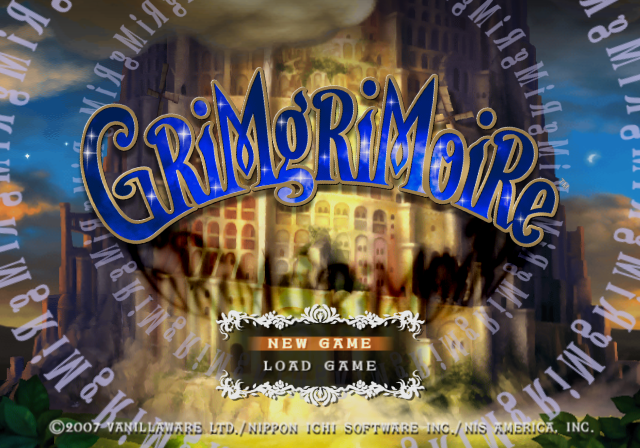
Turn the game on and press the START button to reach the title screen.
•
NEW GAME: Play the game from the very beginning.
•
LOAD GAME: Continue playing a previously saved game. Place a Memory Card (8MB) (for PlayStation®2) into Slot 1 and select the file you wish to load.
Save
You can save your progress after each story day or from the Bookshelf menu.
A Memory Card (8MB) (for PlayStation®2) is required to save. Only Memory Card Slot 1 is compatible with this game, so insert the Memory Card (8MB) (for PlayStation®2) into Slot 1 before attempting to save.
Bookshelf (Diary and Bonus)
DIARY
Select a Diary (book) from the bookshelf to play through the storyline. More Diaries become available as the game progresses.
Select a previous entry to revisit the past. You can also select the difficulty when choosing a Diary to continue.
STORY PART
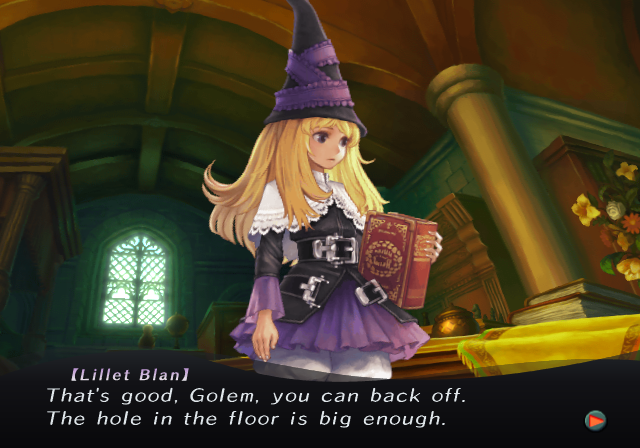
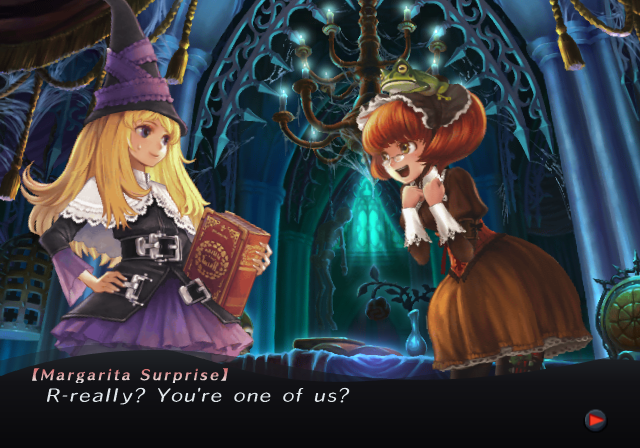
[Gaff] But here's the scary part. Three days later, he was found, cruelly tortured.... Lillet, the main character, will solve the mystery of this story.
BONUS
Press the Directional Down Button on the Diary screen to select Bonus books. These are practice stages separate from the main story.
More Bonus books become available the further you progress in the main story.
BATTLE PART
Study magic in class and fight battles against the enemy.
Menu Explanation
This menu appears by pressing the START button during the game.
•
EXIT: Ends the game and returns to the title screen.
•
GRIMOIRE DATA: Displays data about your current grimoires, a list of accessible familiars, and a relation chart.
•
SAVE: Save the current game.
•
OPTIONS: Change the following settings:
•
RETURN TO GAME: Close the Menu and return to the game.
Stage
•
END BATTLE: End the current battle and select how to restart the game.
•
Restart: Restart the same stage from the very beginning.
•
Quit: Go back to the Bookshelf where you can Save. You can also select your difficulty here.
•
STAGE CONTENT: Check the victory conditions for this stage.
Story
•
AUTOPLAY: Let the text boxes advance automatically.
•
SKIP: Skip the current scene.
Game System
Gathering Mana
Everything you do requires Mana, the source of magic. You must gather Mana by commanding your familiars.
Select an Elf
To gather Mana, you will use the familiar, Elf. Use the Left Stick to move the cursor to the familiar you want to command and press the button to select it.
Give the Command
When a familiar is selected, its available commands appear in the lower right corner. Press the X button to give an action.
•
M: The M icon is for Move. This moves the selected familiar to its designated area.
Select the Crystal
Use the L1 R1 buttons to cycle through commands. Press the X button with the selected command to tell the familiar what to do.
•
M: This icon for Gather is used to command them to collect Mana from the selected Crystal.
While the Elf is selected, move the cursor to the Crystal and give them the command to Move. This will also automatically make them gather Mana.
Make the Crystal a Sanctuary
When Elves reach a Crystal, they begin creating a sanctuary around it. Once the sanctuary is complete, you can gather Mana. Elves will then bring Mana crystals back to the Rune.
•
Only one familiar can enter the sanctuary at a time. Elves that cannot enter will wait outside.
•
There is a set amount of Mana that can be gathered from one Crystal. Once depleted, the Crystal will disappear.
Summoning Familiars
The player cannot do anything without familiars. Familiars follow orders to gather Mana or attack enemies.
Select the Rune
Familiars can be summoned from their respective Runes. Move the cursor to the Rune and select it with the button.
•
The green hat icon is the command to summon Elves.
Two things are needed to summon a familiar:
1. Mana Cost: Mana is required to summon a familiar. The amount needed depends on the familiar type. This consumed Mana is called the Mana Cost.
2. **
.png)

.png)
 (En,Ja).png)
 (En,Ja).png)


_1.png)
.png)


_1.png)
_1.png)
_1.png)