Console Ports
Console Buttons
Getting Started
Set up your PlayStation®2 computer entertainment system according to the instructions in its Instruction Manual. Make sure the MAIN POWER switch (located on the back of the console) is turned ON.
Press the RESET button. When the power indicator lights up, press the OPEN button and the disc tray will open. Place the Makai Kingdom: Chronicles of the Sacred Tome disc on the disc tray with the label side facing up. Press the OPEN button again and the disc tray will close.
Attach game controllers and other peripherals, as appropriate. Follow on-screen instructions and refer to this manual for information on using the software.
*Note: Illustration may not match all PlayStation 2 console types. For owners of SCPH-70000 series PlayStation 2 systems, refer to the setup Instructions supplied with your system.* Memory Card
To save game settings and progress, insert a memory card (8MB)(for PlayStation®2) into MEMORY CARD slot 1 of your PlayStation®2 system.
You can load saved game data from the same memory card or any memory card (8MB)(for PlayStation®2) containing previously saved games.
Starting the Game
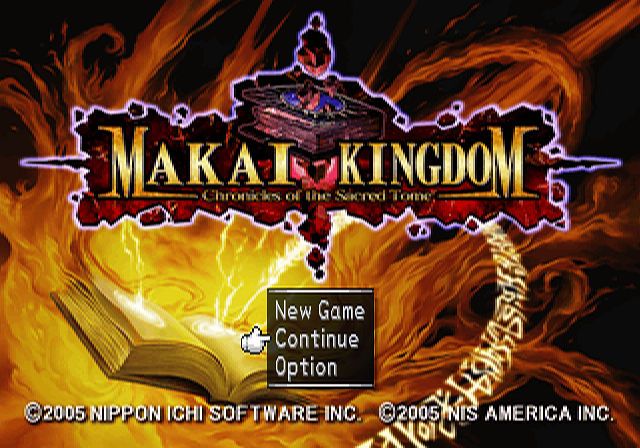
When you turn on the PlayStation®2 computer entertainment system and insert the Makai Kingdom disc, you will be taken to the title screen.
•
If you wish to start from the beginning, please select New Game.
•
If you wish to continue from a previously saved game please select Continue.
Saving & Loading
By pressing the △ button in the Kingdom, a menu will appear. Select the Save option.
Please make sure you have a memory card (8MB)(for PlayStation®2) with at least 305 KB of free space inserted into MEMORY CARD slot 1. Select the space where you wish to save.
*Memory card (8MB)(for PlayStation®2) is required. You cannot use a PlayStation® memory card.*
Saving Precautions
Do not do the following while saving:
•
Turn off the main power.
All of the above may result in loss of data.
Beginner Flow of the Game
•
Ask other Overlords to create a new netherworld for you. The goal is to gain all your netherworlds back
•
Go on to the next episode
Beginner Kingdom Commands
▲ Button Menu
You can open this menu by pressing the ▲ button.
•
Equip/Arrange... View items that are equipped to your characters. Equipped items can be used during battle.
•
Status............ View the status of your characters.
•
Arrange..... Change the display order of your characters/items in the status screen.
•
Help ............ Learn the basics of battle.
•
Options........... Change the game settings.
•
Reset ............ Return to the title screen.
•
Save ............ Save your progress.
Zetta Commands
Talk to Zetta to view the list of Zetta commands like "Make a Wish". First time players should check Zetta's Q&A during the game for instructions.
Make Characters
Approach an object in your kingdom and press the X button to create custom characters.
Pram's Makai 101
If you don't like the first leader you made, talk to Zetta and ask him to select a new leader.
Create Character
The first task you must do after Pram creates your netherworld is create some characters.
How to create characters:
1. Approach an object, press the X button and select create.
*The item you choose will be used for character creation, and you will lose the item.*
2. In the beginning, types of creatable characters are limited, but additional characters will be available as you progress through the game.
3. Now, give your character a name. If you choose not to name your character, just select "Confirm" then your character will be given a name randomly.
4. After you select a job class and name your character, distribute the bonus points to improve their stats. Also, know the characteristics of each job class to effectively combat enemies.
Pram's Makai 101
In the beginning of the game, you may want to focus on quantity over quality with your characters when battling enemies. Also, don't forget to equip your characters with armor and a weapon before you go off to fight!
Your leader can lift/throw, hit, and beat on other characters in your kingdom for fun.
Shopping
1. Approach the shop and press the X button to buy and sell items.
2. Once you enter the shop, you will see the item list.
Equip/Arrange
1. Items you bought from the shop or merchant can be equipped by accessing equip/arrange.
2. Open the equip/arrange menu and select the character you want to equip.
3. The number of items you can equip depends on the character. Certain items will increase stats on certain characters,
.png)

_2.png)
.png)

_1.jpg)


.png)





.png)



.png)
