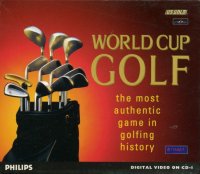
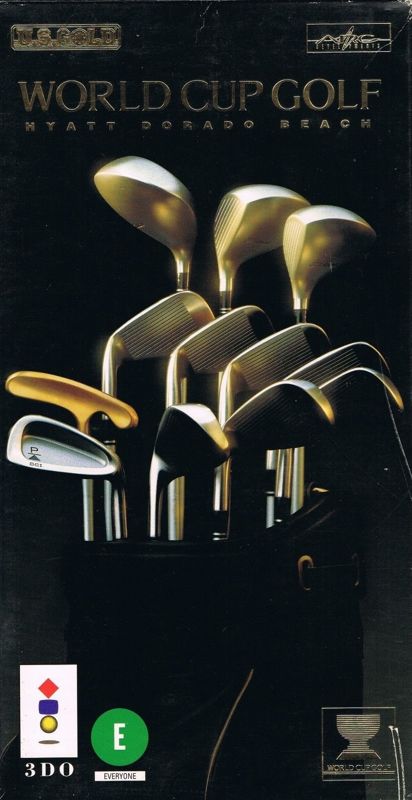
WORLD CUP GOLF
Introduction
In a glorious 40 year history, 18 nations have played host and the greatest legends of golf have graced the tournament; from Arnold Palmer to Nick Faldo, Jack Nicklaus to Bernhard Langer, Gary Player to Seve Ballesteros.
Fred Corcoran, the sports marketing genius who spent 22 years building the World Cup into the global attraction it is today, summed up the spirit of the competition: "Tradition cannot be bought or sold, it can only be established over a long period of time. With that in mind, it is obvious that no other international team event comes close to the World Cup. This is fact." by Pete Matthews
Starting the Game
1. Turn on the POWER switch at the front of your 3DO Interactive Multiplayer™. The power light should come on. 2. Press the open/close button to open the CD tray, place the World Cup Golf CD in the tray (label up) and press the open/close button again to close the CD tray.
3. After a few seconds the 3DO logo should appear on the screen, followed by the title sequence. Controlling the Game
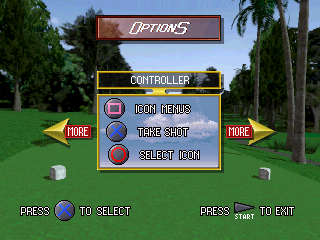
Controls are described for a joystick.
Main Menus
To select an option from a menu, click on the required option with joystick Button B. Clicking on the Exit Button of a menu with Button B will return you to the previous menu. Exiting from the Main Menu will quit the game.
Icons and Menu Dialogue Boxes
World Cup Golf is played by utilizing in-game icons (by pressing Button B) to prompt actions or activate menu dialogue boxes. Menu dialogue boxes are made up of icons and buttons which prompt actions or activate sub-menu dialogue boxes.
Close a menu or submenu dialogue box by clicking on its Close Button (top left hand corner) using Button B, or click anywhere in the box with Button A. To close a menu dialogue box, you must first close all open submenu dialogue boxes.
Click Button B to select or de-select all icons.
The screen positions of icons and menu dialogue boxes in World Cup Golf can be fully customized - click and drag using Button B. To move a dialogue box, point to its repositioning bar click and hold Button B, and move the dialogue box using the joypad directional control - this operation is known as dragging and will be referred to throughout this manual.
Quick Start Guide
The quickest way to start playing golf is to select the Play Golf option from the Main Menu screen. The Play Golf option allows you to play a round of golf on the Hyatt Dorado Beach course. Using the Play Golf option you play as an amateur and the computer will select a suitable club for each of your shots. (You can overrule the computer's selection by using the Club Selection Menu Dialogue Box).
When playing a shot, the first thing to decide is in which direction to hit the ball. In World Cup Golf a perfectly hit shot will travel towards the cross-hair although wind, fade, draw, hook and slice may cause the ball to deviate from this path.
To move the cross hair, place the pointer above it and click and drag using Button B. When the cross-hair moves an Information Box appears on the screen, giving the distance and height of the cross-hair relative to your ball, as well as the type of surface directly beneath it.
For further information click on the map icon. The Map Dialogue Box provides a scaled overhead map of the current hole which can be scrolled by dragging. If the wind icon is clicked on, moving clouds will appear on the map to represent the strength and bearing of the wind.
To actually play your shot, click on the golfer (when the pointer turns red) with Button B and the Shot Dialogue Box will appear.
Click Button B once on the swing meter and a colored bar will start to move from the left of the swing meter towards the sweet spot. Click a second time as the bar reaches the sweet spot. The bar will continue on towards the right of the swing meter and then return in the opposite direction. Click a final time as the bar again reaches the sweet spot.
If you hit the sweet spot both times you will have played a perfect shot. If not, then the closer to the sweet spot the better. If you missed the tolerance zone altogether, you are in big trouble.
Having managed to play one shot, everything remains much the same until you reach the green. Here you will notice a few differences.
As with previous shots, the first decision is in which direction you are going to hit the ball. Once again, the ball will start its journey towards the cross-hair. World Cup Golf supplies a mechanism for reading the greens. Click and hold Button B on the Terrain Indicator (TI) icon. A circle with an arrow in the middle (the TI) appears on the screen. Keep holding Button B down to move the TI. The direction and size of the arrow are directly proportional to

.png)


.png)
.png)
.png)
.png)

.png)
.png)