Welcome to PGA TOUR 96!
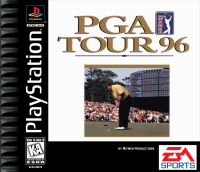
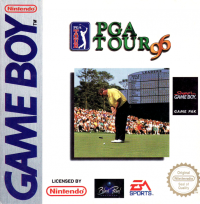
EA SPORTS and the PGA TOUR present the most realistic looking golf game for the 3DO Interactive Multiplayer. It features 3D championship Tournament Players Club courses complete with hills and valleys. Players can play as or against 9 PGA TOUR pros, whose actual digitized swings are included. When you enter a Tournament, you compete against the entire field of 58 pros. Key features include the official PGA TOUR license, digitized golfer swings, and instant replay with reverse angles. You can save players, statistics, and games across different modes: Tournament, Stroke, The Skins Game, and Match Play. The game also supports Mulligans, Gimmies, and digitized sounds.
Starting the Game
1. Turn ON the power switch on your 3DO Interactive Multiplayer. The READY light indicates that the unit is on. 2. Make sure a Control Pad is plugged into the Control Port on the console. If not, turn the player OFF, plug it in, and turn it ON again.
3. Open the 3DO disc tray. 4. Insert your PGA TOUR 96 game disc label side up and close the tray. The 3DO logo should appear. If it does not, turn the player OFF and restart. 5. Press any button to exit the introduction and title screens to reach the Main menu.
Selecting Options
The methods for selecting options and navigating menus are identical throughout the game. All default options are listed in bold type.
•
Press D-Pad ↑ to highlight options on a menu/screen.
•
Press D-Pad ↔ to cycle or toggle through different options.
•
Press C to select a highlighted option and proceed to the next menu.
•
Press A to back out of a setup or option menu and return to the previous screen.
Playing a Practice Hole
Use the Practice Hole mode to try a hole on a course of your choice with a generic player. Statistics are not kept in this mode.
To play a practice hole:
1. Select PRACTICE HOLE from the Main menu to open the Course Selection screen.
2. Use D-Pad ↑ to cycle through the three courses and press C to select.
•
To see a video of the course, highlight the movie reel icon with D-Pad ↔ and press C.
3. Use D-Pad ↑ to cycle through the 18 holes to view the overview, yardage, and par.
4. Press C to view the course overview and hole commentary, then proceed to the tee.
Player List
After selecting a game mode, you set up your scorecard by selecting one to four players. The Player list consists of a scorecard with entry slots and four Player icons: NEW, PRO, OTHER, and REMOVE.
To select players:
1. Use D-Pad ↕ to move the highlight carat to a Player entry slot.
2. Use D-Pad ↔ to highlight one of the four Player icons.
3. Press C to select the desired Player icon.
Creating a New Player
Selecting NEW displays a blank Players card where you can enter a name and create a new player. There are four different non-pro golfer animations, each assigned to a Player entry slot.
To create a new player:
1. Select NEW from the Player icons.
2. Enter a name using D-Pad ↑↓ to cycle through characters and D-Pad ←→ to move between them.
3. Press C to enter the name. You will then proceed to the Golf Bag screen.
Selecting Professionals
The PRO icon displays the nine featured PGA TOUR professionals: Craig Stadler, Tom Kite, Lee Janzen, Brad Faxon, Bruce Lietzke, Mark O'Meara, Fuzzy Zoeller, Davis Love III, and Peter Jacobsen.
To select a pro:
1. Use D-Pad to highlight the desired pro and press C to view their Info screen, which includes an audio tip.
2. Use D-Pad ⇧ to toggle between Play As or Play Against the selected pro.
•
Play As: You control the pro.
•
Play Against: The computer controls the pro.
3. Press C to confirm your selection and proceed to the Golf Bag screen.
Managing Saved Players
The OTHER icon lists all created players. You can select saved players or delete them.
•
To select a saved player, highlight the name with D-Pad ⇧, move to the green checkmark with D-Pad ⇧, and press C.
•
To delete a saved player, highlight the name, move to REMOVE, and press C.
NOTE: You cannot delete a saved player from a game that is currently saved.
Removing a Player
To remove a player from the current Player list:
1. Highlight the player you want to remove using D-Pad ⇧.
2. Highlight the REMOVE icon and press C.
The Rules Screen
The Rules screen allows you to set the Level, Caddie, Gimmie, Mulligan, Tee, and Pad options. These settings can also be changed during gameplay via the Settings menu.
LEVEL


.png)
.png)
.png)





 (Rev 1).png)

.png)
.png)




.png)
.png)
.png)


.png)
.png)




.png)

_1.png)
.png)



_1.jpg)
