Main Menu
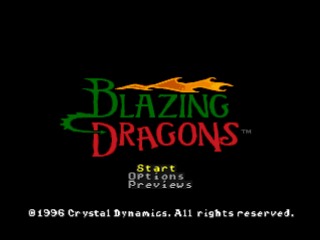
Use the Main Menu on the Title screen to:
Controls
Directional buttons up/down highlight an item.
X advances to the next screen or menu.
Start
Choose this item to start the game.
Options
Select items from this menu, using the same controls as mentioned above.
Note
You can also access Options screen items during a game by pressing Start to pause and display the Main Menu.
Sound Menu
Use this item to enable/disable the text display during the game, and to adjust the sound volume. A menu appears with the following options:
•
Text Display/SFX: Toggle ON or OFF by highlighting the item and pressing the Directional buttons.
•
Music/Speech Volume: Adjust the volume from 0 (OFF) to 7 (maximum) by highlighting each item and pressing the Directional buttons left/right.
•
Music Test: Sample the game's soundtrack and test your volume settings. Highlight this item, press X, and then press the Directional buttons left/right to hear the listed selection. (This option is not available during gameplay.)
•
Exit: Highlight and press X to return to the Options menu.
Controls
Use this item to reconfigure the button controls to your personal style of play. A menu appears:
1. Press the Directional buttons up/down to highlight a button function.
2. Press X, R1, R2, L1 or L2 on your controller. The button you press will be reconfigured to the highlighted function.
Making Changes During Play
All Main Menu options (except Music Test) are available during play, so you can make changes on the fly. Press Start during a game to display the Main Menu, and then proceed with any option as described on the previous pages.
Use the Main Menu options to:
•
Adjust the sound volume and turn the text display ON/OFF.
•
Reconfigure the controls.
•
Save current games, load previously saved games, and use other memory card options.
•
Pause/continue the current game.
Action Icons
Controls
Directional buttons move the current icon. For instance, move the Claw onto an item to pick it up, or move the Jaw near someone to start a conversation.
X uses the icon.
R1 cycles forward through the icons.
L1 cycles backward.
Note
As you cycle through the icons, any additional item Flicker is holding will be displayed in the sequence.
Jaw Icon
Eye
Wide awake when near something worth examining. Otherwise, droopy.
Foot
Frisky when the road ahead beckons. Otherwise, a loafer.
Jaw
Motor mouth when near someone worth talking to. Otherwise, quiet as a clam.
Claw
Goes into a "gotcha" grab when near a useful item. Otherwise, just hopeful.
Flicker's Face
Exit Flicker's Bag, Invention Book and other zoom-in screens.
Note
You can also press (default) to exit Flicker's Bag.
Why Do You Need Action Icons?
Because you always want to:
•
Examine everything in the room to see what items you might want to take with you. E is for Eye and Examine.
•
Follow every pathway, climb every mountain, ford every whoops, wrong dragon. F is for Foot, Follow, beat Feet.
•
Jive-talk with everybody. The ditziest dame or crabbiest workman can often spill a clue or bestow a verbal gift. J is for Jaw, Jive and Jabber.
•
Clutch and Carry moveable items. They are useful or valuable or both. C is for Claw, Clutch and Carry.
Note
Be sure to save your game often, especially after collecting items, examining rooms, talking to people, and succeeding at any difficult task.
What's In The Bag?
Flicker stashes items in his Bag. If he can pick something up and get it into his Bag, it's bound to be useful. (Non-useful items blow Flicker off with discouraging comments.)
Flicker's Bag is bottomless. It holds a lot of baggage. So don't overlook anything you could store in it during your travels.
To Open The Bag
Press, or point at the Bag icon in the corner of the screen and press X.
To Shut The Bag
Press, or point at Flicker's Face in the corner of the screen and press X.
To Put Something In The Bag
Move the Claw over an item you want to pick up, and press X. Then do one of the following:
•
Open the Bag, position the new item in it, and press X.
•
After picking up the item, drag the item to the Bag icon and press X.
•
When you pick up another item, it takes the place of the item you were holding. The previous item goes in the Bag automatically.
To Examine An Item In The Bag
1. Open the Bag.
2. Move the Eye to an item and press X. The item will provide information about itself.
To Take Something Out Of The Bag
1. Open the Bag.
2. Move the Claw over an item and press X.
3. Drag the item out of the Bag, and the Bag
.png)

_1.png)

.png)




_1.png)
_1.png)
_1.png)
.png)