SET-UP
1. Set up the Sega Saturn system, following the instructions in its hardware manual. 2. Plug in the game controller.
3. Make sure the power is OFF before inserting or removing a CD.
4. Insert the BLAZING DRAGONS disc, label side up, into the CD tray. Close the disc cover.
5. Turn the system ON by pressing the console's Power button.
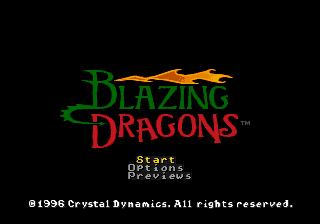
6. A series of logo screens appears, followed by the BLAZING DRAGONS introductory full-motion animation and title screen.
7. Watch the game demos, which begin after a few moments of idling at the title screen.
8. While at the title screen, press the Start button on the controller to begin the game.
NOTE: If nothing appears on screen, turn the Sega Saturn OFF. Make sure the system is set up correctly, then turn the unit ON. MAIN MENU
Use the Main Menu on the Title screen to:
•
Enjoy PREVIEWS of Crystal Dynamics' excellent new titles.
CONTROLS
•
D-Pad up/down highlights an item.
•
Any Action or Shift button advances to the next screen or menu.
START
Choose this item to start the game.
OPTIONS
Select items from this menu, using the same controls as mentioned above.
NOTE: You can also access the Options screen items during a game by pressing Start to pause and display the Main Menu.
SOUND MENU
Use this item to enable/disable the text display during the game, and to adjust the sound volume. A menu appears with the following options:
•
Text Display/SFX: Toggle ON or OFF by highlighting the item and pressing the D-Pad.
•
Music/Speech Volume: Adjust the volume from 0 (OFF) to 7 (maximum) by highlighting each item and pressing the D-Pad left/right.
•
Music Test: Sample the game's soundtrack and test your volume settings. Highlight this item, press Button B, and then press the D-Pad left/right to hear the listed selection. (This option is not available during gameplay.)
•
Exit: Highlight and press Button B to return to the Options menu.
Current settings may appear as:
CONTROLS MENU
Use this item to reconfigure the button controls to your personal style of play. A menu appears:
1. Press the D-Pad up/down to highlight a button function.
2. Press any Action or Shift button on your controller. That button will be reconfigured to the highlighted function.
Reference for reconfiguration:
•
Move Up/Down to Select Function
•
Press the Button You Wish to Use
Default mappings include:
PREVIEWS
Something for everyone! Crystal Dynamics presents the hottest titles in action, sports and adventure. Enjoy highlights from these power-packed games and start making that wish list. MAKING CHANGES DURING PLAY
All Main Menu options (except Music Test) are available during play, so you can make changes on the fly. Press Start during a game to display the Main Menu, and then proceed with any option as described on the previous pages.
Use the Main Menu options to:
•
Adjust the sound volume and turn the sound FX or text display ON/OFF.
•
Reconfigure the controls.
•
Save a game in progress.
•
Continue the current game.
ACTION ICONS
•
CLAW: Goes into a “gotcha” grab when near a useful item. Otherwise, just hopeful.
•
FLICKER'S FACE: Exit Flicker's Bag, Invention Book and other zoom-in screens.
NOTE: You can also press Button X (default) to exit Flicker's Bag.
Q: WHY DO YOU NEED ACTION ICONS?
A: Because you always want to:
•
Examine everything in the room to see what items you might want to take with you. E is for Eye and Examine.
•
Follow every pathway, climb every mountain, ford every . . . whoops, wrong dragon. . . . F is for Foot, Follow, beat Feet.
•
Jive-talk with everybody. The ditziest dame or crabbiest workman can often spill a clue or bestow a verbal gift. J is for Jaw, Jive and Jabber.
•
Clutch and Carry moveable items. They are useful or valuable or both. C is for Claw, Clutch and Carry.
NOTE: Be sure to save your game often, especially after collecting items, examining rooms, talking to people, and succeeding at any difficult task.
CARRYING & USING ITEMS
After picking up an item, such as the candelabra, you carry it with you. (You can't see the item, but it's there.)
1. When you cycle through Flicker's Action Icons (default Button A or Button C), the item appears in the cycle sequence.
2. Press Button B to use the item when it appears. Be sure to first move it to the spot





.png)







.png)