STARTING UP
Set up your PlayStation® game console according to the instruction manual. Make sure the power is off before inserting or removing a compact disc. Insert the Guardian's Crusade disc and close the disc cover. Insert game controllers and turn on the PlayStation game console. Follow the on-screen instructions to start a game. •
Memory Card Slot (located above the Controller Port)
GAME CONTROLS
The default controller configuration is shown here. All references to button selection in this manual refer to the default controller configuration.
Note: Guardian's Crusade does not support third party analog controllers.
QUICK START GUIDE
HOW TO START THE GAME
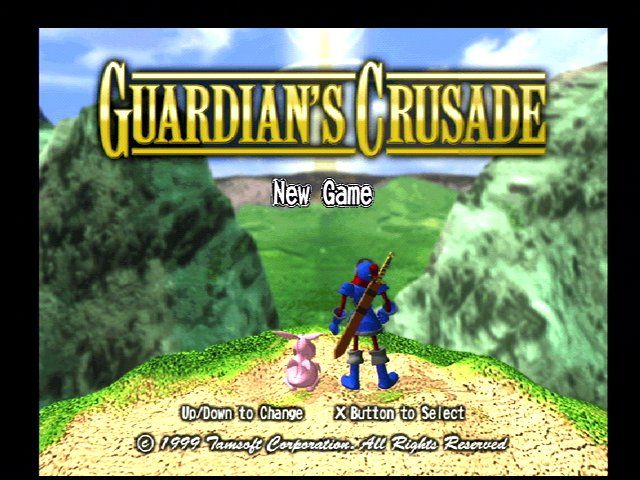
Insert the Guardian's Crusade CD-ROM into your PlayStation and press the Power button. When the opening movie finishes, the Guardian's Crusade title screen will appear. Using the Up and Down Directional Buttons, select one of the following options from the start-up menu: New Game, Continue, or Settings. Press the X Button to finalize your selection.
STARTING FROM THE BEGINNING
To start playing Guardian's Crusade, choose New Game.
ENTERING YOUR NAME
To input your name, use the Directional Buttons to highlight letters, then press the X Button to add the highlighted character to your name. You can erase one character at a time by pressing the A Button.
Select Exit when you have finished entering your name.
CONTINUING A SAVED GAME
Selecting the Continue option will bring up the load data screen. Choose which memory card slot you want to load from, then highlight the saved data that you want to load, and press the × Button. The PlayStation will load the saved data from the memory card. SAVING GAME DATA
Memory cards are used in the game to save your progress. Saved games use one memory block. At each resting point, you will be asked whether or not you wish to rest. If you choose Yes, you will then have the option of saving.
Try to save the game as often as you can. Staying at inns and other appropriate places will restore your hit points and psychic points to full strength, even if you choose not to save the game. Be considerate to your companion. Even if you're not tired, Baby may need to rest.
Note: Certain mega-memory cards that use compressed memory to store game data may be incompatible with Guardian's Crusade.
CHANGING THE GAME SETTINGS
If you choose Settings from the title screen or Settings from the in-game menu, the Settings menu will appear. Select menu items by pressing Up and Down, change settings by using the Left and Right Directional Buttons.
Controller Configuration and Default Settings can only be selected by pressing × after being highlighted.
Analog Controller
Enables and disables the Left Stick on analog controllers.
Note: Sony SCPH-1150 and SCPH-1180 controllers will not highlight this option, but can be used as analog controllers in the game as well.
Dual Shock
Choose whether or not the game will take advantage of the DUAL SHOCK™ analog controller. If set to On, your analog controller will vibrate in response to certain game conditions.
Fast Battle Mode
Speeds up battle action.
Auto Camera
If Auto Camera is set to On, the camera will follow you automatically.
Map Rotation
Choose whether the map will rotate as you turn, or remain stationary.
Sound
Switches between stereo and mono audio output.
SHOPS
ARMORER
At an armorer's shop, you can buy new weapons and armor, as well as trade in your old equipment for cash.
OUTFITTER
An outfitter's store is a great place to get food and other items that restore strength or cure illnesses. You can also sell items you no longer need for cash.
INN
A good night's sleep at an inn will restore both body (HP) and spirit (SP) to full strength. It will also give you an opportunity to save the current game data.
BUYING AND SELLING ITEMS
Anytime you enter a store and interact with the shopkeeper, the game will present you with three choices: Buy, Sell, or Exit.
Buy
If you select Buy, you will be shown the list of goods available for purchase at the store. Use the Directional Buttons to highlight the item you want to buy, then press the X button to purchase it.
Sell
If you select Sell you will be shown a list of everything in your possession. Use the Directional Buttons to highlight the item you want to sell, then press the X button to sell it.
Exit
Selecting Exit will return you to exploration mode.
USING THE GAME MENUS
THE MAIN MENU AND STATUS WINDOWS
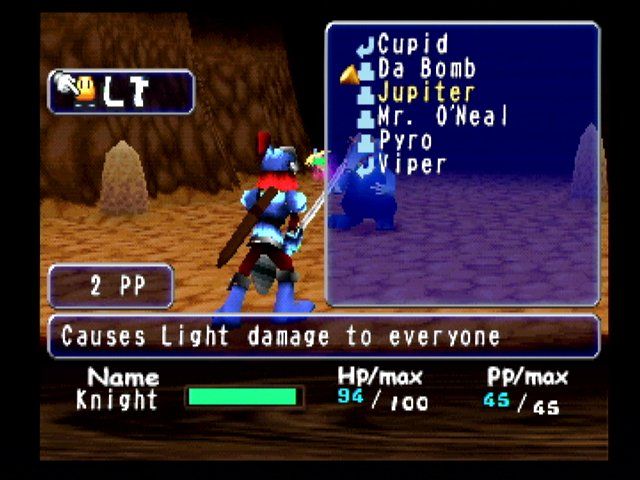
The upper left-hand side of the first menu screen is the Main menu. The Main menu allows you to choose from six submenus: Items, Equipment, Living Toys, Baby, Nehani, and Settings.
The rest of the first menu screen is devoted to five status windows which show the vital statistics of each character, how much cash you have, and what stage of the game you are in.
The large status window on the right side of the screen gives you a rundown on the vital statistics of the main characters. Use the Left and Right Directional Buttons to switch between viewing your statistics and Baby's.
You can check both your and Baby's current hit points and psychic points
.png)

.png)
